Connect to Forge migration tooling
Make Forge app distribution link available to workspace admin
If you want to make workspace admins aware of the Forge equivalent of your Connect app, you can add forgeAppLink to your
Connect app descriptor, setting it to the direct distribution link of your Forge app. This link will then be shown in your
Connect app entry on Workspace settings → Installed apps. See
Link Connect app to its Forge equivalent for details (sections 1–2).
Data migration/cleanup after Forge app install
The Addon client key API allows you to retrieve
the clientKey of the Connect app installation corresponding to your Forge app installation. This can assist you in
performing any data migration and/or cleanup of your Connect app once the Forge equivalent has been installed.
-
Follow the instructions in section 3 of Link Connect app to its Forge equivalent to add the
forgeAppIdkey to your Connect app descriptor. -
Upgrade your Connect app installations to pick up the descriptor change.
-
From your Forge app, call
api.asApp().requestBitbucket(route`/2.0/addon/{addon-key}/client-key`)to retrieve theclientKeyof the corresponding Connect app installation. -
Once you have the
clientKey, you can use it along with the secret you previously saved to mint a Connect JWT token. -
In your Forge app, you can configure the appropriate Forge external.fetch permission, then use basic fetch with the JWT token in the
Authorizationheader to access Bitbucket APIs to retrieve or cleanup your Connect app installation data. For example, after you receive the app installation event you can:- Use the application property API to get Connect app properties and store them in Forge storage.
- Use the application property API to delete Connect app properties.
- Use the addon API to remove the Connect app installation.
Simplified read-only access during migration
During the migration period, if you only need read-only access to the application properties of the Connect app
from your linked Forge app, then you can use api.asApp().requestBitbucket() to call any application property API
directly without needing to mint a Connect JWT token or use egress permissions.
This will only work if the Connect app installation is still there in the same workspace as the Forge app installation.
Listing on Marketplace
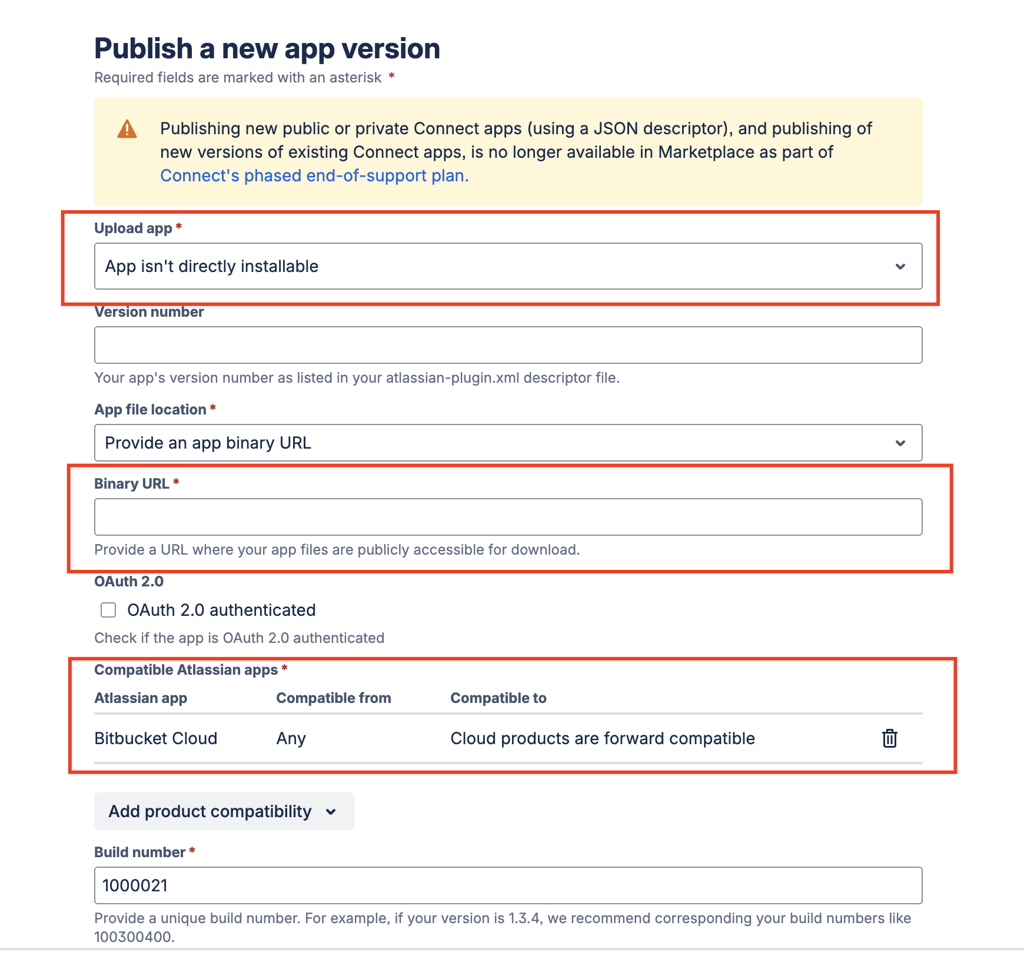
To preserve an existing Connect app's reviews and metadata in the Atlassian Marketplace, while allowing customers to find and install its Forge equivalent, you can list a Bitbucket Forge app as an informational listing version under the existing app:
-
Create a new version manually of the existing app:
In the Marketplace admin portal, navigate to the existing Connect app listing. Manually create a new version for the app. -
Set as Informational Listing:
During the version creation process, select the option App isn't directly installable. This makes the listing informational only and disables direct installation via the Marketplace.
See Listing a third-party integration on the Atlassian Marketplace for details. -
Provide the Forge Installation Link:
In the App File Location: Binary URL field, enter the Forge app distribution link (from the Forge developer console).
In the Learn More or description section, provide clear instructions and the distribution link for the Forge app, guiding customers to install it directly.
Block installation of Connect app
If you are at the point of wanting new users to use your Forge app instead of your Connect app, you can block new
installations of your Connect app by adding the boolean blockInstall field in your Connect app descriptor. See
Migrating to Forge app for details.
Once added and app installations updated, any new installation of your app will fail with the error message:
The app vendor has blocked addon {addon_key} from being installed.
To allow Connect app installations again, set blockInstall to false or remove it altogether, then update the app installations again.
Rate this page: