OAuth 2.0 (3LO) apps
This page shows you how to configure OAuth 2.0 (3LO) (also known as "three-legged OAuth" or "authorization code grants") apps. OAuth 2.0 (3LO) allows external applications and services to access Atlassian product APIs on a user's behalf. OAuth 2.0 (3LO) apps are created and managed in the developer console.
This page only applies to OAuth 2.0 apps (integrations) created in the developer console.
- For Forge apps and Connect apps, you don't need to configure authentication it is built into the app frameworks. See Security for Forge apps and Security for Connect apps.
- For simple scripts or to make REST API calls yourself, see Basic auth for REST APIs.
Overview
Important notice for apps using 3LO or API tokens
Apps that collect API tokens or instruct customers to create individual 3LO apps don't comply with our Security requirements for cloud apps and Acceptable use policy.
Follow these best practices:
- Build a single, distributable 3LO app for your integration.
- Clearly identify your app in the Marketplace (recommended).
- Work with customers to transition away from custom 3LO apps or API tokens.
OAuth 2.0 (3LO) involves three parties:
- An Atlassian site (resource)
- A user (resource owner)
- An external application/service (client).
For example, a Jira or Confluence site (resource), an Atlassian user (resource owner), and Gmail (client). Underlying the authorization interactions between these three parties is an authorization server.
To the user, the authorization process looks like this:
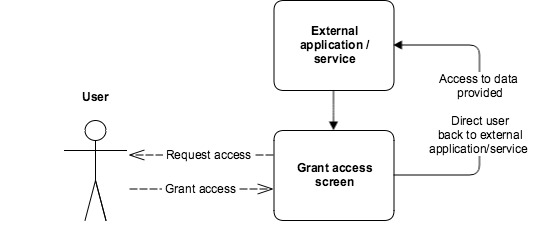
- The app directs the user to an Atlassian screen that prompts them to grant access to their data on the Atlassian site. The screen displays the access being requested in the Atlassian product.
- The user grants (or denies) access to their data on the Atlassian site, via the screen.
- The user is directed back to the external service. If the user granted access, the external service can now access data (within the specified scopes) from the Atlassian site on the user's behalf.
Underlying this process are a number of interactions between the external service, the app, and the authorization server. The full process is described in more detail below.
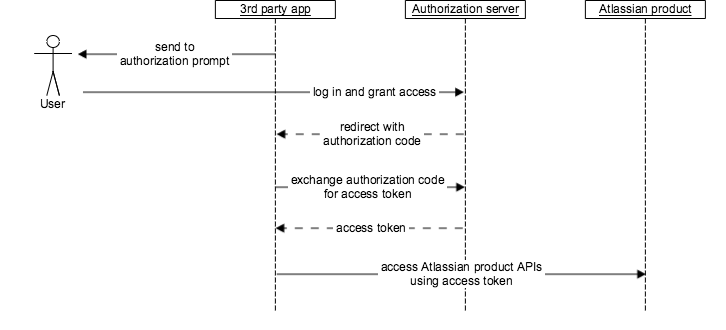
Note, this process assumes that the external service has registered an app with Atlassian that can use OAuth 2.0 (3LO).
- The user, in the external service, uses a feature that requires data from an Atlassian product.
- The external service seeks authorization to access the product's APIs, within the specified scopes, on behalf of the user.
- The user is directed to the Atlassian account login screen, if they are not already logged in, and prompted to log in.
- The user is directed to the authorization URL for the authorization server. This displays a screen that prompts the user to grant access to their data.
- If the user grants access, the user is directed to the callback URL with an authorization code.
- The app makes a POST to the token URL for the authorization server, exchanging the authorization code for an access token.
- The access token can now be used to access the APIs for the authorized Atlassian site on behalf of the user. This can be used until the token expires or is revoked.
Creating OAuth 2.0 (3LO) Apps
- From any page on developer.atlassian.com, select your profile icon in the top-right corner, and from the dropdown, select Developer console.
- In the Developer console, select the Create dropdown and choose OAuth 2.0 integration to create an OAuth 2.0 (3LO) app.
- Enter an app name and choose the OAuth 2.0 (3LO) grant type for your app.
When you create an OAuth 2.0 (3LO) app, you can choose between two grant types:
- Account-level grant: The user’s consent applies at the Atlassian account level. A single grant can cover access to multiple sites where your app is installed, subject to the scopes you request.
- Resource-level grant: The user’s consent is limited to the specific site(s) they select on the consent screen.
The resulting tokens can only be used with those selected site(s).
Enabling OAuth 2.0 (3LO)
Before you can implement OAuth 2.0 (3LO) for your app, you need to enable it for your app using the developer console.
- From any page on developer.atlassian.com, select your profile icon in the top-right corner, and from the dropdown, select Developer console.
- Select your app from the list (or create one if you don't already have one).
- Select Authorization in the left menu.
- Next to OAuth 2.0 (3LO), select Configure.
- Enter the Callback URL. Set this to any URL that is accessible by the app. When you implement OAuth 2.0 (3LO) in your app (see next section), the redirect_uri must match this URL.
- Click Save changes.
Note, if you haven't already added an API to your app, you should do this now:
- Select Permissions in the left menu.
- Next to the API you want to add, select Add.
Implementing OAuth 2.0 (3LO)
Once you have enabled OAuth 2.0 (3LO) for your app, you can implement it in your app's code. There are a number of key parts to this:
- Direct the user to the authorization URL to get an authorization code
- Exchange the authorization code for an access token
- Authorize any calls to the product APIs using the access token
- Check site access for the app
1. Direct the user to the authorization URL to get an authorization code
As described in the Overview above, your app should start the authorization flow by directing the user to the authorization URL:
1
2https://auth.atlassian.com/authorize?
  audience=api.atlassian.com&
  client_id=YOUR_CLIENT_ID&
  scope=REQUESTED_SCOPE_ONE%20REQUESTED_SCOPE_TWO&
  redirect_uri=https://YOUR_APP_CALLBACK_URL&
  state=YOUR_USER_BOUND_VALUE&
  response_type=code&
  prompt=consent
Use the authorization URL in a GET request. You can get this URL by going to your app in the developer console, selecting Authorization in the left menu, and selecting Configure next to OAuth 2.0 (3LO). Alternatively, you can construct the URL manually (for example, if you want to specify scopes from multiple products).
The query parameters for the authorization URL are described below:
audience: (required) Set this toapi.atlassian.com.client_id: (required) Set this to the Client ID for your app. Find this in Settings for your app in the developer console.scope: (required) Set this to the desired scopes:- Separate multiple scopes with a space.
- Only choose from the scopes that you have already added to the APIs for your app in the developer console.
- You may specify scopes from multiple products.
redirect_uri: (required) Set this to the callback URL configured in Authorization for your app in the developer console.state: (required for security) Set this to a value that is associated with the user you are directing to the authorization URL, for example, a hash of the user's session ID. Make sure that this is a value that cannot be guessed. You may be able to generate and validate this value automatically, if you are using an OAuth 2.0 client library or an authentication library with OAuth 2.0 support. For more information, including why this parameter is required for security, see What is the state parameter used for? below.response_type: (required) Set tocodeas you are requesting an authorization code (not a token).prompt: (required) Set toconsentso that the screen prompting the user to grant access will display.
If successful, the user will be redirected to the app's callback URL, with an authorization code provided
as a query parameter called code. This code can be exchanged for an access token, as described in step 2.
Determining the scopes required for an operation
To find out which scopes an operation requires, check the OAuth scopes required field in the relevant API documentation:
- Jira Cloud platform REST API documentation
- Jira Service Management Cloud REST API documentation
- Jira Software Cloud REST API documentation
- Confluence Cloud REST API documentation
If the operation has the statement Apps can't access this REST resource, you can't use it with OAuth 2.0 (3LO).
Note, the permissions held by the user an app is acting for always constrain the app, regardless of the app's scopes. For example, if a Jira app has the manage:jira-project scope but the user does not have the Administer Jira permission, the app can not create projects.
2. Exchange authorization code for access token
1
2curl --request POST \
  --url 'https://auth.atlassian.com/oauth/token' \
  --header 'Content-Type: application/json' \
  --data '{"grant_type": "authorization_code","client_id": "YOUR_CLIENT_ID","client_secret": "YOUR_CLIENT_SECRET","code": "YOUR_AUTHORIZATION_CODE","redirect_uri": "https://YOUR_APP_CALLBACK_URL"}'
client_id: (required) Set this to the Client ID for your app. Find this in Settings for your app in the developer console.client_secret: (required) Set this to the Secret for your app. Find this in Settings for your app in the developer console.code: (required) Set this to the authorization code received from the initial authorize call (described above).redirect_uri: (required) Set this to the callback URL configured for your app in the developer console.
If successful, this call returns an access token similar to this:
1
2HTTP/1.1 200 OK
Content-Type: application/json

{
  "access_token": <string>,
  "expires_in": <expiry time of access_token in second>,
  "scope": <string>
}
This access token can be used to make API calls, as described below.
3. Make calls to the API using the access token
Your app now has an access token that it can use to authorize requests to the APIs for the Atlassian site. To make requests, do the following:
- Get the
cloudidfor your site. - Construct the request URL using the
cloudid. - Call the API, using the access token and request URL.
3.1 Get the cloudid for your site
Make a GET request to https://api.atlassian.com/oauth/token/accessible-resources passing the access token as a bearer token in the header of the request. For example:
1
2curl --request GET \
  --url https://api.atlassian.com/oauth/token/accessible-resources \
  --header 'Authorization: Bearer ACCESS_TOKEN' \
  --header 'Accept: application/json'
This will retrieve the sites that have scopes granted by the token (see
Check site access for the app below for details). Find your site in the response and
copy the id. This is the cloudid for your site.
Here's a few example responses:
- A Jira site:
1
2[
  {
    "id": "1324a887-45db-1bf4-1e99-ef0ff456d421",
    "name": "Site name",
    "url": "https://your-domain.atlassian.net",
    "scopes": [
      "write:jira-work",
      "read:jira-user",
      "manage:jira-configuration"
    ],
    "avatarUrl": "https:\/\/site-admin-avatar-cdn.prod.public.atl-paas.net\/avatars\/240\/flag.png"
  }
]
- A Jira Service Management site:
1
2[
  {
    "id": "1324a887-45db-1bf4-1e99-ef0ff456d421",
    "name": "Site name",
    "url": "https://your-domain.atlassian.net",
    "scopes": [
      "write:jira-work",
      "read:jira-user",
      "read:servicedesk-request"
    ],
    "avatarUrl": "https:\/\/site-admin-avatar-cdn.prod.public.atl-paas.net\/avatars\/240\/flag.png"
  }
]
- A Confluence site:
1
2[
  {
    "id": "1324a887-45db-1bf4-1e99-ef0ff456d421",
    "name": "Site name",
    "url": "https://your-domain.atlassian.net",
    "scopes": [
      "write:confluence-content",
      "read:confluence-content.all",
      "manage:confluence-configuration"
    ],
    "avatarUrl": "https:\/\/site-admin-avatar-cdn.prod.public.atl-paas.net\/avatars\/240\/flag.png"
  }
]
3.2 Construct the request URL
Requests that use OAuth 2.0 (3LO) are made via api.atlassian.com (not https://your-domain.atlassian.net).
Construct your request URL using the following structure:
- Jira apps:
https://api.atlassian.com/ex/jira/{cloudid}/{api} - Confluence apps:
https://api.atlassian.com/ex/confluence/{cloudid}/{api}
where:
{cloudid}is thecloudidfor your site that you obtained in the previous step. For example,11223344-a1b2-3b33-c444-def123456789.{api}is the base path and name of the API. For example:/rest/api/2/projectfor the project endpoint in the Jira REST API./rest/servicedeskapi/requestfor the request endpoint in the Jira Service Management REST API./rest/api/spacefor the space endpoint in the Confluence REST API.
Your request URL should look something like this (using the example cloudid and Jira API above):
https://api.atlassian.com/ex/jira/11223344-a1b2-3b33-c444-def123456789/rest/api/2/project
Note that if you are copying the examples in the API documentation, you will need to amend the example
URLs as they currently use https://your-domain.atlassian.net/{api} rather than the request URLs shown above.
3.3 Call the API
Make the API call passing the access token as a bearer token in the header of the request. This will authorize the request on the user's behalf.
1
2curl --request GET \
  --url <request URL> \
  --header 'Authorization: Bearer ACCESS_TOKEN' \
  --header 'Accept: application/json'
For example:
1
2curl --request GET \
  --url https://api.atlassian.com/ex/jira/11223344-a1b2-3b33-c444-def123456789/rest/api/2/project \
  --header 'Authorization: Bearer aBCxYz654123' \
  --header 'Accept: application/json'
4. Check site access for the app
An authorization grant is when a user consents to your app. For OAuth 2.0 (3LO) apps, the consent is valid for all sites the app is installed in, as long as the scopes used by your app's APIs don't change. A user's grant can change when either of the following occur:
- The user revokes the grant. The app cannot work anywhere after a user has revoked their consent to the app.
- The user consents to a new grant of the app. The scopes in the new grant override the scopes in the existing grant.
Therefore, since a grant can change over time, it's important that you check that the user
has granted the app the scopes it requires and that your app has correct access to a site and its APIs.
To check this, call the accessible-resources endpoint on
https://auth.atlassian.com (you used this endpoint in a previous step to get the cloudid
for your site). The endpoint is described in detail below:
Get list of resources
GET /oauth/token/accessible-resources
Request
Request parameters: None
Example:
1
2curl --header 'Authorization: Bearer <access_token>' \
  --url 'https://api.atlassian.com/oauth/token/accessible-resources'
Response
200 OK example (Jira):
1
2[
  {
    "id": "8594f221-9797-5f78-1fa4-485e198d7cd0",
    "name": "Site name 2",
    "url": "https://your-domain2.atlassian.net",
    "scopes": [
      "write:jira-work",
      "read:jira-user"    ],
    "avatarUrl": "https:\/\/site-admin-avatar-cdn.prod.public.atl-paas.net\/avatars\/240\/koala.png"
  },
  {
    "id": "1324a887-45db-1bf4-1e99-ef0ff456d421",
    "name": "Site name 1",
    "url": "https://your-domain1.atlassian.net",
    "scopes": [
      "write:jira-work",
      "read:jira-user",
      "manage:jira-configuration"    ],
    "avatarUrl": "https:\/\/site-admin-avatar-cdn.prod.public.atl-paas.net\/avatars\/240\/flag.png"
  }
]
Using accessible-resources with different grant types
The GET /oauth/token/accessible-resources endpoint always returns the sites (resources) that the
current access token can be used with, but the result set depends on the grant type:
-
Account-level grants
- The response can include multiple sites.
- Sites may be added to the same grant over time when the user later consents for additional sites using the same app and Atlassian account.
- Existing access tokens can then be used with all sites that are part of the account-level grant (subject to scopes and token expiry).
-
Resource-level (site-restricted) grants
- The response only includes the specific site(s) the user selected on the consent screen when they created the grant.
- Tokens derived from this grant cannot be used with any site that is not listed in the
accessible-resourcesresponse.
Your app should always:
- Call
GET /oauth/token/accessible-resourceswith the current access token. - Determine which site(s) are available for that token.
- Use the returned
id(thecloudid) to construct API URLs, for example:https://api.atlassian.com/ex/jira/{cloudid}/{api}https://api.atlassian.com/ex/confluence/{cloudid}/{api}
For example, for an account-level grant, a token might return multiple Jira sites:
1
2[
  {
    "id": "8594f221-9797-5f78-1fa4-485e198d7cd0",
    "name": "Site name 2",
    "url": "https://your-domain2.atlassian.net",
    "scopes": [
      "write:jira-work",
      "read:jira-user"
    ],
    "avatarUrl": "https://site-admin-avatar-cdn.prod.public.atl-paas.net/avatars/240/koala.png"
  },
  {
    "id": "1324a887-45db-1bf4-1e99-ef0ff456d421",
    "name": "Site name 1",
    "url": "https://your-domain1.atlassian.net",
    "scopes": [
      "write:jira-work",
      "read:jira-user",
      "manage:jira-configuration"
    ],
    "avatarUrl": "https://site-admin-avatar-cdn.prod.public.atl-paas.net/avatars/240/flag.png"
  }
]
Each item in the response describes a container (for example, a Jira site) that your app has access to, the scopes associated with that access, and metadata such as the name and avatar URL (if any). It's important to understand that this endpoint won't tell you anything about the user's permissions, which may limit the resources that your app can access via the site's APIs.
Note, the id is not unique across containers (that is, two entries in the results can have the same
id), so you may need to infer the type of container from its scopes.
Managing your OAuth 2.0 (3LO) apps
You can securely manage all your OAuth 2.0 (3LO) and Forge apps in one place using the Atlassian developer console. The console lets you view information about your apps, including their environments and scopes.
To access the console:
- From any page on developer.atlassian.com, select your profile icon in the top-right corner.
- From the dropdown, select Developer console.
Your existing OAuth 2.0 (3LO) and Forge apps are listed in the order they were created. OAuth 2.0 (3LO) apps are displayed with a 3LO lozenge.
Connect apps are not listed in the console. To learn more about platform and framework options for building apps, see Cloud development platform overview.
The following details are listed:
- App name: the name of your app
- Distribution status:
- Sharing: your app can be shared via link
- Not sharing: your app can't be shared via link
- Updated on: the time and date you created your app or updated its settings
You can search for an app using the search bar above the app table.
View app details
Select any app on the My apps page to get more information about the app, including app ID, description, authorization, and permissions.
The Overview page displays the following panels:
- App details
- App ID: the identifier for your app
- Description: the description of your app
- Distribution
- Distribution status: whether your app can be used by others
- Permissions
- API scopes: which scopes are currently defined in your app
- Authorization
- Authorization type: the authorization configured for your app
Select Settings in the left menu to view your app's authentication details, or to change your app's name, description, or avatar.
View app permissions
You can view the level of access your Forge app has to an Atlassian user's account by selecting Permissions in the left menu, or selecting the Permissions panel.
The Permissions page lists the APIs included in your app.
To add or remove individual scopes for an API, select Configure, and in the list of scopes, select Add or Remove. Note that users who previously consented to the scopes will need to re-consent to the new scopes.
Delete your app
You can only delete an app if it's not installed anywhere.
- If your app is currently installed on a site, uninstall it.
- Select Settings in the left menu, and select Delete app.
Distributing your OAuth 2.0 (3LO) apps
When you create an OAuth 2.0 (3LO) app, it's private by default. This means that only you can install and use it. If you want to distribute your app to other users, you must enable sharing.
- From any page on developer.atlassian.com, select your profile icon in the top-right corner, and from the dropdown, select Developer console.
- Select your app from the list.
- Select Distribution in the left menu.
- Enable sharing using the toggle switch in the Enable sharing section.
- Select Authorization in the left menu, and under OAuth 2.0 (3LO), select Configure.
- Copy the Authorization URL(s) and distribute to your users.
- Users trying to install an unapproved OAuth 2.0 integration are warned that the app has not yet been reviewed by Atlassian. To get your integration reviewed and approved, follow the steps on Listing a third party integration on the Atlassian Marketplace. Note, you don't need an informative Atlassian Marketplace listing to submit your integration for approval.
Note that:
- You'll have to send the link to all the users you want to grant access to.
- Enabling sharing doesn't make your app available on the Atlassian Marketplace. Although OAuth 2.0 (3LO) apps can be listed on the Atlassian Marketplace, they will appear as informational listings only, with limited Marketplace features.
Known issues
We are aware of the following issues with OAuth 2.0 (3LO). Some of the issues have workarounds, which are described below. Others do not have workarounds, but are listed so that you are aware of them. If you discover an issue that is not listed below, please report it to Developer and Marketplace support.
- Implicit grant flow not supported
- Site-scoped grants limitations
- Apps cannot declare searchable entity properties
Implicit grant flow not supported
OAuth 2.0 (3LO) currently supports the code grant flow only. It does not support the implicit grant flow. We understand that this is preventing people from using OAuth 2.0 (3LO) for standalone mobile apps and web/JavaScript (Chrome, Electron) apps and we are investigating ways to address this.
Grant limitations
Historically, OAuth 2.0 (3LO) only supported account grants, where the user consents to the app at the Atlassian account level and a single grant can cover multiple sites where the app is installed.
OAuth 2.0 (3LO) now also supports resource-level (site-restricted) grants, which limit access to specific site(s).
This further means:
- a user consents to the app making requests on their behalf for only the sites they have access to,
- and the app can make requests on their behalf for only the sites where the app is installed.
There are a few limitations to this:
- The consent screen currently requires the user to select the site where they want to install the app. This can be confusing for users who want to install the app into multiple sites. To do this, the user would need to repeat the installation process multiple times.
- An admin can't revoke a user's access to an app through the Connected Apps user screen. This is because the OAuth grant given by the user is between the app and the user. An admin can only choose to uninstall the app to restrict a user's access.
(Jira only) Apps cannot declare searchable entity properties
Jira apps can store and read the values of entity properties (issue properties and project properties) using the REST API. However, in the current implementation of OAuth 2.0 (3LO), Jira apps cannot declare searchable entity properties. This means that if your app uses OAuth 2.0 (3LO), it won't be able to refer to entity properties in JQL queries.
Frequently asked questions
- How do I get a new access token, if my access token expires or is revoked?
- What happens if a user grants access to more than one Atlassian site for an app?
- What is the state parameter used for?
- How do I retrieve the public profile of the authenticated user?
- Is CORS whitelisting supported?
- How do I configure the refresh token behavior?
How do I get a new access token, if my access token expires or is revoked?
You have two options:
- Initiate the entire authorization flow from the beginning again.
- Use a refresh token to get another access token and refresh token pair.
Use a refresh token to get another access token and refresh token pair
Refresh tokens are implemented using rotating refresh tokens.
Rotating refresh tokens issue a new, limited life refresh token each time they are used. This mechanism improves on single persistent refresh tokens by reducing the period in which a refresh token can be compromised and used to obtain a valid access token.
These are the configuration options for a rotating refresh token:
| Term | Default | Description |
|---|---|---|
| Inactivity expiry time | 90 days | A rotating refresh token expires if the user is inactive for this period. Each new rotating refresh token resets the inactivty expiry time and allocates another 90 days. |
| Reuse interval or leeway | 10 minutes | Within this period, the breach detection features don't apply when exchanging a refresh token multiple times. This interval helps avoid network concurrency issues. |
To get a refresh token in your initial authorization flow, add offline_access
to the scope parameter of the authorization URL. Once you have the refresh token,
exchange it for an access token by calling the token URL.
Use the following values to construct the request body:
grant_type: Set torefresh_token.client_id: (required) Set this to the Client ID for your app. Find this in Settings for your app in the developer console.client_secret: (required) Set this to the Secret for your app. Find this in Settings for your app in the developer console.refresh_token: The refresh token that you obtained with your original access token.
1
2curl --request POST \
  --url 'https://auth.atlassian.com/oauth/token' \
  --header 'Content-Type: application/json' \
  --data '{ "grant_type": "refresh_token", "client_id": "YOUR_CLIENT_ID", "client_secret": "YOUR_CLIENT_SECRET", "refresh_token": "YOUR_REFRESH_TOKEN" }'
If successful, a new access token is returned that you use to make calls to the product API. You receive a new refresh token as well and the refresh token you used for the request is disabled.
This is an example response with a refresh token:
1
2HTTP/1.1 200 OK
Content-Type: application/json

{
  "access_token": <string>,
  "refresh_token": <string>,
  "expires_in": <expiry time of access_token in second>,
  "scope": <string>
}
Otherwise, if an error is returned, see the list below for possible causes:
-
403 Forbiddenwith{"error": "invalid_grant", "error_description": "Unknown or invalid refresh token."This error is returned for the following reasons:
- The user's Atlassian account password has been changed. Change the password back to the original password, or initiate the entire authorization flow from the beginning again.
- Your app is using rotating refresh tokens and the exchange of refresh token failed because:
- Your refresh token has expired. Users need to initiate the entire authorization flow from the beginning to get a new refresh token.
- Your app is not replacing the previous refresh token with the new refresh token returned during access token request.
What happens if a user grants access to more than one Atlassian site for an app?
Only one grant exists per app for a given Atlassian account. If a user grants access to more than one Atlassian site for this app, then the additional sites are added to the same grant. This means that existing access tokens will give you access to all sites and scopes that a user has granted your app access to.
What is the state parameter used for?
The primary use for the state parameter is to associate a user with an authorization flow. This makes the authorization flow more secure, as the authorization flow cannot be hijacked to associate a user's account with another user's token. Consider the following example scenario using Jira:
- An application, named Incidents_Application, has a Jira integration that implements OAuth 2.0
authorization code grants but does not specify a
stateparameter. - A malicious actor, Mallory, initiates a Jira authorization flow for herself. This could be via the
Incidents_Application or by crafting an authorization URL that includes the Incidents_Application's
client_id. - Mallory blocks the request to the Incidents_Application's callback URL during the authorization flow.
She records the URL, including the
codeparameter. - Mallory tricks another user, Edward, into visiting the callback URL in his browser.
- The Incidents_Application handles the callback and exchanges Mallory's code for an access token to Jira. Edward is logged into the Incidents_Application and the callback request came from Edward's browser, so Mallory's token is now linked to Edward's account.
- Mallory now has access to information sent to Edward by the Incidents_Application via the Jira integration. For example, the Incidents_Application may create a Jira ticket about a confidential incident, where the ticket is intended to be restricted to Edward but is restricted to Mallory instead.
If the Incidents_Application integration had used a state parameter, the Incidents_Application
would have known that the callback URL belonged to Mallory and ignored the request.
Other uses for the state parameter include:
- Acting as a key for keeping track of specific details about the flow.
- Returning the user to the right step in their workflow after sending them through the authorization flow.
How do I retrieve the public profile of the authenticated user?
The User Identity API is used to retrieve the public profile of the authenticated user. If you want to use this API, do the following:
- Add the User Identity API to your app in the developer console.
- Add the
read:mescope to the authorization URL for your app.
An example of a request to retrieve the public profile of the authenticated user is shown below:
1
2curl --request GET \
  --url https://api.atlassian.com/me \
  --header 'Authorization: Bearer ACCESS_TOKEN' \
  --header 'Accept: application/json'
Example response:
1
2{
  "account_type": "atlassian",
  "account_id": "112233aa-bb11-cc22-33dd-445566abcabc",
  "email": "mia@example.com",
  "name": "Mia Krystof",
  "picture": "https://avatar-management--avatars.us-west-2.prod.public.atl-paas.net/112233aa-bb11-cc22-33dd-445566abcabc/1234abcd-9876-54aa-33aa-1234dfsade9487ds",
  "account_status": "active",
  "nickname": "mkrystof",
  "zoneinfo": "Australia/Sydney",
  "locale": "en-US",
  "extended_profile": {
    "job_title": "Designer",
    "organization": "mia@example.com",
    "department": "Design team",
    "location": "Sydney"
  }
}
Is CORS whitelisting supported?
CORS whitelisting is supported for api.atlassian.com. CORS whitelisting allows OAuth 2.0 authorization
code grants to work for browser-based XHR or fetch requests subject to cross-origin restrictions, such
as Chrome or Electron apps.
How do I configure the refresh token behavior?
Each time they are used, rotating refresh tokens issue a new limited life refresh token that is valid for 90 days. This mechanism improves on single persistent refresh tokens by reducing the period in which a refresh token can be compromised and used to obtain a valid access token.
If your refresh token expires, your user will need to complete the entire authorization flow from the beginning again.
Every new refresh token returned invalidates the refresh token used to get the new access token. Your code should replace the existing refresh token with the new refresh token. See Use a refresh token to get another access token and refresh token pair for more details.
This TypeScript example shows one way to update the refresh token:
1 2const response = await fetch(`https://auth.atlassian.com/oauth/token`, { method: 'POST', headers: { 'content-type': 'application/json' }, body: JSON.stringify({ grant_type: 'refresh_token', client_id: this.clientId, client_secret: this.clientSecret, refresh_token: this.refreshToken }) }); const json = response.json(); this.accessToken = json.access_token; if(json.refresh_token) { this.refreshToken = json.refresh_token; }
Rate this page: