Call the Teamwork Graph API (EAP)
The Teamwork Graph API is available through Forge's Early Access Program (EAP).
EAPs are offered to selected users for testing and feedback purposes. These features are unsupported and are subject to change without notice.
You must only install apps that call the Teamwork Graph API in test organizations. Apps calling
the Teamwork Graph API require the read:graph:jiraor read:graph:confluence scope, which provides access to Teamwork Graph
data across your entire organization. While apps still respect end-user permissions, this scope may
grant access to sensitive information. For safety, only install these apps in organizations with test
data unless you have an approved path to production.
Additionally, this EAP has significant limitations. To review the full list of limitations, see Limitations and considerations.
You must be part of this EAP in order to use the Teamwork Graph API. Express interest in joining through this form.
This tutorial shows you how to query data from Teamwork Graph using the GraphQL API in a Forge app. You'll learn how to use Cypher queries to traverse the graph and retrieve connected data.
What you'll learn
In this tutorial, you'll learn how to:
- Set up your Forge app to access the Teamwork Graph API
- Use Cypher queries to traverse relationships in the Graph
- Execute GraphQL queries with Cypher to retrieve data
- Test your queries using the GraphiQL playground
- Handle common errors and troubleshooting scenarios
Before you begin
To complete this tutorial, you'll need:
- A Forge app set up for development. See Getting started with Forge.
- Access to the Teamwork Graph API EAP and your app allowlisted for testing. Express interest in joining through this form.
- A test organization for development and testing. Because apps using the Teamwork Graph API can't be installed in organizations with production data during EAP, you'll need a test organization. In your test org, ensure you have the relevant Atlassian data available for querying. If you want to test with external data sources, such as Google Drive or GitHub, configure connectors for your test organization.
You should also be familiar with:
- Object types in Teamwork Graph - the different types of objects you can query.
- Relationships in Teamwork Graph - how objects connect to each other.
- The basic of GraphQL and Cypher - the languages you'll use to query Teamwork Graph.
Understanding the Teamwork Graph API
The Teamwork Graph API uses a two-layer query approach:
- Cypher queries - A graph query language that lets you traverse relationships and find connected data.
- GraphQL wrapper - Wraps Cypher queries and returns full object details.
This pattern allows you to first find the objects you need using Cypher's powerful graph traversal, then use GraphQL to retrieve the specific fields you want from those objects.
Step 1: Configure your Forge app
If you haven't already, create a new Forge app following the Getting started with Forge guide. Once you have a Forge app set up, you'll need to configure it to access the Teamwork Graph API.
Add required scope to your manifest
To access the Teamwork Graph API, add the appropriate scope to your app's manifest.yml file based
on which Atlassian app you are developing for:
For Jira apps:
1
2
3
4permissions:
  scopes:
    - 'read:graph:jira'
For Confluence apps:
1
2
3
4permissions:
  scopes:
    - 'read:graph:confluence'
The read:graph:jira and read:graph:confluence scopes grant your app read access to Teamwork Graph data across the entire organization, including objects (work items, documents, projects, teams, users), relationships, and metadata. While apps respect end-user permissions, these scopes provide organization-wide access. This is why apps using these scopes should only be installed in test organizations during the EAP. See limitations and considerations for more details.
Without the appropriate scope for your app, your forge deploy command will fail when making Teamwork Graph API calls.
Step 2: Test the API connection
Before building complex queries, verify your app can successfully connect to the Teamwork Graph API.
Use the echo query
The simplest way to test connectivity is with the built-in echo query.
In your Forge app, you can either use the backend SDK package @forge/api, or frontend SDK package @forge/bridge.
1
2
3
4
5
6
7
8
9
10
11
12
13
14// Option 1) Forge app backend code
import api from '@forge/api';

async function testConnection() {
  const response = await api.asUser().requestTeamworkGraph(`
    query {
      echo(myString: "Hello World!")
    }
  `);

  const data = await response.json();
  console.log(data); // Should log: { data: { echo: "Hello World!" } }
}
1
2
3
4
5
6
7
8
9
10
11
12
13
14// Option 2) Forge app frontend code
import { requestTeamworkGraph } from '@forge/bridge';

async function testConnection() {
  // Frontend API calls will always run as the current user
  const { data } = await requestTeamworkGraph(`
    query {
      echo(myString: "Hello World!")
    }
  `);

  console.log(data); // Should log: { echo: "Hello World!" }
}
If this query succeeds, your app is properly configured and authenticated.
Use the GraphiQL Playground
You can also test queries interactively using the GraphiQL Playground. Access it at:
1
2https://<your-site>.atlassian.net/gateway/api/graphql/twg
For example, if your site is abc.atlassian.net, the playground URL would be:
1
2https://abc.atlassian.net/gateway/api/graphql/twg
To find your cloud ID, you can use the Atlassian Cloud Admin API or extract it from your site's ARI.
The playground provides:
- Interactive query editor with autocomplete
- Schema documentation browser
- Real-time query validation
- Example queries to get started
Step 3: Write your first Cypher query
Now let's retrieve real data from the Teamwork Graph. For this example, we'll fetch all teams that a user belongs to with the relationship User is in team.
The Cypher query
1
2
3MATCH (user:IdentityUser {ari: $id})-[:user_is_in_team]->(team:IdentityTeam)
RETURN collect(distinct team) as teams
Let's break this down:
MATCH- Finds patterns in the graph(user:IdentityUser {ari: $id})- Finds a user object with a specific ARI (passed as a parameter)-[:user_is_in_team]->- Traverses the "user is in team" relationship(team:IdentityTeam)- Finds connected team objectsRETURN collect(distinct team) as teams- Returns all unique teams as a list
To learn more about the user_is_in_team relationship, see the relationship documentation for User is in team.
About ARIs
An Atlassian Resource Identifier (ARI) is a globally unique identifier for objects in Teamwork Graph. In this query, we use the user's ARI to find their specific user object.
ARIs for users follow this pattern:
1
2ari:cloud:identity::user/{userId}
For example:
1
2ari:cloud:identity::user/712020:5fb4febcfacfd60076a1c699
For more information about ARIs, see this page: Understanding ARIs
Step 4: Wrap Cypher in GraphQL
To execute the Cypher query and retrieve full object details, wrap it in a GraphQL query that uses the cypherQuery field.
The complete GraphQL query
1
2
3
4
5
6
7
8
9
10
11
12
13
14
15
16
17
18
19
20
21
22
23
24
25
26
27query companyName_userTeams($cypherQuery: String!, $params: CypherRequestParams) {
  cypherQuery(query: $cypherQuery, params: $params) {
    edges {
      node {
        columns {
          key
          value {
            __typename
            ... on CypherQueryResultListNode {
              nodes {
                id
                data {
                  __typename
                  ... on AtlassianTeam {
                    id
                    displayName
                  }
                }
              }
            }
          }
        }
      }
    }
  }
}
Understanding the result structure
The GraphQL query converts the raw Cypher results into fully-populated objects with all their fields.
Key points about the query structure:
CypherQueryResultListNode- Used because the Cypher query returns a list (viacollect())CypherQueryResultNode- Would be used if the Cypher query returned a single objectdata { ... on Team }- Populates team objects with specific fields likeidanddisplayName
You can explore all available fields for teams in the AtlassianTeam object type documentation.
You can also explore other CypherQueryResult types in the GraphQL and Cypher documentation
Query variables
Pass the Cypher query and its parameters as GraphQL variables:
1
2
3
4
5
6
7{
  "cypherQuery": "MATCH (user:IdentityUser {ari: $id})-[:user_is_in_team]->(team:IdentityTeam) RETURN collect(distinct team) as teams",
  "params": {
    "id": "ari:cloud:identity::user/712020:5fb4febcfacfd60076a1c699"
  }
}
Step 5: Implement in your Forge app
Now let's implement this query in a Forge app.
Make the API call
1
2
3
4
5
6
7
8
9
10
11
12
13
14
15// Option 1) Forge app backend code

// Makes an API call to TWG
export async function executeCypherGraphQL(graphqlQuery, variables, headers) {
    console.log('executing cypher graphql', graphqlQuery, variables, headers);
    return api.asUser()
        .requestTeamworkGraph(query, variables, null, null, headers)
        .then(async r => {
            console.log(`response status: ${r.status}`);
            const json = await r.json();
            console.log(`response json: ${JSON.stringify(json)}`);
            return json;
        });
}
1
2
3
4
5
6
7
8
9
10
11
12
13// Option 2) Forge app frontend code

// Makes an API call to TWG
export async function executeCypherGraphQL(graphqlQuery, variables) {
    console.log('executing cypher graphql', graphqlQuery, variables);
    const { data, errors } = await requestTeamworkGraph(graphqlQuery, variables);
    console.log(`response data: ${JSON.stringify(data)}`);
    if (errors?.length) {
        console.error('teamwork graph errors', errors);
    }
    return { data, errors };
}
Define the query and variables
1
2
3
4
5
6
7
8
9
10
11
12
13
14
15
16
17
18
19
20
21
22
23
24
25
26
27
28
29
30
31
32
33
34
35
36
37
38
39
40
41
42// The GraphQL Query
export const USER_TEAMS_GRAPHQL = `
query companyName_userTeams($cypherQuery: String!, $params: CypherRequestParams) {
    cypherQuery(query: $cypherQuery, params: $params) {
      edges {
        node {
          columns {
            key
            value {
              __typename
              ... on CypherQueryResultListNode {
                __typename
                nodes {
                	id
                  data {
                    __typename
                    ... on Team {
                      id
                      displayName
                    }
                  }
                }
              }
          }
        }
      }
    }
  }
}
`;

// Preparing the Variables
export function getTeamsByUserRequestParams(userAri) {
    return {
        cypherQuery: `
        MATCH (user:IdentityUser {ari: $id})-[:user_is_in_team]->(team:IdentityTeam)
        RETURN  collect(distinct team) as teams`,
        params: {id: userAri},
    };
}
Fetch teams and parse the response
1
2
3
4
5
6
7
8
9
10
11
12
13
14
15
16
17
18
19
20
21
22
23
24
25
26
27
28
29
30
31
32
33
34
35
36
37
38
39
40
41
42
43
44
45// Actual call given a user & context to fetch all the teams
export async function fetchTeamsForAUser(userAri, context) {
    if (!userAri || typeof userAri !== 'string') {
        throw new Error('fetchTeamsForAUser: userAri is required');
    }
    const { cypherQuery, params } = getTeamsByUserRequestParams(userAri);
    const json = await executeCypherGraphQL(USER_TEAMS_GRAPHQL_QUERY, { cypherQuery, params}, null);
   return extractCollections(json,['teams']);
}

// Helper method to Extract Teams from the Json Output
export function extractCollections(json, keys) {
    const result = keys.reduce((acc, k) => {
        acc[k] = [];
        return acc;
    }, {});
    try {
        const edges = json?.data?.cypherQuery?.edges || [];
        for (const edge of edges) {
            const columns = edge?.node?.columns || [];
            for (const col of columns) {
                const key = col?.key;
                const value = col?.value;
                if (!key || !value || !(key in result)) continue;

                const pushItem = (data) => {
                    if (!data) return;
                    const item = {};
                    if (data.id) item.id = data.id;
                    if (data.displayName) item.displayName = data.displayName;
                    if (Object.keys(item).length) result[key].push(item);
                };

                if (Array.isArray(value.nodes)) {
                    for (const n of value.nodes) pushItem(n?.data);
                } else if (value.data) {
                    pushItem(value.data);
                }
            }
        }
    } catch (e) {
    }
    return result;
}
You can place all of these functions in a single file (for example, teamwork-graph-client.js) and
import them wherever you need to query Teamwork Graph data in your app.
Step 6: Debug and test
Enable Forge tunnel for debugging
Use Forge tunnel to see real-time console logs from your app:
1
2forge tunnel
This lets you see the console.log and console.error output from your API calls in real time.
Troubleshooting
Missing scope error during deployment
Error: Deployment failed: Missing required scope 'read:graph:jira'
Solution: Add the required scope to your manifest.yml.
For Jira apps:
1
2
3
4permissions:
  scopes:
    - 'read:graph:jira'
For Confluence apps:
1
2
3
4permissions:
  scopes:
    - 'read:graph:confluence'
Then redeploy:
1
2forge deploy
App not allowlisted error
Error: Authentication failed or Unauthorized
Solution: Your app needs to be allowlisted for Teamwork Graph API access. Contact Atlassian
support with your app ID (found in your manifest.yml) to request access.
Data exists but not returned in results
If you know data exists but your query returns empty results:
- Check the site - Verify the data exists in the specific site you're querying.
- Verify ARIs - Ensure you're using the correct ARI format for your object types.
- Check permissions - The user executing the query must have permission to view the data.
- Review relationships - Confirm the relationship type exists between your objects.
If the issue persists, it may be a data sync problem. Contact Atlassian support for assistance.
Empty or unexpected results
Common causes:
- Incorrect ARI format or invalid ARI
- Wrong relationship type in the Cypher query
- The relationship doesn't exist between the specified objects
Debug steps:
- Test the Cypher query in the playground
- Verify the object types and relationships in the documentation
- Check that all ARIs are properly formatted
- Ensure you're querying the correct site
Next steps
Now that you understand the basics of querying Teamwork Graph, you can explore more complex use cases and patterns.
The example apps below demonstrate real-world implementations that use advanced Cypher queries, multiple relationships, and integration with Forge UI components:
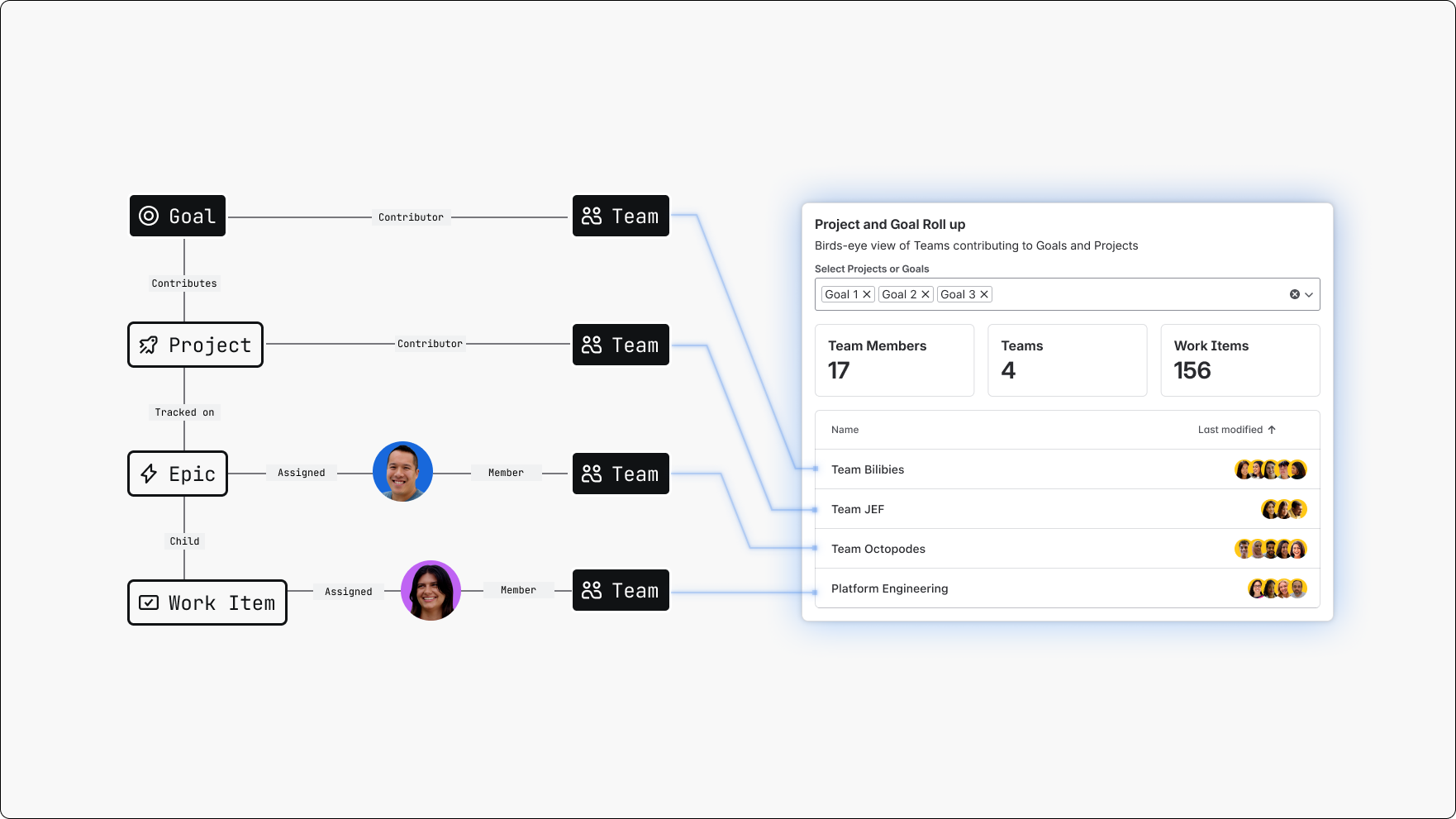
Forge Teamwork Graph Dashboards Widget
Atlassian Home Dashboards widget that track work contributions and project/goal rollups across multiple tools using Teamwork Graph.
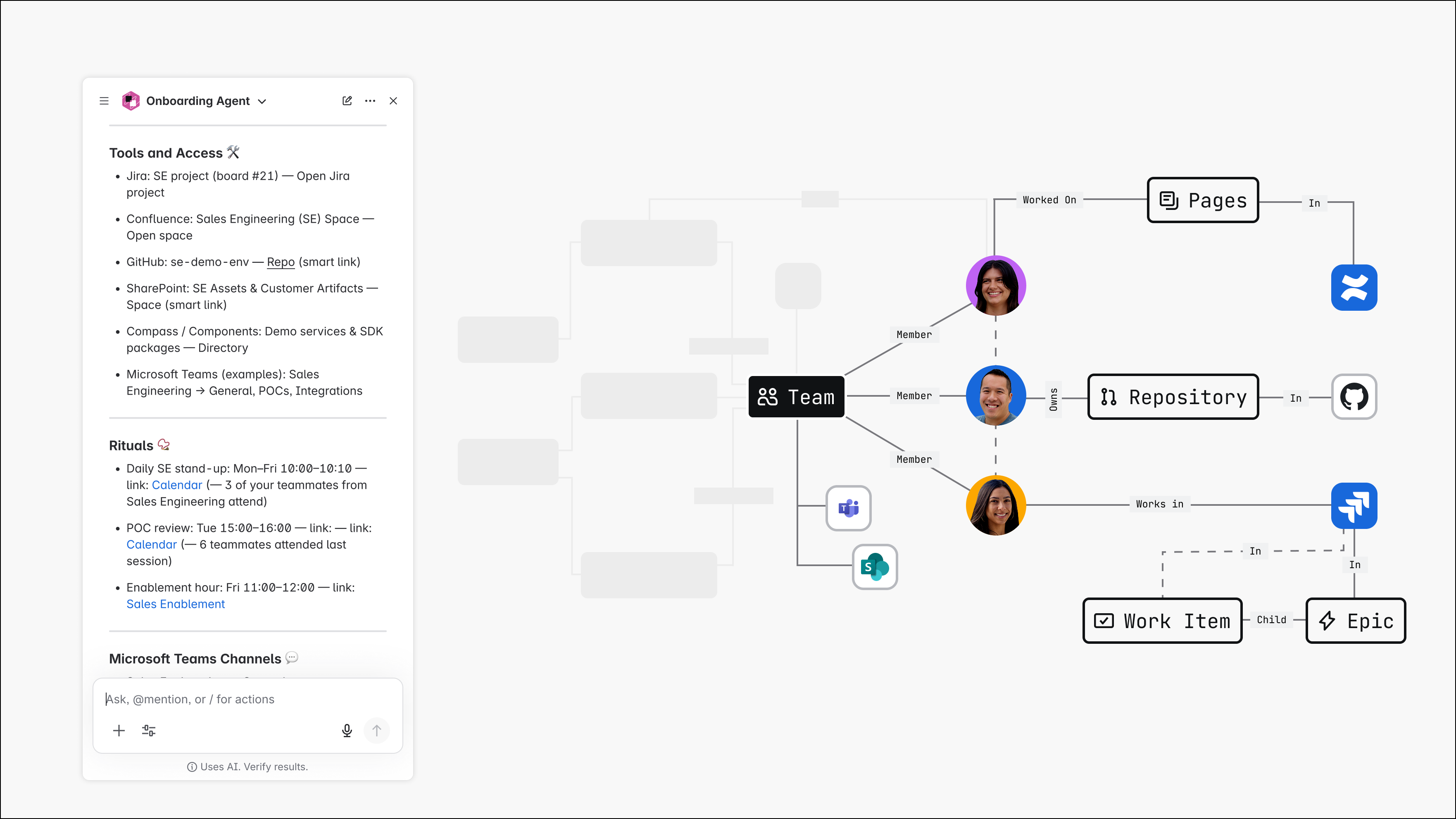
Teamwork Graph-powered Onboarding Assistant
A Rovo agent that queries Teamwork Graph to gather team resources and onboard new starters.
Rate this page: