Dashboard widget
The dashboards:widget and dashboards:backgroundScript modules are generally available for new Jira dashboards and replace the legacy jira:dashboardGadget and jira:dashboardBackgroundScript modules.
If you don't already see the dual-create option on your Jira development or test site, you can enroll the site in the Developer Canary Program to enable creation of either a classic Jira dashboard or a new dashboard. For rollout, migration, and deprecation details, see the Jira Dashboards announcement.
Dashboard widget module
The dashboard widget module allows you to create interactive widgets that can be added to Jira dashboards. These widgets can:
- Display custom data and visualizations
- Provide user interaction capabilities
- Communicate with background scripts
- Be configured by users through edit modes
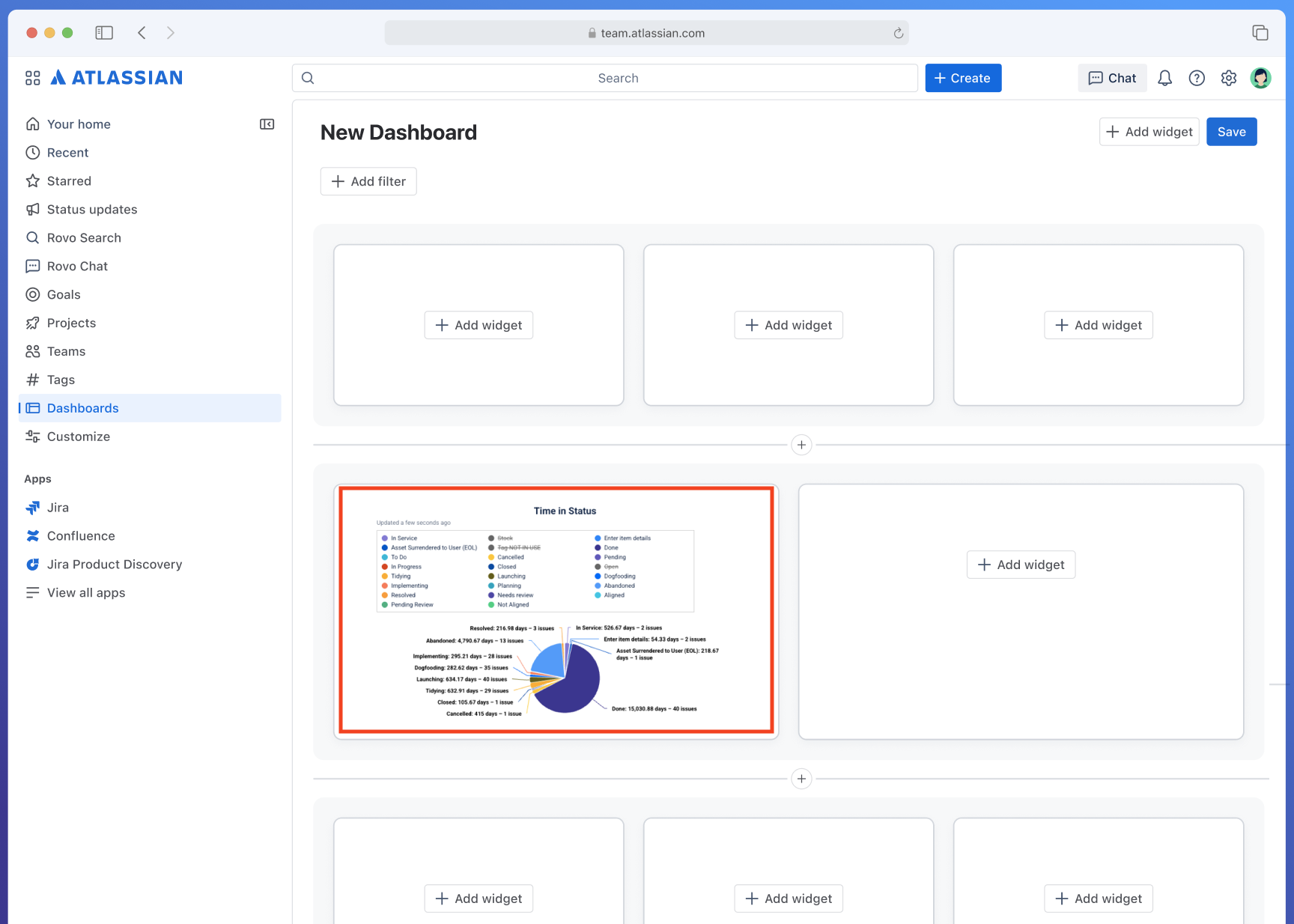
Example of a dashboard widget displaying custom content
Setup instructions
You can create a dashboard widget app with the following steps:
- If the dual-create option isn't visible on your Jira development or test site, enroll the site in the Developer Canary Program if it isn't already enrolled. If the option is visible, continue to step 2.
- Run
forge createand follow the prompts, selecting the templates under Dashboards. - Run
forge deployto deploy the app. - Run
forge installand follow the prompts to install the app to Jira. - Once the app is installed, navigate to Jira and go to Dashboards.
- Select Add widget and find your widget in the Atlassian Marketplace widget list.
- Add your widget to the new dashboard to see it in action.
Widget list
When users install your widget to their site, they'll see your widget in the widget list:
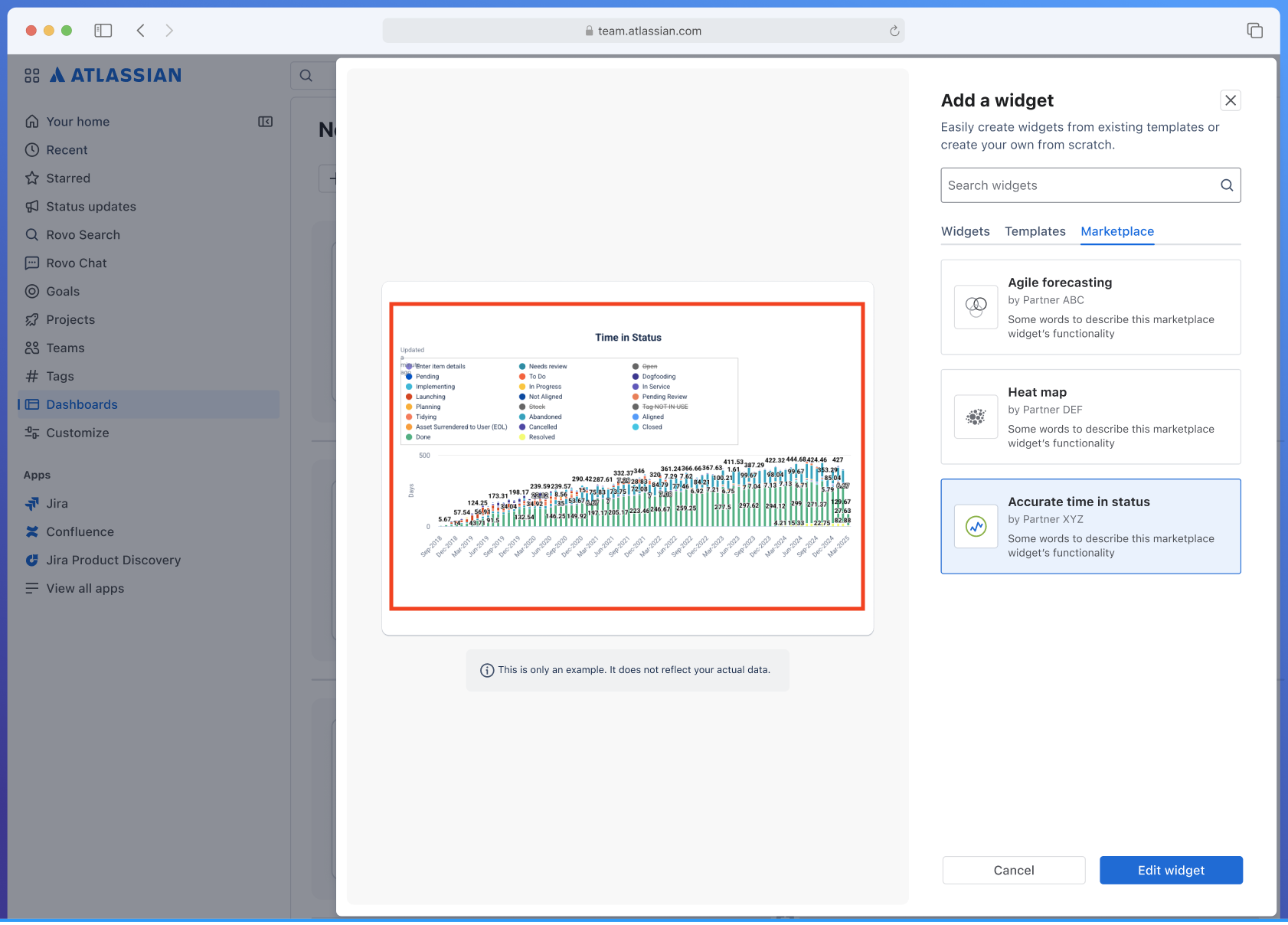
Widget selection interface showing available dashboard widgets on the right, and on the left showing the preview of the selected dashboard widget
Widget configuration
Users can configure your widget through the edit interface:
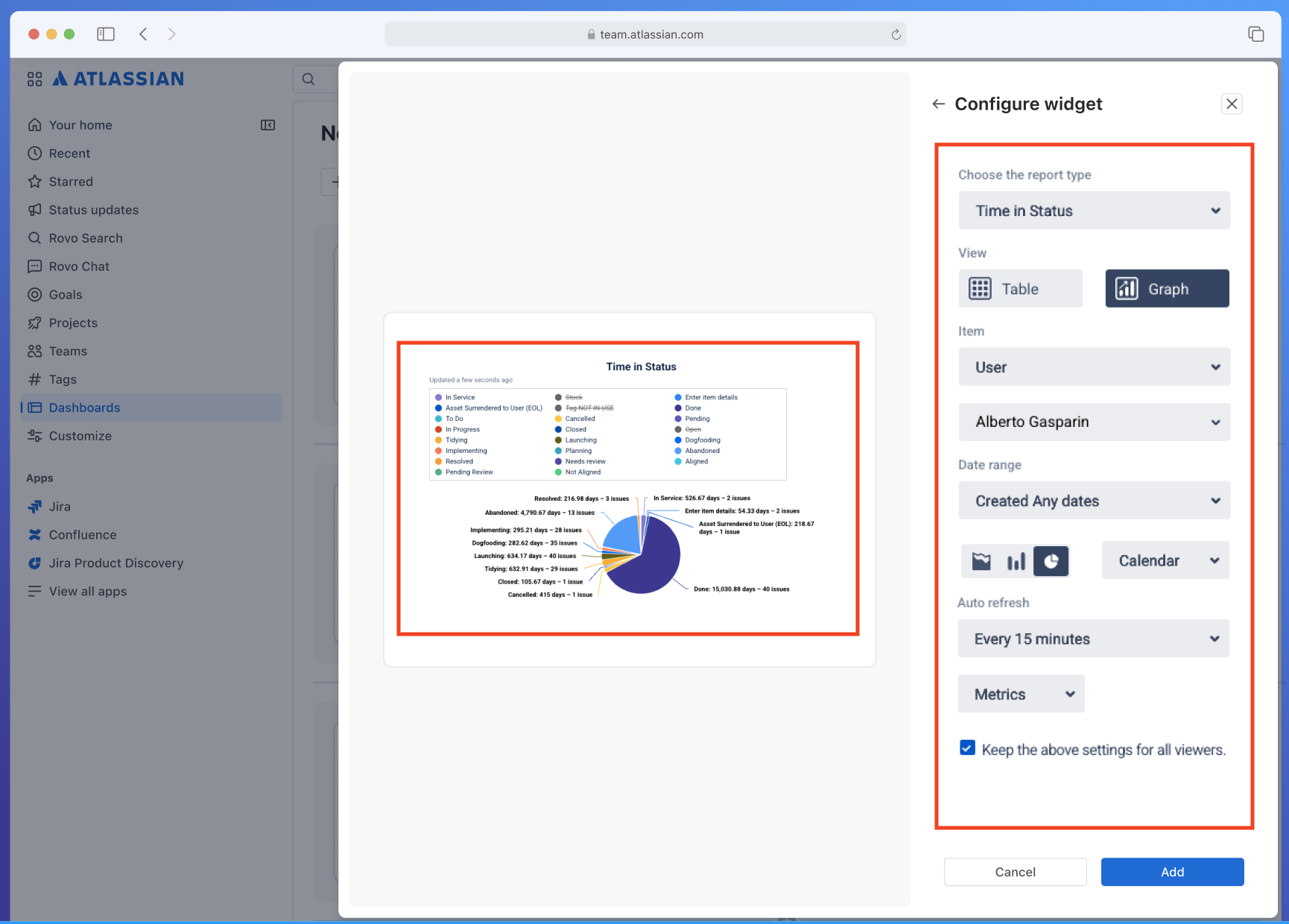
Widget configuration interface allowing users to customize widgets
Manifest configuration
modules.dashboards:widget
Custom UI example
1
2
3
4
5
6
7
8
9
10
11
12
13
14
15
16modules:
  dashboards:widget:
    - key: hello-world-widget
      title: Hello World Widget
      description: A sample dashboard widget
      thumbnail: https://example.com/icon.svg
      resource: widgetResource
      edit:
        resource: widgetEditResource

resources:
  - key: widgetResource
    path: static/widget/build
  - key: widgetEditResource
    path: static/widget-edit/build
UI Kit example
1
2
3
4
5
6
7
8
9
10
11
12
13
14
15
16
17
18
19
20
21
22
23
24
25
26
27
28modules:
  dashboards:widget:
    - key: hello-world-widget-ui-kit
      title: Hello World Widget (UI Kit)
      description: A sample dashboard widget using UI Kit
      thumbnail: https://example.com/icon.svg
      resource: widgetResource
      render: native
      resolver:
        function: widgetResolver
      edit:
        resource: widgetEditResource
        render: native
        resolver:
          function: widgetEditResolver

resources:
  - key: widgetResource
    path: static/widget/build
  - key: widgetEditResource
    path: static/widget-edit/build

functions:
  - key: widgetResolver
    handler: widgetResolver.handler
  - key: widgetEditResolver
    handler: widgetEditResolver.handler
Properties
| Property | Type | Required | Description |
|---|---|---|---|
key | string | Yes | A key for the module, which other modules can refer to. Must be unique within the manifest. |
title | string | Yes | The title of the widget as displayed to users. |
description | string | Yes | A description of what the widget does. |
thumbnail | string | Yes | The absolute URL of the icon displayed next to the widget's name and description. |
resource | string | Yes | The key of a static resources entry that provides the widget view. |
edit | object | Yes | Configuration for the widget's edit mode. |
aiContext | object | No | Configuration that lets the widget contribute structured data to AI insights. See aiContext object properties. |
The edit entry point is currently required. We plan to make it optional in a future release.
edit object properties
| Property | Type | Required | Description |
|---|---|---|---|
resource | string | Yes | The key of a static resources entry that provides the widget edit experience. |
aiContext object properties
| Property | Type | Required | Description |
|---|---|---|---|
data | object | Yes | Points at the function (or remote endpoint) that returns the widget's data for AI insights. Provide exactly one of function or endpoint. |
data object properties
| Property | Type | Required | Description |
|---|---|---|---|
function | string | Conditional | The key of a function that resolves the AI context payload. Mutually exclusive with endpoint. |
endpoint | string | Conditional | The key of a remote endpoint that resolves the AI context payload. Mutually exclusive with function. |
AI insights context (EAP)
This is an experimental Early Access Program (EAP) feature, offered to selected users for testing and feedback purposes. EAP features are unsupported, not usable in production environments, and subject to change without notice.
To contribute your widget's data to insights through aiContext.data, sign up for the insights
EAP.
Dashboard widgets can contribute a structured, tabular view of their data to Atlassian
Intelligence insights. The platform invokes the aiContext.data entry point declared
on your module and passes the response to the AI as prompt context. This data powers both:
- Chart insights: AI-generated insights for an individual widget, shown in a dialog when you select the AI Insights menu button on the widget.
- Dashboard insights: AI-generated insights across all widgets on a dashboard, available from the floating Get insights button on the dashboard or through Rovo Chat.
The platform sends data your widget returns from aiContext.data to a generative AI model
to produce insights. Only return data that's appropriate to process with AI, and ensure you
comply with the Atlassian Acceptable Use Policy.
Insights only render when AI is enabled for Jira. If it's not enabled, the
aiContext.data entry point isn't invoked.
Manifest configuration
Add an aiContext block to your dashboards:widget module and point its data field at
a function (or a remote
endpoint):
1
2
3
4
5
6
7
8
9
10
11
12
13
14
15
16
17
18
19
20
21
22
23modules:
  dashboards:widget:
    - key: hello-world-widget
      title: Hello World Widget
      description: A sample dashboard widget
      thumbnail: https://example.com/icon.svg
      resource: widgetResource
      edit:
        resource: widgetEditResource
      aiContext:
        data:
          function: aiContextResolver

resources:
  - key: widgetResource
    path: static/widget/build
  - key: widgetEditResource
    path: static/widget-edit/build

functions:
  - key: aiContextResolver
    handler: aiContext.handler
The referenced function must return an object matching the return-value schema. For a full handler example, see AI insights context data in the Examples section.
Return-value schema
Your response must be an object with the following fields:
| Field | Type | Required | Notes |
|---|---|---|---|
title | string | No | Title for the data. Defaults to the widget's manifest title if omitted. Used by both chart and dashboard insights. |
type | string | No | Free-form chart type (for example, 'bar', 'line', 'pie'). Surfaced to the AI for prompt context. |
description | string | No | Natural-language description of the widget or data. Defaults to the widget's manifest description if omitted. Consumed by dashboard insights only; chart insights don't use this field. |
columns |
Array<{key: string;label: string;}>
| Yes | key is the stable field id used to read object rows (row[key]); label is the human-readable header shown to the AI. |
rows |
Array<Cell[] |Partial<Record<string, Cell>>>
| Yes | Each row is either a positional array aligned to the columns order, or an object keyed by column key. |
A cell is a string, number, boolean, or null.
Import the response type from @forge/dashboards-bridge to type your function:
1
2import type { ForgeAiContextResponse } from "@forge/dashboards-bridge";
ForgeAiContextResponse optionally accepts a union of column keys. For example,
ForgeAiContextResponse<'issue_type' | 'count'> keeps your columns and object-row keys
in agreement.
Limits
- Max rows: 1000.
- Max serialized size: 300,000 characters (the
JSON.stringifyof the whole payload). This keeps the prompt within the model's context window.
If you exceed either limit, the platform rejects the response and the widget's data isn't used for insights.
API Documentation
For detailed API documentation, see:
- Dashboard bridge APIs - APIs for widget configuration and lifecycle management
- useWidgetConfig - React hook for widget configuration
- useWidgetContext - React hook for widget context
For apps that don't use React, use the Forge bridge events API to notify the preview when configuration changes. Read the updated data with view.getContext() and update your app's UI.
Examples
Use the Dashboard bridge APIs and dashboard hooks for widget development.
Widget view
1
2
3
4
5
6
7
8
9
10
11
12
13
14
15
16
17
18
19
20
21
22
23
24
25
26
27
28
29
30
31
32import React from "react";
import { Stack, Text } from "@forge/react";
import { useWidgetConfig, useWidgetContext } from "@forge/hooks/dashboards";
import { widget } from "@forge/dashboards-bridge";

// Set preview configuration
widget.setPreviewConfig({
  title: "Sample Title",
});

export const DashboardWidget = () => {
  const { config } = useWidgetConfig();
  const context = useWidgetContext();

  if (!context) {
    return <Text>Loading...</Text>;
  }

  const { layout } = context;

  return (
    <Stack>
      <Text>{config?.title || "Default Title"}</Text>
      <Text>
        Size: {layout.width}x{layout.height}
      </Text>
    </Stack>
  );
};

export default DashboardWidget;
Widget configuration
1
2
3
4
5
6
7
8
9
10
11
12
13
14
15
16
17
18
19
20
21
22
23
24
25
26
27
28
29
30
31
32
33
34
35
36
37
38
39
40
41import React from "react";
import { Label, Stack, Textfield } from "@forge/react";
import { useWidgetConfig } from "@forge/hooks/dashboards";
import { widgetEdit } from "@forge/dashboards-bridge";

// Set up save handlers
widgetEdit.onSave(async (config, { widgetId }) => {
  console.log("Widget saved!", config, widgetId);
});

widgetEdit.onProductSave(async (config) => {
  // Save the configuration
  // Returning null instead would clear the widget configuration.
  return config;
});

widgetEdit.onSaveError((error) => {
  console.error("Save failed:", error.message);
});

const WidgetEditMode = () => {
  const { config, updateConfig } = useWidgetConfig();

  return (
    <Stack>
      <Label labelFor="widget-title">Widget title</Label>
      <Textfield
        id="widget-title"
        value={config?.title ?? ""}
        onChange={(e) => {
          updateConfig({
            title: e.target.value,
          });
        }}
      />
    </Stack>
  );
};

export default WidgetEditMode;
AI insights context data
The function referenced by aiContext.data returns a structured,
tabular view of the widget's data for AI insights. The following example mixes both
supported row styles: a positional array aligned to columns, and an object keyed by
column key:
1
2
3
4
5
6
7
8
9
10
11
12
13
14
15
16export const handler = async () => {
  return {
    title: "Issues by type",
    type: "bar",
    description: "Breakdown of open issues by type",
    columns: [
      { key: "issue_type", label: "Issue Type" },
      { key: "count", label: "Count" },
    ],
    rows: [
      ["Bug", 25], // positional array, aligned to the columns order
      { issue_type: "Story", count: 40 }, // object keyed by column key
    ],
  };
};
Rate this page: