Calling a remote backend from a Forge frontend
You can call your remote backend from your frontend (Custom UI and UI Kit) using the @forge/bridge package. The diagram below illustrates the data flow.
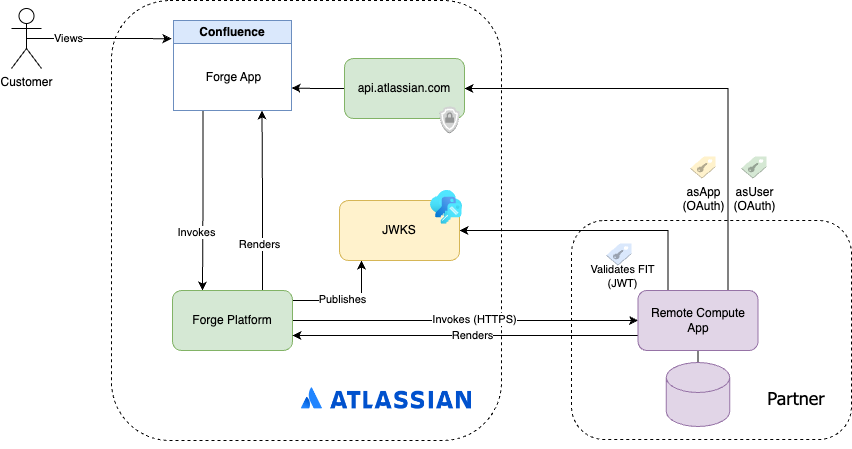
If you are calling your remote backend from a Forge function (not a frontend), see Calling a remote backend from a Forge function instead.
Setting up the manifest
To call a remote backend from a frontend, you need to configure three things in your manifest.yml:
- A
remotesentry — defines the external backend your app communicates with (its base URL and optional operations). - An
endpointmodule — links a remote to your app and configures authentication (OAuth tokens). - A UI module with
resolver.endpoint— connects your frontend module (such as a macro or issue panel) to the endpoint.
These three pieces work together in a chain: UI module → endpoint → remote.
Step 1: Define the remote
Add a remotes entry with a unique key and the baseUrl of your backend. The baseUrl is the URL prefix that gets prepended to the path you specify in your frontend invokeRemote or requestRemote calls.
1
2remotes:
  - key: my-remote
    baseUrl: https://my-backend.example.com
Step 2: Define the endpoint
Add an endpoint module that references your remote by its key. The endpoint is where you configure authentication tokens. If you want Forge to include OAuth tokens in the request to your remote, enable them in the auth property.
When your Forge frontend calls a remote backend, configure auth on the endpoint module. Configuring auth at the remotes level does not include OAuth tokens for frontend or trigger invocations — remotes.auth only applies to function-to-remote calls.
1
2modules:
  endpoint:
    - key: my-remote-endpoint
      remote: my-remote  # Must match the key in your remotes entry
      auth:
        appUserToken:
          enabled: true
        appSystemToken:
          enabled: true
If you enable appUserToken or appSystemToken, you must also add the corresponding scopes (read:app-user-token, read:app-system-token) to your manifest's permissions.scopes. You also need to include any relevant Atlassian app scopes (such as read:confluence-content.summary or read:jira-work), otherwise the generated tokens won't have the permissions to call Atlassian APIs.
Step 3: Connect the UI module to the endpoint
In your UI module (such as a macro, jira:issuePanel, or confluence:globalPage), set the resolver.endpoint property to the key of your endpoint.
1
2modules:
  jira:issuePanel:
    - key: my-issue-panel
      resource: main
      resolver:
        endpoint: my-remote-endpoint  # Must match the key in your endpoint entry
      title: My Remote Panel
Complete manifest example
Here's a complete manifest that connects a Confluence macro to a remote backend with both user and system tokens enabled:
1
2modules:
  macro:
    - key: my-remote-macro
      resource: main
      resolver:
        endpoint: my-remote-endpoint  # References the endpoint below
      title: My Remote Macro
      description: A macro that calls a remote backend.
  endpoint:
    - key: my-remote-endpoint
      remote: my-remote  # References the remote below
      auth:
        appUserToken:
          enabled: true
        appSystemToken:
          enabled: true
resources:
  - key: main
    path: static/hello-remote-world/build
permissions:
  scopes:
    - read:app-system-token
    - read:app-user-token
    - read:confluence-content.summary  # Include scopes for the Atlassian APIs you intend to call
remotes:
  - key: my-remote
    baseUrl: https://my-backend.example.com
Calling your remote from a Forge frontend
To call your remote from a Forge frontend, use one of these APIs from the @forge/bridge package:
invokeRemote— Requests are proxied through the Forge platform. Forge validates the request, includes OAuth tokens (if configured), and tracks invocations in metrics.requestRemote— Requests go directly from the UI client to your remote, bypassing the Forge platform. This is designed for latency-sensitive apps but has limitations. For example, OAuth tokens are omitted. A Forge Invocation Token (FIT) is still included for request verification.
When to use each API
| Feature | invokeRemote | requestRemote |
|---|---|---|
| OAuth tokens included | Yes (if configured) | No |
| Proxied through Forge | Yes | No |
| Tracked in invocation metrics | Yes | No |
| Optimized for latency | No | Yes |
| Supports FormData/file uploads | No | Yes |
Use invokeRemote when you need OAuth tokens to call Atlassian APIs from your remote. Use requestRemote when you need lower latency and don't need OAuth tokens.
Calling multiple endpoints or remotes
Each UI module's resolver.endpoint connects it to a single endpoint (and therefore a single remote). However, you can still call multiple API routes on that remote by varying the path in your invokeRemote calls:
1
2import { invokeRemote } from '@forge/bridge';

async function fetchData() {
  try {
    // Call different paths on the same remote backend
    const users = await invokeRemote({ path: '/users', method: 'GET' });
    const tasks = await invokeRemote({ path: '/tasks', method: 'GET' });
    // use users and tasks
  } catch (error) {
    console.error('Remote invocation failed:', error.message);
  }
}
If you need to call multiple remote backends from a single module, use requestRemote. Unlike invokeRemote, requestRemote accepts a remote key as its first argument, so you can target any remote defined in your manifest:
1
2remotes:
  - key: auth-service
    baseUrl: https://auth.example.com
  - key: data-service
    baseUrl: https://data.example.com
1
2import { requestRemote } from '@forge/bridge';

// Call different remote backends by key
const authResponse = await requestRemote('auth-service', {
  path: '/verify',
  method: 'GET',
});

const dataResponse = await requestRemote('data-service', {
  path: '/records',
  method: 'GET',
});
requestRemote does not include OAuth tokens, even if configured on the endpoint. If you need OAuth tokens for multiple backends, define separate modules, each with its own resolver.endpoint pointing to a different endpoint and remote.
Example using invokeRemote
invokeRemote takes a single options object with path, method, optional headers, and optional body.
1
2import { invokeRemote } from '@forge/bridge';

try {
  const res = await invokeRemote({
    path: '/tasks/?team=Forge',
    method: 'GET',
  });
  console.log(`Tasks: ${JSON.stringify(res.body)}`);
} catch (error) {
  console.error('Remote invocation failed:', error.message);
}
Example using requestRemote
requestRemote takes the remote key as the first argument (matching the key in your remotes entry) and an options object. It returns a standard Response object.
1
2import { requestRemote } from '@forge/bridge';

const response = await requestRemote('my-remote', {
  path: '/tasks/?team=Forge',
  method: 'GET',
});

if (!response.ok) {
  throw new Error(`Request failed: ${response.status}`);
}

const data = await response.json();
console.log(`Tasks: ${JSON.stringify(data)}`);
Verifying requests
Your remote backend must verify that requests originated from Atlassian and are intended for your app. For more information, see Verifying remote requests.
Atlassian app modules
To see a complete list of modules you can use to call your remote, including payload and context properties, see the Forge modules for each Atlassian app:
Next steps
Now that you've set up your manifest and can call your remote, you can:
Rate this page: