Rolling releases
Forge rolling releases is now in Preview, and therefore fully supported. However, it remains under active development and may be subject to shorter deprecation windows. Preview features are suitable for early adopters in production environments.
To use Rolling Releases, you must adopt Decoupled Permissions in your app and flag it in your manifest.
We release preview features so partners and developers can study, test, and integrate them prior to General Availability (GA). For more details, see Forge EAP, Preview, and GA.
What are rolling releases?
Rolling releases decouple permissions (scopes and egress) from app code versions. This means you can deploy new code without waiting for admin approval of new permissions.
Currently, when permissions change, the app remains on the old version of the code for all existing installations, and admins are often slow to update the apps, causing version fragmentation.
With rolling releases, when you deploy a new version with permission changes:
- The new code runs on all installations sooner
- Permissions remain at the old version until the admin approves
- Your app checks for permissions at runtime and gracefully handles missing ones
Why rolling releases?
Rolling releases help you get compatible code changes to existing installations without waiting for admins to approve new permissions. This means security fixes, bug fixes, performance improvements, and permission-independent features can reach customers sooner, while permission-dependent features stay guarded until approval.
Key benefits:
- Get safe updates to customers sooner: Roll out compatible code changes while new permissions wait for admin approval
- Reduce version fragmentation: Keep more installations on the latest code version and reduce the need to maintain multiple major versions
- Ship faster: Deploy bug fixes, security fixes, performance improvements, and permission-independent features without waiting for approvals
- Keep admin approval intact: New scopes and egress permissions are still approved by admins before permission-dependent features run
- Monitor and control production rollouts: Use Developer Console to start, track, cancel, restart, and inspect rollout progress across environments
How it works
Decoupled state / code only upgrades
When an installation is upgraded with a code-only upgrade:
- All installations get the new code
- Permissions remain at the old version until the admin approves
- Your app must check for permissions at runtime and gracefully handle missing ones
This state is called "decoupled" because the code version is ahead of the permission version.
Graceful handling of missing permissions is the developer's responsibility. Once a rollout is initiated, Atlassian will not roll back the upgrade if issues arise. You must thoroughly test your app in decoupled states before rolling out, and ensure it degrades gracefully when permissions are unavailable. See Developer testing and Permissions SDK.
Admin approval
When a code upgrade creates a decoupled state, admins approve new permissions in Admin Hub. The pending approval view shows the permissions already approved for the installation and the new permissions requested by the latest app version.
If an admin does not approve the new permissions, the app continues running with the old permission set. Your app should skip or gracefully degrade features that require permissions the installation does not have yet.
Exiting decoupled state
When an admin approves new permissions in the Admin Hub "Connected Apps" page, the permissions will then match the manifest of that version, and are no longer considered "decoupled".
Preview scope
The Rolling Releases Preview supports rolling out code versions to production installations. Permission changes remain governed by admin approval, so apps must continue to handle decoupled states where code is newer than the approved permission set.
Getting started
Rolling releases are always on for apps that adopt Decoupled Permissions. You do not need to enable a separate Developer Console toggle, but your app must opt in to decoupled behavior by adding permissions.enforcement: app-managed to the manifest, and using the permission SDK.
Opt into decoupled permissions
Update the permissions section in the app manifest to indicate that app is managing missing permissions. This is done by adding enforcement: app-managed config to app permissions.
1
2
3
4
5
6
7
8
9app:
  id: ...
permissions:
  enforcement: app-managed
  scopes:
    - ...
  external:
    - ...
When enforcement is set to app-managed, your app becomes eligible to enter a decoupled state. In this state, if the app attempts an action that requires a permission not yet granted, it will encounter a permission denied error or have its external request blocked.
It is the developer's responsibility to use the Permissions SDK to check for missing permissions at runtime and handle them gracefully. Atlassian will not roll back your app if issues arise - you must ensure your app degrades gracefully when permissions are unavailable.
Use the Permissions SDK to check for missing permissions at runtime.
Permissions SDK
The updated code may include changes that depend on new permissions but since only the app code was upgraded, some permissions might be missing. To handle such cases, use the permissions SDK to verify if the permission exists and gracefully handle if the needed permission does not exist.
The Permissions SDK is available for both frontend (@forge/react for UIKit, @forge/bridge for Custom UI) and backend (@forge/api) code.
Frontend SDK
1
2npm install --save @forge/react
Check if app installation has required permissions
Import the usePermissions hook to check permissions:
1
2
3
4
5
6
7
8
9
10
11
12
13
14
15
16
17
18
19
20
21
22
23
24import { usePermissions } from '@forge/react';

const MyComponent = () => {
  const { hasPermission, isLoading, missingPermissions, error } = usePermissions({
    scopes: ['read:confluence-content', 'write:confluence-content'],
    external: {
      fetch: {
        backend: ['https://api.example.com'],
        client: ['https://cdn.example.com']
      },
      images: ['https://images.example.com'],
      fonts: ['https://fonts.googleapis.com']
    }
  });

  if (isLoading) return <Text>Loading...</Text>;
  if (error) return <Text>Error: {error.message}</Text>;
  if (!hasPermission) {
    return <Text>Missing: {JSON.stringify(missingPermissions)}</Text>;
  }

  return <Text>All permissions granted!</Text>;
};
The hook returns an isLoading boolean, but this should not be true for any significant amount of time.
Custom UI
1
2npm install --save @forge/bridge
Check if app installation has required permissions
Import the checkPermissions function to check permissions:
1
2
3
4
5
6
7
8
9
10
11
12
13
14
15
16
17
18
19
20
21
22
23
24
25
26
27
28
29
30
31
32
33
34import { checkPermissions } from '@forge/bridge';

const App = () => {
  const [hasPermission, setHasPermission] = useState(false);
  const [missingPermissions, setMissingPermissions] = useState(null);
  const [isLoading, setIsLoading] = useState(true);
  const [error, setError] = useState(null);
  useEffect(() => {
    checkPermissions({
      scopes: ['read:jira-work'],
      external: {
        fetch: {
          backend: ['https://example.com/something'],
        },
      },
    }).then(({granted, missing}) => {
      setHasPermission(granted);
      setMissingPermissions(missing);
      setIsLoading(false);
    }).catch(err => {
      setError(err);
      setIsLoading(false);
    });
  }, []);

  if (isLoading) return <div>Loading...</div>;
  if (error) return <div>Error: {error.message}</div>;
  if (!hasPermission) {
    return <div>Missing: {JSON.stringify(missingPermissions)}</div>;
  }

  return <div>All permissions granted!</div>;
};
Display conditions
You can disable or show an alternative module in the frontend if permissions are missing using display conditions. See Display conditions: Permissions for more information.
Backend SDK
Install the latest version of the @forge/api package:
1
2npm install --save @forge/api@latest
Check if app installation has a scope granted
1
2
3
4import { permissions } from '@forge/api';

const isPermitted = permissions.hasScope('write:confluence-content')
Check if backend permission is granted
1
2
3
4import { permissions } from '@forge/api';

const isPermitted = permissions.canFetchFrom('backend', 'https://api.example.com')
Check if app has access to load resource
1
2
3
4import { permissions } from '@forge/api';

const isPermitted = permissions.canLoadResource('images', 'https://api.example.com/image.png')
Check multiple types of permission grants
1
2
3
4
5
6
7
8
9
10
11
12import { permissions } from '@forge/api';

const { granted, missing } = permissions.hasPermission({
    scopes: ['write:confluence-content'],
    external: {
        fetch: {
            backend: ["https://api.example.com", "https://blah.com", "https://www.google.com"]
        },
        images: ["https://images.example.com", "https://cdn.example.com"],
    }
})
You must extract the granted property from the returned object.
Atlassian app events filters
If your app doesn’t have the right permissions, running an Atlassian app event can result in error from the app code. You can use a filter to stop the function from running at the platform level when the required permissions are missing.
Permissions object is added to the event object so that we can filter out Atlassian app events if certain permissions are missing. Update the expression to filter events if certain permissions are missing. For example, to check the missing scopes use the following expression:
1
2
3
4
5
6
7
8
9
10
11
12modules:
  trigger:
    - key: jira-issue-trigger-filtering-by-expression-for-bug-issue-type
      function: main
      events:
        - avi:jira:created:issue
      filter:
        expression: "event.permissions.scopes.includes('write:jira-work') && event.issue.fields?.issueType.name == 'Bug'"
  function:
    - key: main
      handler: index.run
External egress is also available in the event.permissions and can be used for filtering. The following expression can be used to filter out Atlassian app events based on external backend fetch permission:
1
2
3
4
5
6
7
8
9
10
11
12
13
14
15
16
17
18modules:
  trigger:
    - key: jira-issue-trigger-filtering-by-expression-for-bug-issue-type
      function: main
      events:
        - avi:jira:created:issue
      filter:
        expression: "(event.permissions.external?.fetch?.backend || []).includes('*.example.com')"
  function:
    - key: main
      handler: index.run
permissions:
  enforcement: app-managed
  external:
    fetch:
      backend:
        - "*.example.com"
For more examples of expressions you can use, see Filter out Atlassian app events.
To try out your own event filtering expressions against a sample payload, use the Expressions playground.
Lifecycle events
App upgrade event
When an admin consents to the new permissions for your Forge app, the upgrade event is triggered. The event payload now includes the app’s updated permissions, helping you track permission changes during major upgrades. For more information, see the Forge app upgrade event documentation.
The upgrade event is not triggered for code-only upgrades (when only your app’s code changes, and there are no changes to the manifest or permissions).
Containers
For apps using Forge Container services, use the Get app installations endpoint to fetch installation details and check the installation's current permission state before running code that depends on newly requested scopes or egress permissions.
Remotes
For apps using Forge Remote, use the permissions object returned by the Installation Details API to check the scopes and egress permissions approved for an installation. Check this object before running code that depends on permissions that may not be approved yet.
Developer testing
For a developer to ensure their app will work when apps upgrade from previous versions, and they have checked the correct permissions in the correct places, they need to enter a decoupled state with various permission combinations from previous major versions.
Installing into a decoupled state
To test how your app behaves with different permission levels, you can install directly into a decoupled state:
1
2
3
4
5
6
7
8
9# Install with permission version 2, code version 2 (coupled)
forge install --major-version 2

# Upgrade only code to version 4 (decoupled state: permissions v2, code v4)
forge install --upgrade code --major-version 4

# Upgrade both code and permissions to version 4 (coupled again)
forge install --upgrade --major-version 4
Rollout monitoring
In Developer Console, the Rollouts page lists rollouts for your app across environments. You can filter the list by environment and status. Each rollout shows the target version, rollout status, environment, rollout progress, failure rate where applicable, and available actions.
For step-by-step navigation, see View app rollouts.
To start a rollout, select Start rollout. Rollouts are managed per environment, so confirm you are starting the rollout for the intended development, staging, or production environment.
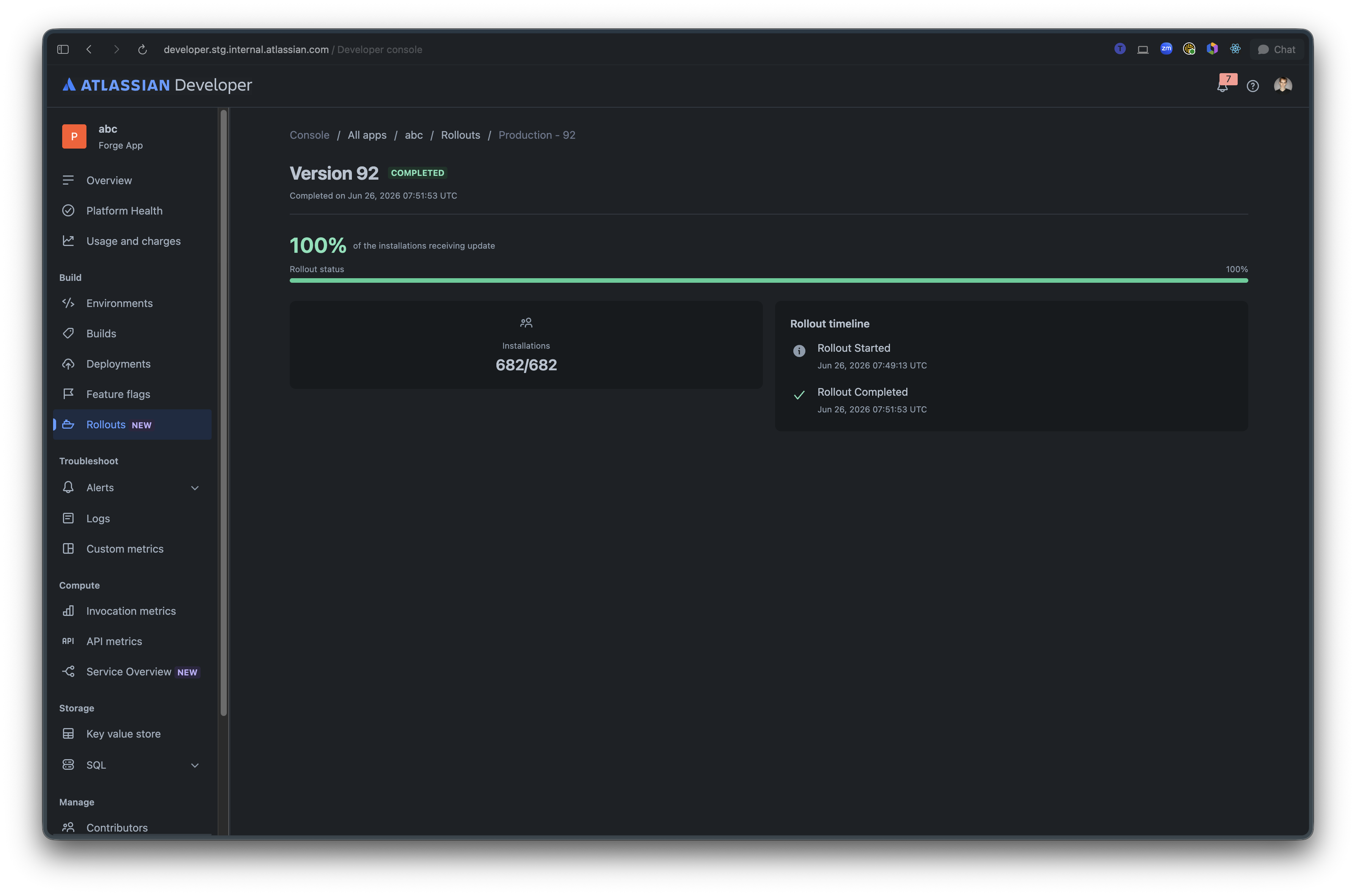
To inspect an in-progress or completed rollout, select View details. The rollout details page shows the rollout status, percentage of installations receiving the update, installation and error metrics, installation eligibility, ineligible versions, and the rollout timeline.
Controlling rollouts
You can cancel an in-flight rollout from Developer Console. A cancelled rollout stops progressing to additional installations, while installations that already received the target code version remain on that version.
Atlassian cannot roll back a rollout to a buggy version of your app. The easiest way to fix the issue would be to roll forward using a build tag of a last known good version.
You can restart a cancelled rollout when you are ready to continue. Developer Console records rollout activity in the rollout timeline, including queued, started, completed, cancelled, or failed states and their timestamps.
License changes
You can roll out a decoupled state when you enable licensing. Auto-upgrading an installation does not create, extend, or change customer entitlements. If an app was unlicensed before the upgrade, it remains unlicensed after the upgrade, and this state is observable through the Forge License API.
Admins can start a trial or subscription independently through the existing billing flows. Until they do, your app should continue to provide non-breaking unlicensed behavior, such as preserving existing free functionality, showing a clear upgrade path for paid features, or gracefully disabling newly paid capabilities.
We recommend a deprecation window where you maintain the free function to enable a smooth transition for your users.
Preview limitations
While already in Preview, Rolling releases is still under active development. The following limitations apply:
- Upgrading from version without storage to a version with storage (KVS and SQL) is not supported.
- Upgrading from a version without any dynamic webtriggers to a version with a dynamic webtrigger is not supported.
- Upgrading from a version without Forge LLMs to a version with Forge LLMs is not supported.
- For apps that use Forge Container services, some installations may not upgrade successfully. If this happens, retry to complete the upgrade.
Known issues
- In a decoupled state, Rovo Agent configuration and action code can use different versions. The available agents and their
key, description, prompt, and conversation starters come from the installed permissions version, while action functions use resolvers from the latest code version. See ECO-1695 to track this issue.
Tutorials and guides
For a hands-on walkthrough of building an app with rolling releases:
Related resources
- Public RFC: RFC 106 - Future of Forge Versioning & Permissions
- Forge permissions
- Display conditions: permissions – control when modules are shown based on permission state
- Environments and versions
- Forge release phases: EAP, Preview, and GA
Rate this page: