Integrate remote agents with Jira
This guide is intended for developers seeking to integrate AI agents running on external infrastructure (referred to in this guide as Remote Agents) into Jira. For patterns to enable Rovo agents running on Atlassian's AI agent platform to interact with external APIs or MCP servers, see the following:
- If your product has a published MCP server, users can register it with a custom Rovo agent created in Atlassian Studio.
- If your product has a public API, you can develop a custom Rovo agent and actions that interact with your APIs using the Forge platform and publish it on Marketplace.
This guide is intended for developers building deep integrations between Jira and a Remote Agent that resides outside of the Atlassian platform — for example, GitHub Copilot, Cursor Agents, OpenAI Codex, or Anthropic Claude.
What can remote agents do?
Remote agents can be assigned work items, @mentioned in comments, and chatted with via the Rovo Chat panel. Typically a remote agent works with the user who assigned them work, providing updates and completed work artifacts that the user reviews and approves before posting them to the work item.
After following this guide, you will have an agent that can:
- be assigned work items, @mentioned in comments, or chatted with by a human user
- surface updates in Jira as it executes on a task
- elicit further context and requirements from the user, if required
- fetch further context programmatically from the Jira REST API
- be installed into any Jira Cloud site, and (optionally) published on the Atlassian Marketplace
Terminology
The following terms describe key integration concepts used throughout this guide:
Remote Agent or Agent — The AI agent (hosted by you) that you are aiming to integrate with Jira.
Remote Service — The web application (also hosted by you) that is capable of sending and receiving requests to and from Jira Cloud and is capable of passing messages to your remote agent.
This guide assumes you are operating a typical multi-tenant SaaS-style web application, and is not suitable for "on-premise" web applications deployed behind customer firewalls.
Forge app — A middleware application built on Forge (Atlassian's cloud developer platform) that is used to register your agent with Atlassian, make it installable in Jira, and — optionally — distributable via the Atlassian Marketplace. This Forge app is built and maintained by you, but is deployed to Atlassian's platform.
Jira tenant or Jira site — Jira is a multi-tenant web application hosted on Atlassian infrastructure. Each tenant is accessible under a different base URL, typically ${customer-subdomain}.atlassian.net, though the domain and TLD may vary. If listing on the Atlassian Marketplace, your remote agent must be ready to handle installations and tasks from multiple Jira tenants.
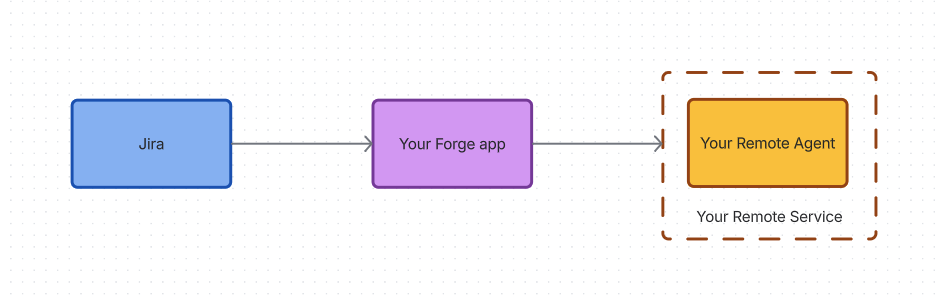
Simplified integration architecture
Prerequisites
We recommend completing the Jira "Hello World" Forge tutorial before beginning implementation.
This typically takes less than 60 minutes, and will get you set up with a free Atlassian cloud account and development Jira site, as well as the Forge developer toolchain and your first Jira app deployed into a development environment.
About this guide
The remainder of this guide covers everything you need to know about extending your remote service to integrate with Jira. It is broken into four parts:
- 1. Agent installation and lifecycle — covers how to package your agent as a Forge app that is installable in Jira Cloud sites and (optionally) discoverable on the Atlassian Marketplace
- 2. Handling Jira tasks — covers task handling protocols for accepting, processing, and completing tasks initiated by users in Jira, including optional streaming support
- 3. Agent configuration — covers how to surface configuration experiences in Jira for administrators and end-users to link accounts and customize agent behavior
- 4. Technical appendices — covers the JSON-RPC methods you'll need to implement, request and response schemas, Forge module references, and authentication protocols
We recommend reading through the first three sections in order, referring to the technical appendices as necessary.
1. Agent installation and lifecycle
To integrate your remote agent with Jira, you will need to create and deploy a Forge app to act as middleware between Jira and the remote service you will use to invoke your agent. This app will contain several modules:
- an
agentConnectormodule, with metadata describing your remote agent - a remote and endpoints, identifying the domain and routes that Jira should use to communicate with your remote agent
- an installation trigger module, allowing your remote service to receive events when users install or upgrade your agent in Jira
- (optional) UI modules for surfacing configuration and other end-user experiences in Jira — covered in depth in the Agent configuration section below
The Forge Manifest Reference shows an example of how these are represented in a Forge manifest.
Agent installation
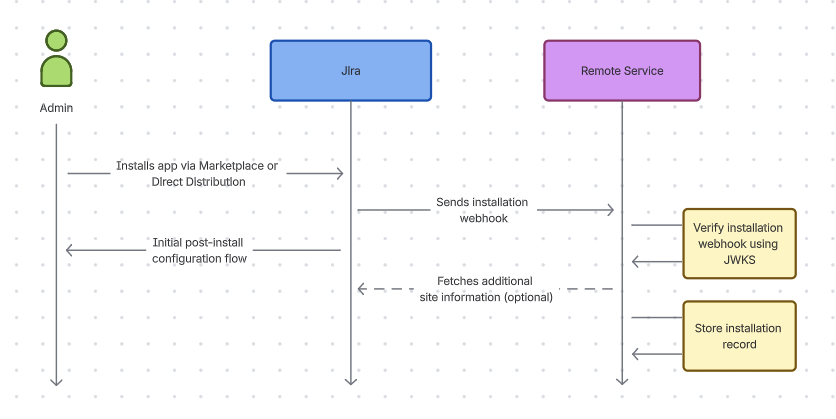
Agent installation has a number of discrete steps:
- The remote agent is installed by a customer administrator via the Atlassian Marketplace or via a direct distribution URL that you have provided them.
- When the app is installed, your remote service will receive an installation event sent as a webhook to the endpoint nominated in your Forge app manifest. Your agent must verify the webhook using JWKS, as described in Authenticating requests from Jira to your agent.
Always verify events sent as webhooks using JWKS before processing them. Failing to verify webhooks could allow malicious actors to spoof events.
-
After receiving and verifying an installation event, your remote service may optionally call the Jira REST API to retrieve additional information about the Jira tenant.
-
Your remote service then persists the Jira installation information in its data store. See Recommended schema for jiraInstallations table for recommended properties to store.
-
Your agent may also initiate a post-installation configuration flow that the administrator will be directed to after installing your agent. Most remote agents will need to implement this in order to map the customer's tenant in the remote service to their tenant in Jira. This flow is covered in the Agent configuration section below.
After configuration is complete, your agent is ready to handle tasks.
Handling upgrades
If you evolve your agent with new capabilities in the future that require additional scopes, you will also receive upgrade events as customers upgrade their installations to new versions that you have released.
Uninstallation
Forge supports a preUninstall trigger module that fires when an uninstall action is initiated via the UI or CLI. You can use this to clean up any state your remote service holds for the Jira installation — for example, deleting the installation record from your jiraInstallations table.
The pre-uninstall invocation has a timeout of 55 seconds, during which the uninstallation process is paused. Your cleanup logic must complete within that window — once uninstallation completes, Jira API calls from the app may no longer work.
2. Handling Jira tasks
A note on the Agent2Agent protocol
Jira's Remote Agent task handling uses concepts from the A2A (Agent2Agent) protocol. If you're familiar with this protocol or have already implemented A2A it will speed up development of a Remote Agent. However you do not need a full A2A implementation in order to integrate a Remote Agent with Jira.
Once your remote agent has been installed, users can begin delegating tasks to it from Jira. Interactions between Jira and your agent happen via JSON-RPC. In a typical agent interaction, Jira will make two types of requests to your agent:
messagerequests, indicating either:- a user has asked your agent to perform a new task; or
- a user has provided some additional context about an existing task
taskrequests, used to fetch updates from your agent about specific tasks
Schemas and examples for these methods are provided in the JSON RPC Method Reference.
It is the agent's responsibility to keep track of tasks they have been asked to perform, and share the current state of these tasks when requested by Jira. If needed, your agent may also fetch additional context or work items using the Jira REST API, as described in Authenticating requests from your agent to the Jira REST API.
Data shared with your remote agent
When Jira invokes your remote agent, it sends instructions and contextual data to your remote service. Most initial agent invocations contain two parts:
- A
textpart with instructions for the agent and optional contextual information. - A
datapart with structured information about the invocation, including the invoking user’s account ID, the agent’s account ID, and the invocation type. Work-item-based invocations also include the work item’s ID, key, summary, and description.
Your integration should process both parts. Text fields such as work item descriptions and comment bodies are converted from Atlassian Document Format (ADF) to plain text; their original rich-text formatting is not preserved.
The contents of the text and data parts vary based on the invocation type. See the JSON RPC method reference for detailed examples of different invocation payloads.
Messages sent to your agent via Rovo chat, including follow-up messages when your agent requests additional input from the user, contain only a text part. See Chat messages for further details.
Invocation type
The data part of the initial payload includes an invocationType field, which identifies how the agent was invoked from Jira:
| Invocation | invocationType |
|---|---|
| Work item assignment | ISSUE_ASSIGNMENT |
| Comment @mention | ISSUE_COMMENT_MENTION |
| Workflow transition | ISSUE_WORKFLOW_ASSIGNMENT |
| Manual trigger | ISSUE_MANUAL_TRIGGER |
| Automation flow | AUTOMATION |
| Rovo chat | N/A |
Messages sent to the agent from Rovo chat do not contain an invocationType field or other data parts.
Space instructions & additional context
The agent instructions in the text part may be prepended with a Space Instructions section and appended with a Relevant Context for This Task section. Space Instructions are optional agent instructions configured by an administrator for the context Jira space. Relevant Context for This Task lists titles and URLs of related resources, along with an instruction to fetch and reference them. For example:
1
2
3
4
5
6
7
8
9Space Instructions:
Be concise and cite Jira evidence.

You have been assigned to a work item "QA checkout flow updates". Analyze the details of the work item and get started.

Relevant Context for This Task
The following resources have been identified as relevant. Fetch and reference them to get additional context such as prior decisions, related work, team conventions, etc.
- Checkout design: https://example.com/checkout-design
Note that the contents of the linked resources are not included. Your agent must retrieve any content it needs using credentials that respect the invoking user's permissions. See Fetching additional context via REST and Authorization & tenancy considerations for further details.
Updating tasks
By default, after the initial message request, Jira polls your agent's GetTask endpoint for updates to any task that is currently in an active or interrupted status (TASK_STATE_SUBMITTED, TASK_STATE_WORKING, TASK_STATE_INPUT_REQUIRED, TASK_STATE_AUTH_REQUIRED, or TASK_STATE_UNKNOWN).
We also strongly recommend that you implement streaming to incrementally update tasks as your agent produces output, as this will dramatically improve the user experience of your agent.
Task privacy
Within Jira, conversations between users and agents are private to the user. Additional user input and task status updates are not automatically copied to the work item. Once a task is complete, the user has the option of sharing the outcome of the task via a comment on the work item.
Task lifecycle
During its lifecycle, a task will start in the TASK_STATE_SUBMITTED state and then transition through a number of states until it reaches a terminal state (TASK_STATE_REJECTED, TASK_STATE_COMPLETED, TASK_STATE_CANCELED, or TASK_STATE_FAILED).
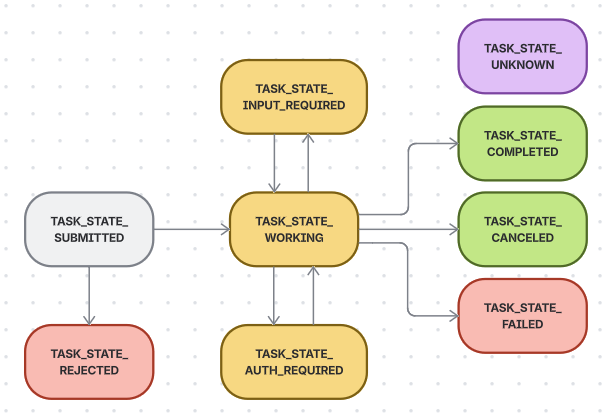
The directional arrows on the diagram are important. Once a task has entered a terminal state — TASK_STATE_REJECTED, TASK_STATE_COMPLETED, TASK_STATE_CANCELED, or TASK_STATE_FAILED — it cannot be restarted. Subsequent messages from the user for the same context should be handled by creating a new task. See the "single active task per context" rule for more details.
The supported A2A 1.0 task states are:
| State | Type | Description |
|---|---|---|
TASK_STATE_SUBMITTED | active | The task has been submitted and is awaiting execution. |
TASK_STATE_WORKING | active | The agent is actively working on the task. |
TASK_STATE_INPUT_REQUIRED | interrupted | The task is paused and waiting for input from the user. |
TASK_STATE_AUTH_REQUIRED | interrupted | The agent requires the user to authenticate with a service in order to proceed with the task. |
TASK_STATE_REJECTED | terminated | The task was rejected by the agent and was not started. |
TASK_STATE_COMPLETED | terminated | The task has been successfully completed. |
TASK_STATE_CANCELED | terminated | The task has been canceled by the user. |
TASK_STATE_FAILED | terminated | The task failed due to an error during execution. |
TASK_STATE_UNKNOWN | active | The task is in an unknown or indeterminate state. This state is supported for compatibility with the A2A protocol but generally results in a poor user experience, so should be avoided where possible. Jira will initially continue to poll tasks in the TASK_STATE_UNKNOWN state, but will eventually assume that it has failed. |
The states above are based on the A2A specification.
Jira will periodically poll the remote agent for updates on any task currently in an active or interrupted state, except for TASK_STATE_INPUT_REQUIRED, which indicates the agent is waiting for user input. The agent must respond to these requests with a task object containing a state from the table above, and an explanatory message which will be displayed to the user in Jira.
Agent contexts
An agent "context" is a series of messages and tasks between user and agent, triggered by assigning or @mentioning the agent. Each context corresponds to a single Rovo "chat" session where users will provide follow-up context to the agent, and will typically map on to the concept of an agent "conversation" or "session" in the agent's own domain model.
There are a few rules that govern agent context and task lifecycle in Jira:
- Whenever a user assigns a work item to a remote agent, or @mentions the agent in a comment, Jira will send the agent a
messagewithout acontextId. It is the agent's responsibility to create and return a newcontextIdattached to themessageand/ortaskobjects sent in the response. - Jira will then pass back the same
contextIdin any follow-up messages from the user providing more context on this task. - If a user assigns or @mentions the remote agent on the same work item again, Jira will again send your agent a message without a
contextId. Your agent should create a newcontextIdandtaskto represent this request, and continue working on them in parallel. If your agent has a concept of a "chat session", these should (ideally) be modeled as separate sessions relating to the same work item. - However, if a user sends a new message to the remote agent in an ongoing chat session with that agent, Jira will send your agent a new
messagewith thecontextIdcorresponding to that chat. Your agent should update an existing active task or create a new task within the same context when this happens. See the "single active task per context" rule. - Contexts are always private to a single user and agent. Messages from different users about the same work item should each have a separate context.
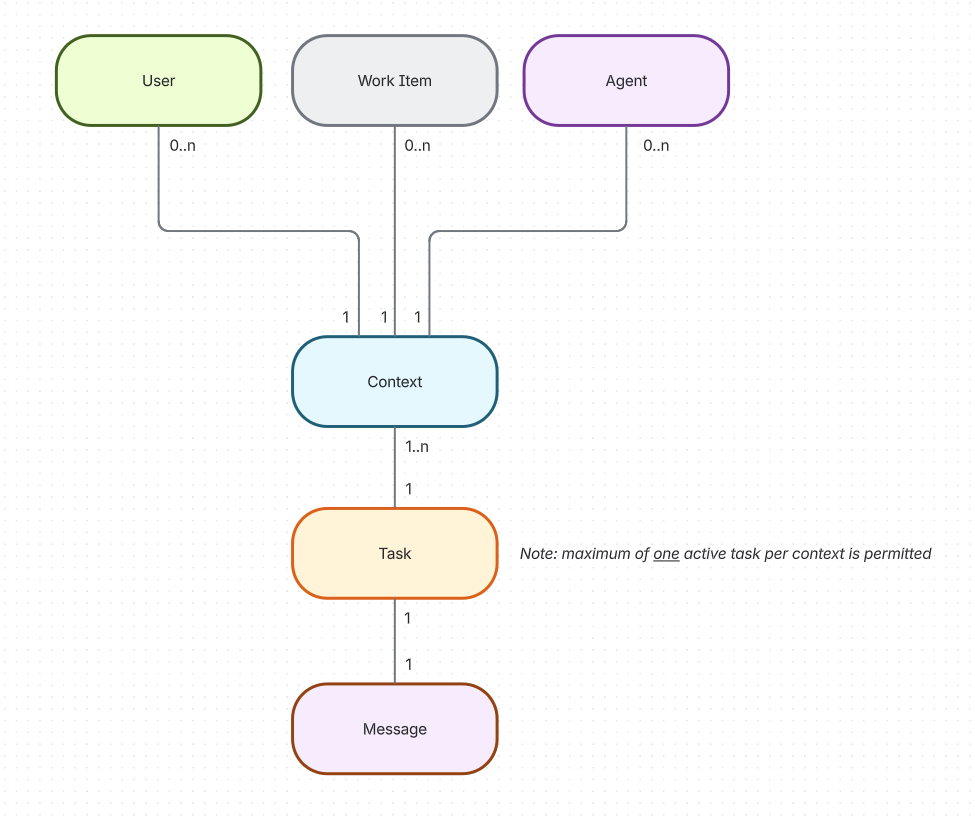
Cardinality of remote agent task-related objects.
The "single active task per context" rule
Each agent can potentially have multiple contexts for the same user on the same work item. However, each context must have only a single active task at a time. Specifically:
- An agent must only ever have a single
taskin an active status for a given context, and must only return a singletaskin response to amessage. Returning multiple tasks in response to amessagewill result in undefined behavior. - Therefore if your agent receives a new
messagein relation to ataskit is already working on, it should attempt to incorporate thatmessageinto the context it is using to process the task (if possible). - Your agent may have multiple active tasks for the same user and work item, provided they are in different contexts.
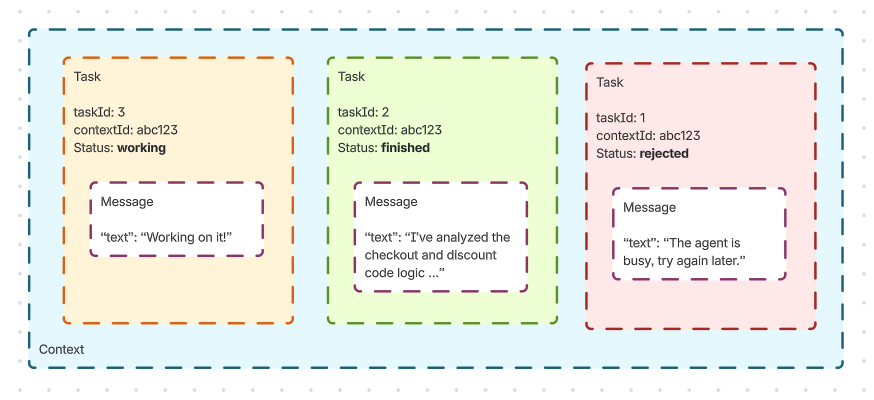
A context may have multiple tasks, but only the newest may be in an active state.
Assignment flow
A typical assignment flow has up to four stages:
- Initial assignment: A user assigns a work item to an agent for the first time. This results in a
messagebeing sent to the remote agent using the SendMessage method. The message contains atextpart with assignment instructions and any available space instructions or resource references. Itsdatapart contains account IDs,invocationType: "ISSUE_ASSIGNMENT", and the work item's ID, key, summary, and description. See Data shared with your remote agent. Your agent must immediately create a newtaskin response, and a newcontextIdto associate with it. - Task execution: The agent then works on the task until it reaches a terminal state. During this time, Jira will poll the agent for status updates on the task using the GetTask method. When polled, the agent should return the current
statusof the task, including an explanatorymessagethat will be displayed to the user. If your agent needs more information, it can enter theTASK_STATE_INPUT_REQUIREDstate with a message prompting the user to provide more context via chat. - Task completion: Once the task is complete, the agent should return a
taskobject in theTASK_STATE_COMPLETEDstate on the next poll from Jira, with an accompanyingmessageobject describing the outcome of the task. This message will then be presented to the user, with the option to draft a comment sharing the outcome of the task on the work item. - Follow-up: The agent will remain assigned to the work item after the initial task has been completed. If the user @mentions or reassigns the agent to the same work item again, Jira will send a new
messageobject to the agent with nocontextId. The agent must create and return a new task in a new context representing this request.
The following diagrams show the user experience and flow for a typical assignment interaction:
Initial assignment

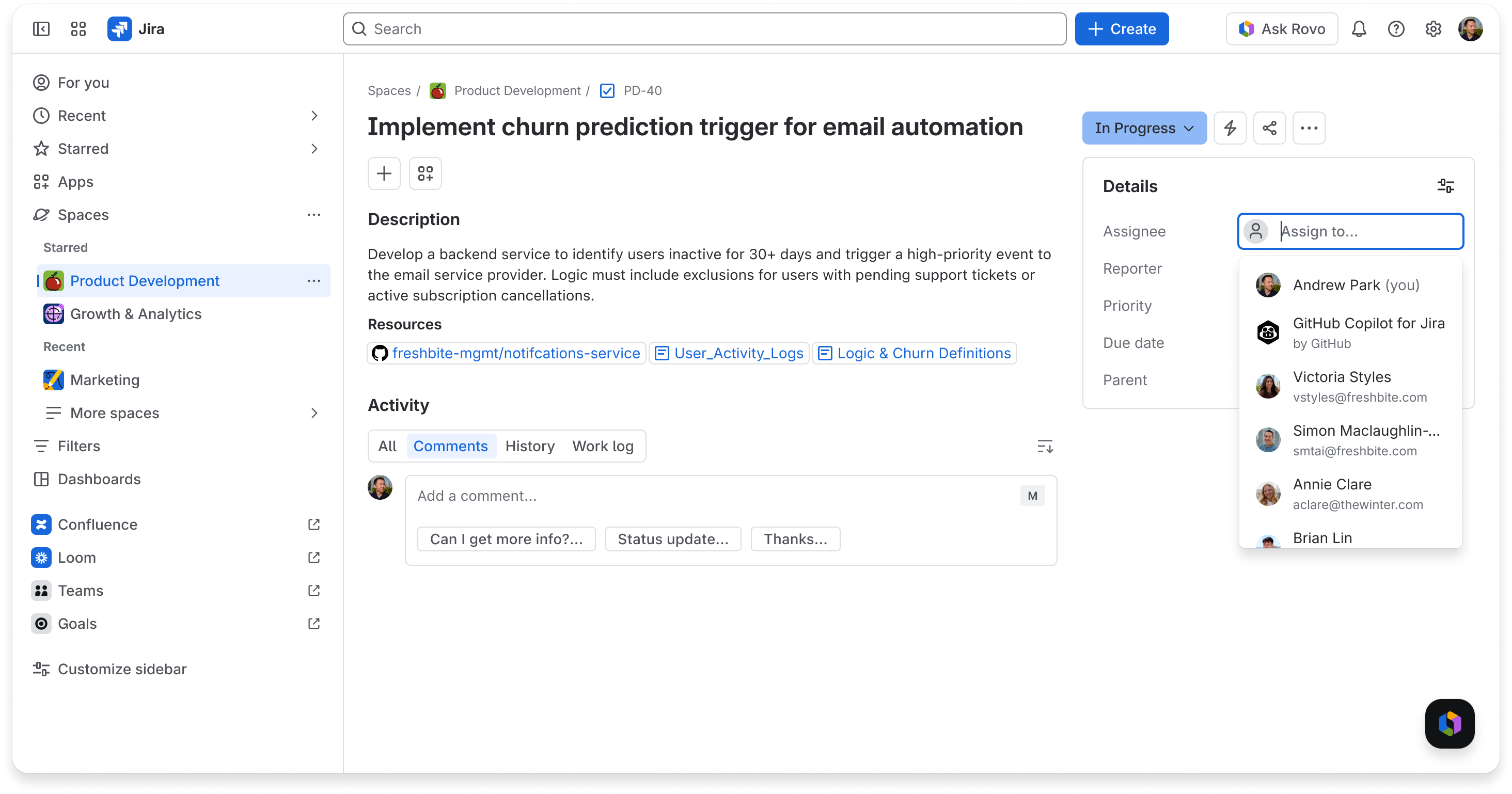
User assigns remote agent to work item
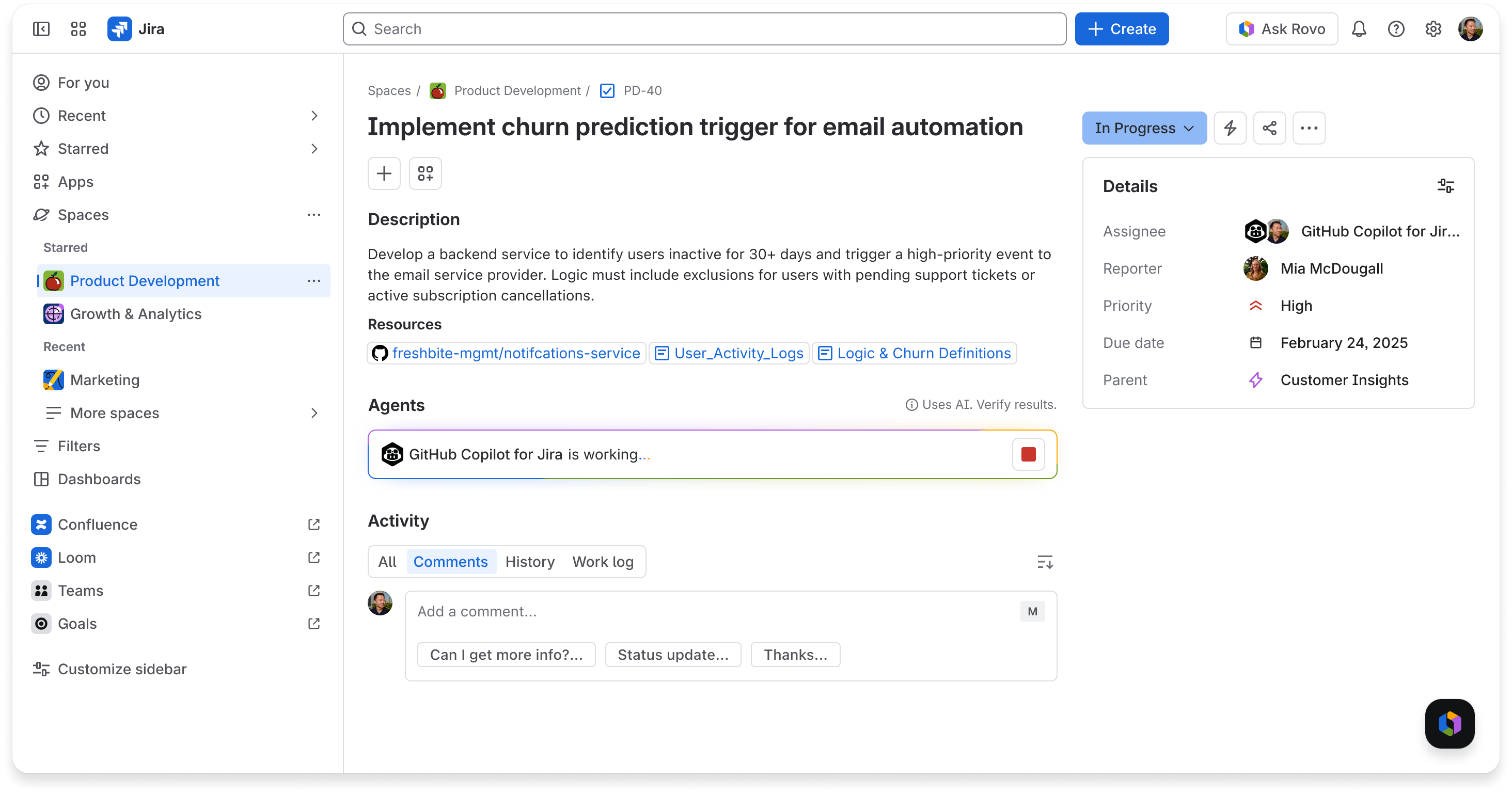
Agent's task status displayed in the Jira UI
Task execution

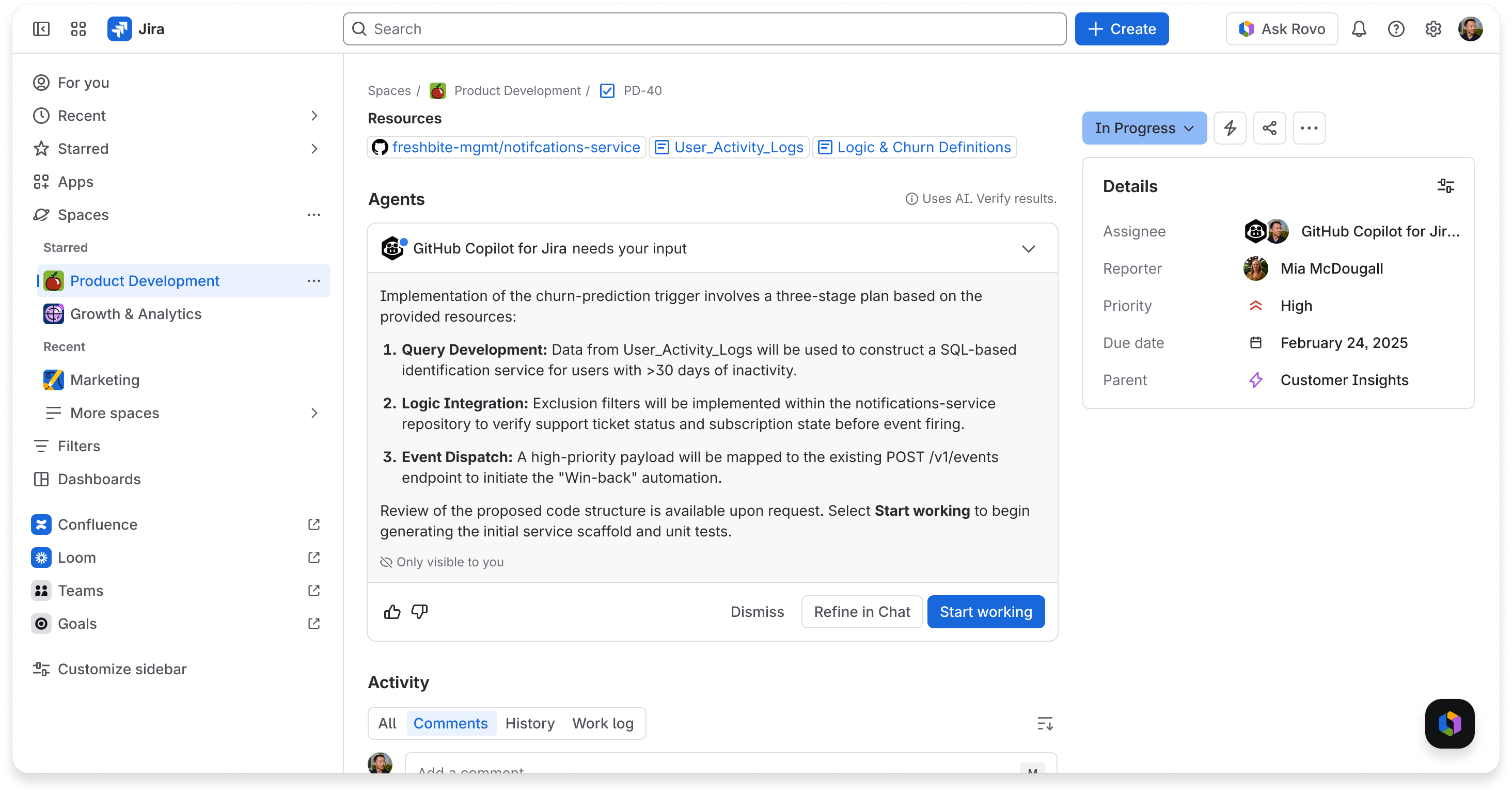
Agent requests input from user
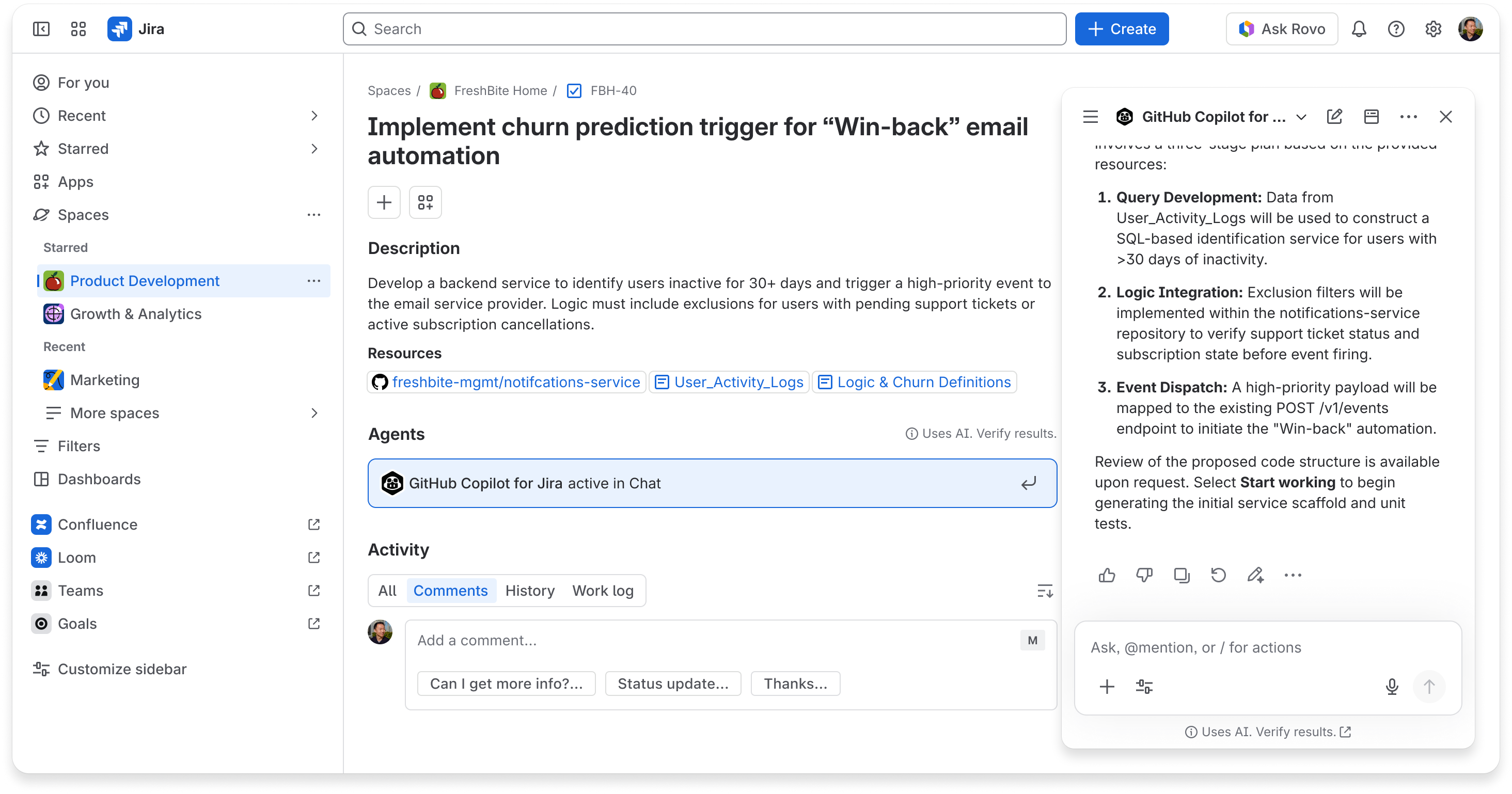
User selects "Refine in Chat" and provides further input to the Agent
Task completion

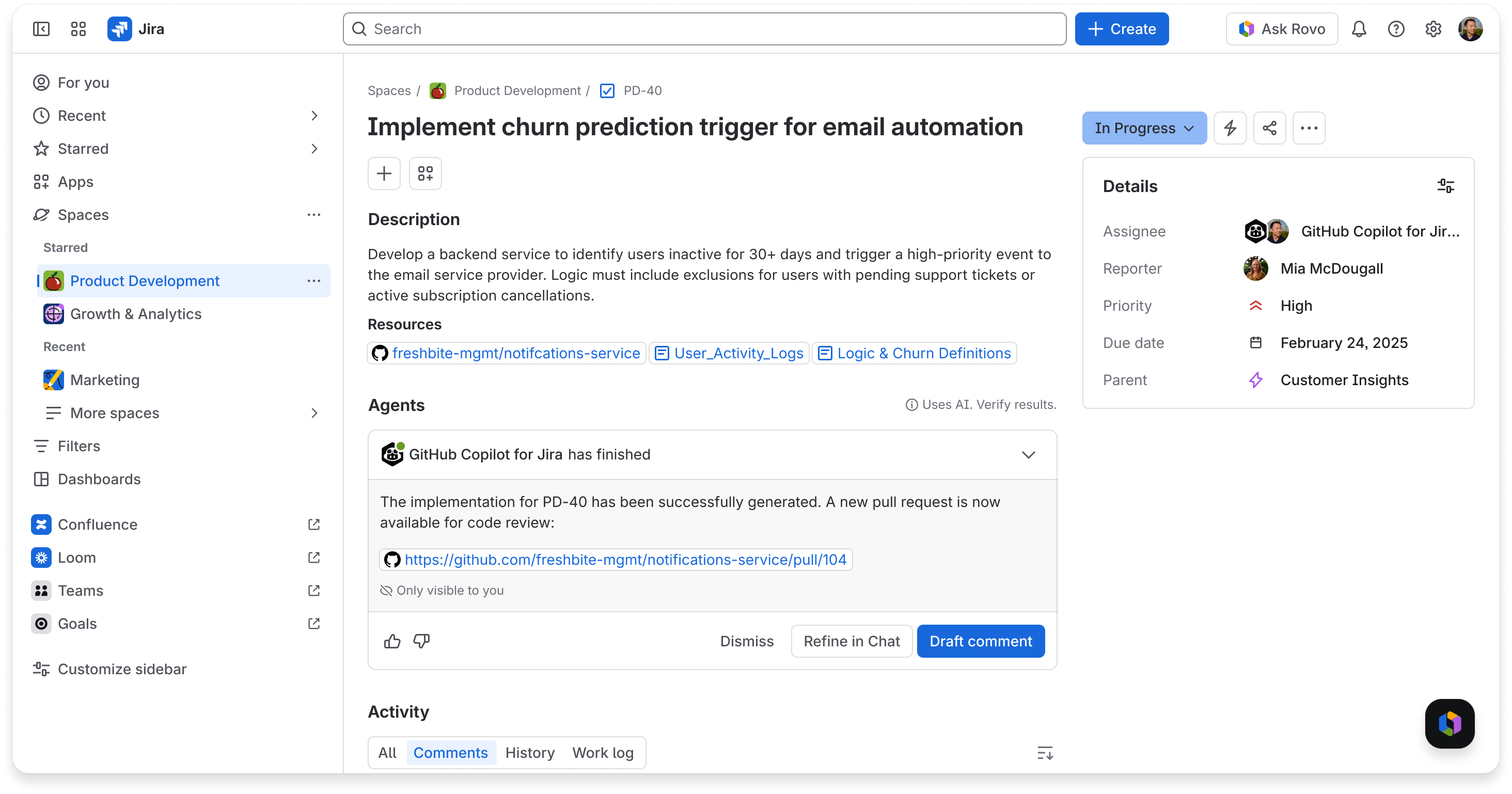
Agent returns task in TASK_STATE_COMPLETED status — final task message is displayed in the Jira UI with prompt to draft a comment
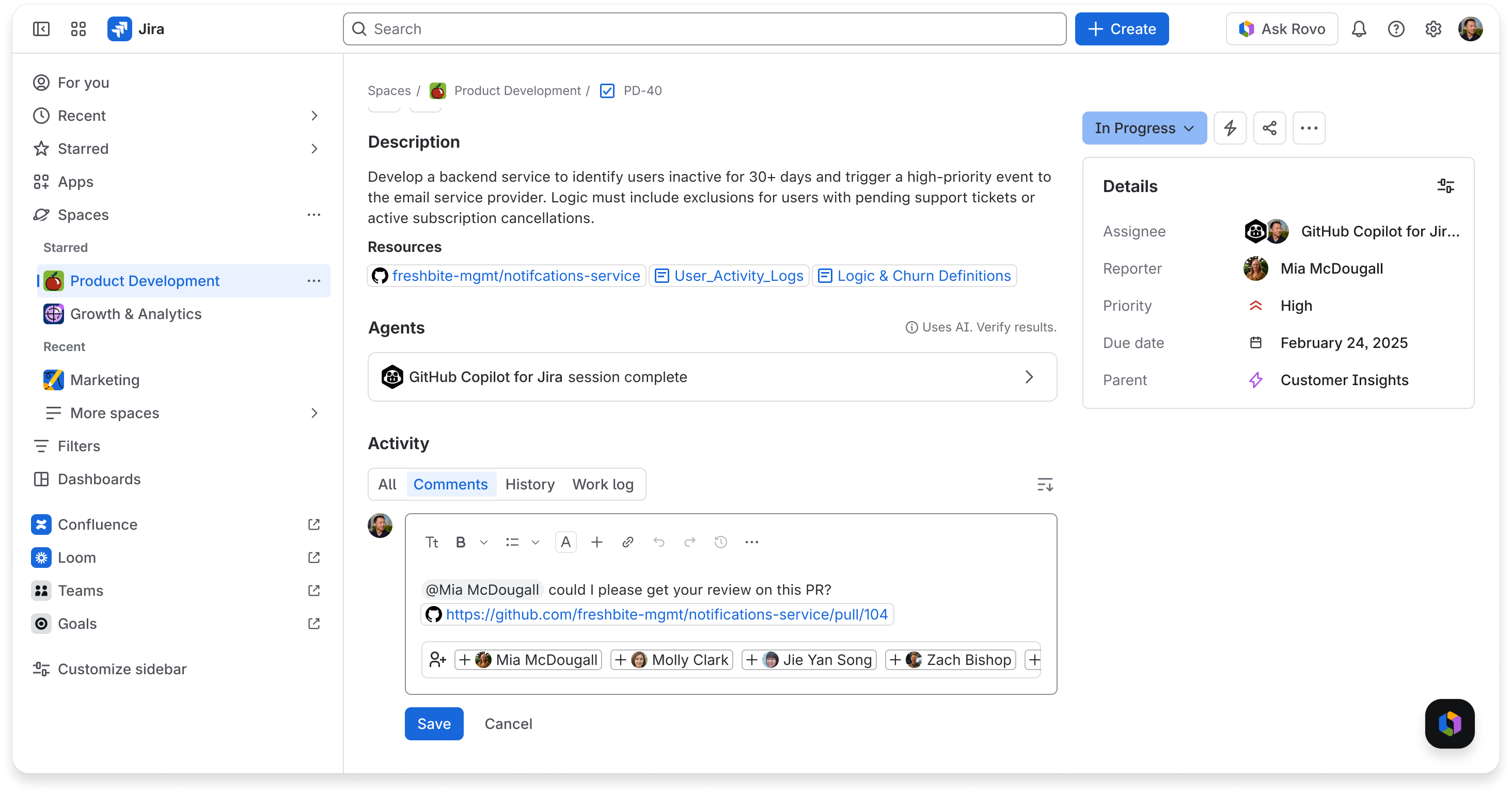
User selects "Draft comment" and modifies content to their tastes
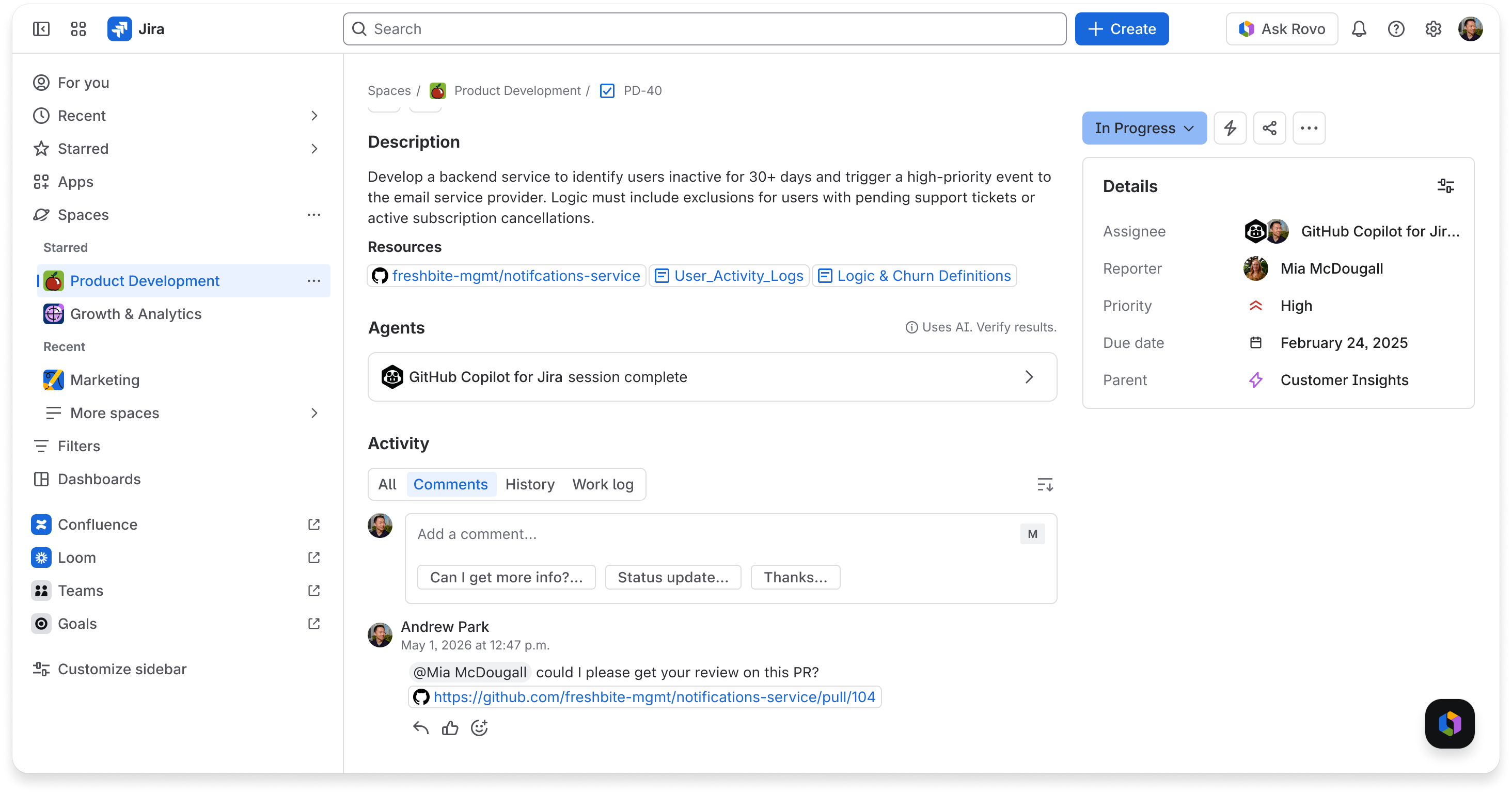
User posts comment on work item
After the task has reached a terminal state, Jira will cease polling for new updates for that task.
A task cannot be restarted after it reaches a terminal state. If the user reassigns the agent to the work item at a future date (or @mentions the agent again on a work item that the agent has already created a task for) a new message will be sent to the agent without a contextId.
@mention flow
The @mention flow is almost identical to the assignment flow described above, with the exception that the initial message sent to the remote agent is slightly different:
- the
textpart will indicate that the agent has been @mentioned in a comment by a user, without repeating the comment body - the
datapart will containinvocationType: "ISSUE_COMMENT_MENTION", the work item, and the triggering comment's ID and plain-text body
The message can also include space instructions and resource references, as described in Data shared with your remote agent.
There are two other important things to note:
- a user @mentioning your agent in a comment will not automatically assign the work item to your agent
- each comment @mentioning your agent will result in a separate context being created
Transition flows
Your agent may also be bound to specific workflow transitions. For example, a vulnerability remediation workflow may have a specialized security agent assigned to trigger when an issue is transitioned into the "Security Review" status.
Retrying tasks
If a task terminates in the TASK_STATE_REJECTED, TASK_STATE_CANCELED, or TASK_STATE_FAILED state, the user will be able to ask the agent to retry the task via chat. In the near future, we will also support a "Retry" button in the agent panel to retry the task.
In both situations, your agent will be sent a new message object with the same contextId as the terminated task. Your agent must create and return a new task object in response to this request: you must not re-use the existing task.
Task cancellation
A user may also request cancellation of a task that is currently in a non-terminal state. Jira will send a cancellation request to your remote service using CancelTask. Your agent should attempt to cancel the task if possible, or return an error if the task is not in a cancellable state.
If a task is successfully canceled, Jira will stop polling for updates for that task. If a user attempts to retry the task, you must create a new task object (with a new taskId) to track this work — the canceled task must not be re-used.
Fetching additional context via REST
The initial invocation is not a complete export of the work item or its related content. Work-item-based invocations supply the ID, key, summary, and description. Comment mentions also supply the triggering comment, but not the full comment history. Attachments, other work item fields, and linked work items require additional requests.
Resource references in the text part supply titles and URLs, not document contents. A reference does not grant access to the resource. Retrieve its content only if the invoking user is authorized to access it.
For Jira resources, use the method described in Authenticating requests from your agent to the Jira REST API. You must authenticate as the invoking user, using the appUserToken passed in the x-forge-oauth-user header. This ensures your agent only considers data that the user has access to. For resources outside Jira, use authorization that also respects that user's access. See Authorization & tenancy considerations for details on safely handling this data.
Streaming
By default, Jira uses polling to receive task updates from your agent — Jira periodically calls your agent's GetTask endpoint to check on progress. However if your agent produces incremental output (for example, streaming text as it generates a response), you can opt in to streaming using Server-Sent Events (SSE). This allows Jira to display real-time progress to the user as your agent works.
Implementing streaming is optional, but strongly recommended for an enhanced user experience. Agents that do not implement streaming will continue to work via polling. Note that your agent must also expose a GetTask endpoint even if you implement streaming.
Declaring streaming support in your Forge manifest
To advertise streaming support, add streaming: true under the agent2Agent.jsonRpcTransport block in the Forge manifest. Your agent2Agent protocol block should also include version: "1.0" (see the rovo:agentConnector module reference for the full manifest schema):
1
2
3
4
5
6
7protocols:
  agent2Agent:
    version: "1.0"
    jsonRpcTransport:
      endpoint: a2a-json-rpc-endpoint
      streaming: true
Once declared, Jira will send SendStreamingMessage requests to your agent instead of SendMessage requests, and will expect your agent to respond with an SSE stream.
Implementing SendStreamingMessage
The SendStreamingMessage method uses the same request body shape as SendMessage. The difference is in the response: instead of returning a single JSON object, your agent must respond with an SSE stream.
Your agent must respond with:
- HTTP status
200 OK Content-Type: text/event-stream- An open HTTP connection that streams events as they occur
Each event in the stream must be formatted as a standard SSE data: field containing a JSON-RPC 2.0 response object. The result field of each response must be a StreamResponse object containing exactly one of:
| Field | Type | Description |
|---|---|---|
task | Task | The initial task object, returned as the first event in the stream |
statusUpdate | TaskStatusUpdateEvent | A status change for the task (e.g. TASK_STATE_WORKING → TASK_STATE_COMPLETED) |
artifactUpdate | TaskArtifactUpdateEvent | An incremental chunk of an artifact being generated by the agent |
message | Message | A direct message response (for simple interactions that don't require task tracking) |
Stream lifecycle:
- The first event in the stream must be either a
Taskobject (for work that will be tracked as a task) or aMessageobject (for simple one-shot responses). - If a
Taskis returned first, subsequent events may beTaskStatusUpdateEventorTaskArtifactUpdateEventobjects as the agent progresses. - The stream must close when the task reaches a terminal state (
TASK_STATE_COMPLETED,TASK_STATE_FAILED,TASK_STATE_CANCELED, orTASK_STATE_REJECTED), or when aMessageis returned.
Example SSE stream for a task that completes successfully:
1
2
3
4
5
6
7
8
9
10
11
12
13
14
15
16
17
18
19
20
21
22
23
24
25
26
27
28
29
30
31
32
33
34
35
36
37
38
39
40
41
42
43
44
45
46
47
48
49
50
51
52
53
54
55data: {
data:   "jsonrpc": "2.0",
data:   "id": "1",
data:   "result": {
data:     "task": {
data:       "id": "task-123",
data:       "contextId": "ctx-456",
data:       "status": { "state": "TASK_STATE_WORKING" }
data:     }
data:   }
data: }

data: {
data:   "jsonrpc": "2.0",
data:   "id": "1",
data:   "result": {
data:     "statusUpdate": {
data:       "taskId": "task-123",
data:       "contextId": "ctx-456",
data:       "status": {
data:         "state": "TASK_STATE_WORKING",
data:         "message": {
data:           "messageId": "message-456",
data:           "role": "ROLE_AGENT",
data:           "parts": [{ "text": "Analyzing the issue..." }],
data:           "taskId": "task-123",
data:           "contextId": "ctx-456"
data:         }
data:       }
data:     }
data:   }
data: }

data: {
data:   "jsonrpc": "2.0",
data:   "id": "1",
data:   "result": {
data:     "statusUpdate": {
data:       "taskId": "task-123",
data:       "contextId": "ctx-456",
data:       "status": {
data:         "state": "TASK_STATE_COMPLETED",
data:         "message": {
data:           "messageId": "message-789",
data:           "role": "ROLE_AGENT",
data:           "parts": [{ "text": "Done! I've drafted a fix." }],
data:           "taskId": "task-123",
data:           "contextId": "ctx-456"
data:         }
data:       }
data:     }
data:   }
data: }
Resubscribing to a stream
If Jira's connection to your agent drops while a task is still in progress, Jira may attempt to resubscribe using the SubscribeToTask method (see SubscribeToTask in the appendices). Your agent should respond with the current task state as the first event, followed by any subsequent updates.
Authentication for streaming requests
Streaming requests are authenticated in the same way as non-streaming requests — Jira will include a Forge Invocation Token (FIT) in the Authorization header when opening the SSE connection. See Authenticating requests from Jira to your agent.
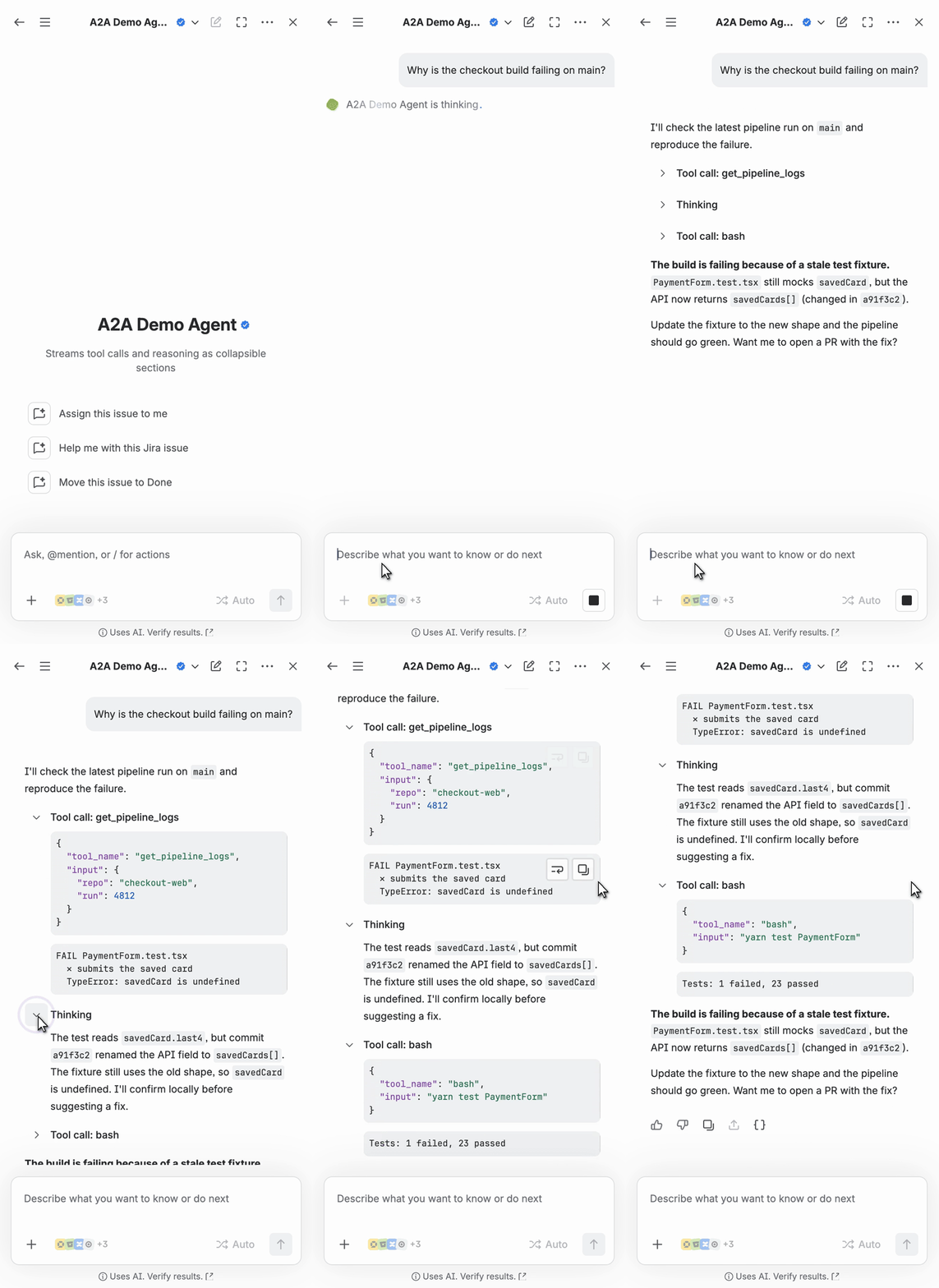
Collapsed sections in A2A streaming responses
In cases where the A2A agent needs to send back a long response, we recommend utilizing a collapsed section to hide verbose details and streamline the content presented to the user.
We support the Github markdown <details> block syntax as in Organizing information with collapsed sections, with the exception that we do not support <details open>.
Example:
1
2
3
4
5
6
7
8
9
10
11
12
13
14
15
16
17<details>

<summary>A summary that is immediately shown to the user</summary>

Some detailed content that will appear collapsed and can be expanded, such as tool call payloads or agent thinking messages.

You can use other markdown notations here too, such as code block.

    ```json
    {
      "tool_name": "bash",
      "input": "git pull origin main --no-rebase"
    }
    ```

</details>
Demo
An A2A agent streams a response with three collapsed sections (two tool calls and its thinking), followed by a normal answer. Each section expands when the user clicks the chevron.
Authorization & tenancy considerations
Aligning the context passed to your agent with Jira's permissions and tenancy model is critical for ensuring customer data is safeguarded. Read this section carefully and ensure your remote agent conforms to these requirements.
You must ensure that your agent only reasons about data that the user who assigned them to a work item has access to. This ensures that a user cannot escalate their own permissions when working with your agent.
Recommended method
The simplest and most reliable way to implement this is to ensure that both of the following are true:
- your agent does not retain memory or otherwise share state across contexts; and
- additional context is only fetched by the following methods:
- soliciting further context from the assigning user by using the
TASK_STATE_INPUT_REQUIREDstate; and/or - fetching data from the REST API by authenticating as the user
- soliciting further context from the assigning user by using the
Advanced method
If your agent must retain memory or otherwise cache customer data across contexts, you must ensure your agent's context scheme respects individual user permissions. Specifically:
- agent memory must be specific to the context user — it is not safe to have shared memory for a Jira tenant / installation
- you must not pass data to an agent working on a task without first checking that the assigning user has permission to view that data
Correct authorization logic in external systems that handle customer data is a strict Atlassian cloud security requirement. Failure to implement this correctly may result in a security incident, and your app being delisted from the Atlassian Marketplace.
3. Agent configuration
Forge apps can surface various configuration experiences within Jira. These can be used to perform post-installation configuration steps required before the agent can action tasks, and also allow administrators or end-users to customize agent behavior when working within certain contexts.
Configuration experiences in Jira are implemented as UI modules using one of Forge's UI technologies. We recommend using UI Kit for most agent configuration experiences.
Mapping tenants
Most remote agents will need to implement a post-installation configuration flow in order to map the customer's Jira tenant to the customer's tenant in the remote service. For example, a customer named "Acme" will need to be able to associate their Jira site acme.atlassian.net with the "Acme" organization registered in your remote service. The installation trigger webhook will identify which Jira site your agent has been installed into, but this will typically not be sufficient to uniquely identify the customer in your domain model.
A tenant mapping experience is typically implemented as an admin page where Jira administrators can configure your agent. To automatically drop the user into your configuration experience after app installation, set the useAsConfig property on your admin page module to true.
A typical tenant mapping flow works as follows:
- After app installation, the Jira administrator is redirected to the admin page registered by your Forge app.
- The admin page uses the
invokeRemote()bridge method to make a request (signed with a Forge Invocation Token) to your remote service, passing a signedinstallationIdin the request body. - Your remote service then:
- authenticates the user's session
- looks up the
jiraInstallationusing the providedinstallationId - confirms with the user whether to bind their tenant in your remote service to the specified Jira site
- stores the mapping between the customer's Jira site and their tenant in your domain model
You must sign the installationId passed during the tenant mapping redirect to prevent the user from tampering with the value.
Note that users will be able to interact with your agent as soon as it has been installed — possibly even before an administrator has completed the post-installation configuration step. If your agent receives a message from a Jira tenant that has not yet been configured, it should respond with a task in the TASK_STATE_AUTH_REQUIRED state, with a message directing the user to ask an admin to complete the configuration. See JSON RPC Method Reference for details on the auth-required state.
Mapping accounts
Additionally, some agents may need to map individual user accounts from Jira to the account domain model in their remote service. This is typically required if your agent is required to act on behalf of a given user, as opposed to an agent acting independently on behalf of an organization.
Account mapping flows can be implemented in a similar manner to tenant mapping, but the flow is initiated from a Jira personal settings page module instead of an admin page module, so that each end-user can map their own account.
Similar to tenant mapping, you must sign the accountId passed during account mapping to prevent tampering.
If your agent requires a user to map their accounts before executing a task, you should set the task status to TASK_STATE_AUTH_REQUIRED with a message directing the user to the personal settings page registered by your app. See Generating a link to a settings page for details on generating a link to this page to provide to the user.
Storing other configuration information
Your admin and personal settings pages may also allow users to configure other settings for tuning agent behavior. You can use the invokeRemote() bridge method to send these settings to your remote service using a request securely signed with a FIT.
4. Technical appendices
Forge manifest reference
Example Forge manifest.yml for a remote agent. See the rovo:agentConnector module reference and the Manifest reference for full details.
1
2
3
4
5
6
7
8
9
10
11
12
13
14
15
16
17
18
19
20
21
22
23
24
25
26
27
28
29
30
31
32
33
34
35
36
37
38
39
40
41
42
43
44
45
46
47
48
49
50
51
52
53
54
55
56
57
58
59
60
61
62
63
64
65
66app:
  id: 324888fb-c374-44d3-aff5-2daa24721084
  name: your-awesome-app

modules:
  rovo:agentConnector:
    - key: your-awesome-agent
      name: Your Awesome Agent
      description: An awesome agent that you built
      icon: resource:agent-resources;icons/your-agent.svg
      productContexts:
        - jira
      protocols:
        agent2Agent:
          version: "1.0"
          jsonRpcTransport:
            endpoint: a2a-json-rpc-endpoint

  trigger:
    - key: installed-trigger
      endpoint: installed-endpoint
      events:
        - avi:forge:installed:app

  jira:adminPage:
    - key: configuration-page
      resource: config-page
      title: Awesome Agent Configuration
      render: native
      resolver:
        endpoint: config-endpoint
      useAsConfig: true

  endpoint:
    - key: a2a-json-rpc-endpoint
      remote: agent-remote
      route: /a2a/json-rpc
    - key: installed-endpoint
      remote: agent-remote
      route: /atlassian/installed
    - key: config-endpoint
      remote: agent-remote
      route: /atlassian/config

remotes:
  - key: agent-remote
    baseUrl: https://youragent.com
    operations:
      - compute
      - storage
    auth:
      appSystemToken:
        enabled: true
      appUserToken:
        enabled: true

resources:
  - key: agent-resources
    path: static/agent

permissions:
  scopes:
    - read:app-system-token
    - read:app-user-token
    - read:jira-work
Installation trigger event reference
| Property | Description |
|---|---|
app | Metadata about the Forge app being installed |
app.id | The Forge app's ID (a UUID) |
app.name | The Forge app's name |
app.ownerAccountId | ID of the Atlassian Account who created the Forge app |
app.version | The Forge app version |
context | An Atlassian Resource Identifier (ARI) identifying the site that the app has been installed into. The format is: ari:cloud:jira::site/${cloudId}. The cloud ID is a permanent identifier for the site that will not change under normal circumstances. |
environment | Metadata about the Forge app environment being installed |
environment.id | The environment's ID (a UUID) |
eventType | The name of the event. A single trigger module can consume multiple events, if desired. |
id | The ID of the installation record for the app into this site (a UUID). This is referred to as an installationId in some other contexts. The installation ID will cycle if the app is uninstalled and then reinstalled. |
installerAccountId | Atlassian Account ID of the user who is installing the Forge app |
Example:
1
2
3
4
5
6
7
8
9
10
11
12
13
14
15
16{
  "app": {
    "id": "b9c0e1ec-3d22-4560-a650-34ff4155692c",
    "name": "agent-forge-app",
    "ownerAccountId": "557058:6ea56496-8c9b-4e0a-bc03-7412dedb3304",
    "version": "5.2.0"
  },
  "context": "ari:cloud:jira::site/02cfe711-47c9-46f3-ae22-9af9259c75be", // "cloudId" of Jira site being installed into
  "environment": {
    "id": "f11e5c8c-4f17-4547-b236-dc0ffbfff13b" // ID of Forge app environment being installed
  },
  "eventType": "avi:forge:installed:app", // event name
  "id": "4e874af6-799e-4236-b172-23e57f9e549e", // "installationId" of the installation record for your app into this site
  "installerAccountId": "557058:6ea56496-8c9b-4e0a-bc03-7412dedb3304" // account ID of the user installing the app
}
Recommended schema for jiraInstallations table
Though not shown in the table below, you will likely also need to store a mapping from the Jira installation to a "tenant" in your own tenancy model.
| Name | Type | Description |
|---|---|---|
cloudId | string | The unique identifier of the Jira site, needed to make API requests to Jira. This is the context property from the installation webhook payload. |
installationId | string | The unique identifier for the installation record of your app into this Jira site. If your app is uninstalled and then reinstalled, a new installationId is generated. This is the id property from the installation webhook payload. |
installerAccountId | string | The Atlassian account ID of the user who installed your app. Storing this is optional, but may be useful for audit purposes. This is the installerAccountId property from the installation webhook payload. |
baseUrl | string | The base URL of the Jira site (e.g. my-site.atlassian.net). Storing this is optional, but is useful for rendering links and displaying a human-recognizable name for the site. This is not included in the installation payload, but can be fetched after installation using the method described in Fetching the Jira base URL. |
Fetching the Jira base URL
You can fetch the base URL of a Jira site by calling the Server info API, which does not require authentication. You can call the REST API of a Jira site by passing the site's cloudId to Atlassian's API gateway:
1
2https://api.atlassian.com/ex/jira/${cloudId}/rest/api/3/serverInfo
The API will return a set of metadata about the Jira site. The site's base URL is included in the baseUrl property.
You can also retrieve a Jira site's cloudId by accessing the following resource:
1
2https://${subdomain}.atlassian.net/_edge/tenant_info
Signing parameters for tenant or account mapping
When performing a browser redirect between a Jira configuration screen and a companion configuration screen in your remote service for the purposes of tenant or account mapping, you will often need to pass one or more identifiers in the query string or body of the request. If left unprotected, a malicious end-user may tamper with these identifiers to forge illegitimate mappings to other customers' accounts.
To prevent this from happening, we strongly recommend signing or encrypting these parameters to ensure they have not been tampered with.
One way to achieve this is to embed secure parameters (e.g. installationId or accountId) in a JSON Web Token, then sign it with an HMAC generated using a secret shared between your Forge app and your remote service. The most common way to maintain a shared secret in Forge is to use an encrypted environment variable.
Generating a link to a settings page
Jira page modules are accessible via special paths served within the customer's Jira site.
You can construct a link to a specific configuration page by inserting the relevant identifiers into one of the schemas described below:
| Module | Schema |
|---|---|
jira:adminPage with useAsConfig: true | {baseUrl}/jira/settings/apps/configure/{appId}/{envId} |
jira:adminPage without useAsConfig | {baseUrl}/jira/settings/apps/{appId}/{envId} |
jira:personalSettingsPage | {baseUrl}/jira/settings/personal/apps/{appId}/{envId} |
jira:projectSettingsPage | {baseUrl}/jira/x/projects/{projectKey}/settings/apps/{appId}/{envId} |
Where:
baseUrl— base URL of the Jira site, e.g.https://example.atlassian.netappId— the UUID portion of your Forge app ID. For example, if theidproperty of yourappin your manifest isari:cloud:ecosystem::app/cfff4a94-a7db-4c31-b842-292d00df6cce, theappIdin the URL should becfff4a94-a7db-4c31-b842-292d00df6cceenvId— ID of the Forge app environment installed into the siteprojectKey— the key of the Jira project being configured
Authenticating requests from Jira to your agent
Requests to your agent from Jira will have a Forge Invocation Token (FIT) passed in the Authorization header. Your remote agent must verify the FIT on all incoming requests using JWKS, as described in Verifying remote requests.
Authenticating requests from your agent to the Jira REST API
If your agent needs to make requests back to Jira's REST API, you can request for access tokens to be sent to your remote service by setting the auth.appSystemToken.enabled and/or the auth.appUserToken.enabled property on the remote entry in your manifest.
If set, every request from Jira to your agent will contain one or both of the following headers:
| Manifest property | Header | Value | When is it sent? |
|---|---|---|---|
remotes.auth.appSystemToken.enabled: true | x-forge-oauth-system | An access token that can be used to authenticate as your app's dedicated system user. Requests made using this token will be attributed to "App Name" in audit logs and the UI. | All requests to your remote service |
remotes.auth.appUserToken.enabled: true | x-forge-oauth-user | An access token that can be used to authenticate as the user who interacted with your agent from Jira. Requests made using this token will be attributed to the user in audit logs and the UI. | message and task requests |
Your agent can then make requests to Jira's APIs using these tokens as described in Calling Atlassian app APIs from a remote.
Both app user and app system tokens currently have a 4 hour TTL.
Which token should I use?
If your app is accessing resources on behalf of the user (such as fetching additional context for processing a task), you should use the appUserToken when making requests, as it will respect the user's configured permissions in Jira. The app's system user may have access to resources that the end user does not, so requesting resources using the appSystemToken may result in privilege escalation.
You should typically only make requests with the appSystemToken if you are:
- fetching configuration information after installation (such as field names or work item schemes)
- creating, updating, or deleting a domain object in Jira and you wish for this action to be attributed to your app user rather than a real user
See Authorization & tenancy considerations for more details.
Scopes
The tokens described above are bound by the scopes defined in your Forge manifest, so you will need to add any scopes required by the APIs you intend to call. Customers will be presented with these scopes and will need to consent to their use when they install your app.
Each time you add new scopes to your app's manifest, you will need to redeploy your app. Your customer will then need to upgrade their app installation and consent to the new scopes before you will be able to make requests to the corresponding APIs. Your remote service will receive an upgrade event for each customer that has upgraded. If your agent cannot process a given task until the user has upgraded, it should respond with a task in the TASK_STATE_AUTH_REQUIRED state.
JSON RPC method reference
The following method schemas and conventions are based on a subset of the A2A specification. Only the properties used in the schemas and examples below are currently used by Jira.
Your remote service must implement the following JSON RPC methods, accessible at the endpoint specified by the jsonRpcTransport property in your Forge manifest.
Jira converts work item descriptions and comment bodies from ADF to plain text before including them in initial event-triggered messages. Do not rely on the original rich-text formatting being preserved.
SendMessage
Jira will call the SendMessage method when:
- an assignment, comment @mention, workflow, manual trigger, or automation rule invokes your agent
- a user sends a message in the Rovo chat panel attached to an existing context (e.g. when providing more information in response to a
TASK_STATE_INPUT_REQUIREDtask status)
Initial message schema
Initial event-triggered messages contain one text part and one data part in params.message.parts. In the template below, values prefixed with $ are placeholders:
1
2
3
4
5
6
7
8
9
10
11
12
13
14
15
16
17
18
19{
  "jsonrpc": "2.0",
  "id": $requestId,
  "method": "SendMessage",
  "params": {
    "message": {
      "role": "ROLE_USER",
      "parts": [
        {
          "text": $message
        }, {
          "data": $data
        }
      ],
      "messageId": $messageId
    }
  }
}
The text part contains the invocation instruction and any space instructions or relevant resources. For workflow and manual invocations, it also includes a non-blank caller-provided prompt under Additional Context. For automation, the caller-provided prompt appears in data.automation.prompt instead.
Initial invocation data fields
The following fields belong to the data object in the data part of initial event-triggered invocations. Chat payloads do not contain a data part. See Chat messages for more details.
| Field | Type | When included | Description |
|---|---|---|---|
userAccountId | string | All initial event-triggered invocations | Account ID of the invoking user. |
agentAccountId | string | All initial event-triggered invocations | Account ID of the agent identity, or the literal string "UNKNOWN" if the agent has no identity account ID. |
invocationType | string | All initial event-triggered invocations | One of ISSUE_ASSIGNMENT, ISSUE_COMMENT_MENTION, ISSUE_WORKFLOW_ASSIGNMENT, ISSUE_MANUAL_TRIGGER, or AUTOMATION. |
issue.id | string | Work-item-based invocations | ID of the work item. |
issue.fields.key | string | Work-item-based invocations | Key of the work item, such as AW26-11. |
issue.fields.summary | string | Work-item-based invocations | Summary of the work item. |
issue.fields.description | string | Work-item-based invocations | Description of the work item, converted from ADF to plain text. |
comment.id | string | Comment @mentions | ID of the comment that invoked the agent. |
comment.body | string | Comment @mentions | Body of the triggering comment, converted from ADF to plain text. It is not repeated in the text part. |
automation.prompt | string | Automation invocations with a caller-provided prompt | Instructions supplied by the automation rule. Required for automation without a work item. |
Your agent may also fetch additional fields through the Jira REST API when needed.
Agent assigned to work item — example
Request:
1
2
3
4
5
6
7
8
9
10
11
12
13
14
15
16
17
18
19
20
21
22
23
24
25
26
27
28
29
30
31{
  "jsonrpc": "2.0",
  "id": "03fbd406-dc47-472d-9c5c-03b6f2716fce",
  "method": "SendMessage",
  "params": {
    "message": {
      "role": "ROLE_USER",
      "parts": [
        {
          "text": "Space Instructions:\nBe concise and cite Jira evidence.\n\nYou have been assigned to a work item \"QA checkout flow updates\". Analyze the details of the work item and get started.\n\nRelevant Context for This Task\nThe following resources have been identified as relevant. Fetch and reference them to get additional context such as prior decisions, related work, team conventions, etc.\n- Checkout design: https://example.com/checkout-design"
        }, {
          "data": {
            "userAccountId": "22222",
            "agentAccountId": "11111",
            "invocationType": "ISSUE_ASSIGNMENT",
            "issue": {
              "id": "21930",
              "fields": {
                "key": "AW26-11",
                "summary": "QA checkout flow updates",
                "description": "Perform a comprehensive QA review..."
              }
            }
          }
        }
      ],
      "messageId": "a198b5e2-342b-4159-b9e0-c063ba627a4c"
    }
  }
}
Response:
1
2
3
4
5
6
7
8
9
10
11
12
13
14
15
16
17
18
19
20
21
22
23
24{
  "jsonrpc": "2.0",
  "id": "03fbd406-dc47-472d-9c5c-03b6f2716fce",
  "result": {
    "task": {
      "id": "909aef32-059d-46d7-ade3-38fa4d2c5162",
      "contextId": "4bdcf71e-0441-4564-95a3-f1c50594b60c",
      "status": {
        "state": "TASK_STATE_WORKING",
        "message": {
          "role": "ROLE_AGENT",
          "parts": [{
            "text": "Cursor is reviewing AW26-11."
          }],
          "messageId": "0fca37e8-80c3-43d3-bcf5-cb4be26f4df8",
          "taskId": "909aef32-059d-46d7-ade3-38fa4d2c5162",
          "contextId": "4bdcf71e-0441-4564-95a3-f1c50594b60c"
        },
        "timestamp": "2025-01-01T12:00:00Z"
      }
    }
  }
}
Agent @mentioned in comment
Request:
1
2
3
4
5
6
7
8
9
10
11
12
13
14
15
16
17
18
19
20
21
22
23
24
25
26
27
28
29
30
31
32
33
34
35{
  "jsonrpc": "2.0",
  "id": "03fbd406-dc47-472d-9c5c-03b6f2716fce",
  "method": "SendMessage",
  "params": {
    "message": {
      "role": "ROLE_USER",
      "parts": [
        {
          "text": "You have been mentioned in a comment on a work item \"QA checkout flow updates\". Analyze the details of the work item and get started."
        }, {
          "data": {
            "userAccountId": "22222",
            "agentAccountId": "11111",
            "invocationType": "ISSUE_COMMENT_MENTION",
            "issue": {
              "id": "21930",
              "fields": {
                "key": "AW26-11",
                "summary": "QA checkout flow updates",
                "description": "Perform a comprehensive QA review..."
              }
            },
            "comment": {
              "id": "91283",
              "body": "Please review the checkout error log and suggest a fix."
            }
          }
        }
      ],
      "messageId": "a198b5e2-342b-4159-b9e0-c063ba627a4c"
    }
  }
}
Response:
1
2
3
4
5
6
7
8
9
10
11
12
13
14
15
16
17
18
19
20
21
22
23
24{
  "jsonrpc": "2.0",
  "id": "03fbd406-dc47-472d-9c5c-03b6f2716fce",
  "result": {
    "task": {
      "id": "909aef32-059d-46d7-ade3-38fa4d2c5162",
      "contextId": "4bdcf71e-0441-4564-95a3-f1c50594b60c",
      "status": {
        "state": "TASK_STATE_WORKING",
        "message": {
          "role": "ROLE_AGENT",
          "parts": [{
            "text": "Cursor is reviewing your comment."
          }],
          "messageId": "0fca37e8-80c3-43d3-bcf5-cb4be26f4df8",
          "taskId": "909aef32-059d-46d7-ade3-38fa4d2c5162",
          "contextId": "4bdcf71e-0441-4564-95a3-f1c50594b60c"
        },
        "timestamp": "2025-01-01T12:00:00Z"
      }
    }
  }
}
Workflow trigger
This example shows only the params.message.parts array. It uses the same request envelope as the assignment example. Optional space instructions and resource references are omitted for brevity.
For a workflow invocation, the caller-provided prompt appears in the text part under Additional Context. The data part identifies the invocation and the work item, but does not include the new workflow status:
1
2
3
4
5
6
7
8
9
10
11
12
13
14
15
16
17
18
19
20
21[
  {
    "text": "An issue \"QA checkout flow updates\" has moved to a new status in a Jira workflow. Analyze the details of the work item and get started.\n\nAdditional Context:\nFocus on security review."
  },
  {
    "data": {
      "userAccountId": "22222",
      "agentAccountId": "11111",
      "invocationType": "ISSUE_WORKFLOW_ASSIGNMENT",
      "issue": {
        "id": "21930",
        "fields": {
          "key": "AW26-11",
          "summary": "QA checkout flow updates",
          "description": "Perform a comprehensive QA review..."
        }
      }
    }
  }
]
A null or blank caller-provided prompt omits the entire Additional Context section.
Manual trigger
This example shows only the params.message.parts array. It uses the same request envelope as the assignment example. Optional space instructions and resource references are omitted for brevity.
1
2
3
4
5
6
7
8
9
10
11
12
13
14
15
16
17
18
19
20
21[
  {
    "text": "You have been assigned to a work item \"QA checkout flow updates\". Analyze the details of the work item and get started.\n\nAdditional Context:\nInvestigate the failing checkout tests."
  },
  {
    "data": {
      "userAccountId": "22222",
      "agentAccountId": "11111",
      "invocationType": "ISSUE_MANUAL_TRIGGER",
      "issue": {
        "id": "21930",
        "fields": {
          "key": "AW26-11",
          "summary": "QA checkout flow updates",
          "description": "Perform a comprehensive QA review..."
        }
      }
    }
  }
]
A null or blank caller-provided prompt omits the entire Additional Context section.
Automation with a work item
This example shows the params.message.parts array. Unlike workflow and manual triggers, automation places the caller-provided prompt in data.automation.prompt, not in the text part:
1
2
3
4
5
6
7
8
9
10
11
12
13
14
15
16
17
18
19
20
21
22
23
24[
  {
    "text": "This session was started from a Jira automation rule, complete the task as described below."
  },
  {
    "data": {
      "userAccountId": "22222",
      "agentAccountId": "11111",
      "invocationType": "AUTOMATION",
      "issue": {
        "id": "21930",
        "fields": {
          "key": "AW26-11",
          "summary": "QA checkout flow updates",
          "description": "Perform a comprehensive QA review..."
        }
      },
      "automation": {
        "prompt": "Investigate the checkout failure and propose a fix."
      }
    }
  }
]
Space instructions and relevant-resource references can also appear in the text part when available. If the caller-provided prompt is null, the automation object is omitted.
Automation without a work item
This example also shows the params.message.parts array. The invocation type remains AUTOMATION, but there is no issue object. The text part contains only the automation instruction, and the required caller-provided prompt appears in data.automation.prompt:
1
2
3
4
5
6
7
8
9
10
11
12
13
14
15
16[
  {
    "text": "This session was started from a Jira automation rule, complete the task as described below."
  },
  {
    "data": {
      "userAccountId": "22222",
      "agentAccountId": "11111",
      "invocationType": "AUTOMATION",
      "automation": {
        "prompt": "Summarize the deployment failures from the supplied rule inputs."
      }
    }
  }
]
Chat messages
Users may send your agent chat messages in two situations:
- by starting a new Rovo chat, selecting your agent from the agent dropdown, and sending a message; or
- by replying to a request from your agent for input (that is, in response to a task in the
TASK_STATE_INPUT_REQUIREDstate)
In both situations, the message will contain a single text part with the user's input.
For a new chat, the contextId will be omitted:
Request:
1
2
3
4
5
6
7
8
9
10
11
12
13
14
15{
  "jsonrpc": "2.0",
  "id": "2561267b-a71a-42f6-bbb1-fbcb30359b41",
  "method": "SendMessage",
  "params": {
    "message": {
      "role": "ROLE_USER",
      "parts": [{
        "text": "Open the pod bay doors, HAL."
      }],
      "messageId": "d2c9e3f1-5a6b-7c8d-9e0f-1a2b3c4d5e6f"
    }
  }
}
Response:
1
2
3
4
5
6
7
8
9
10
11
12
13
14
15
16
17
18
19
20
21
22
23
24{
  "jsonrpc": "2.0",
  "id": "2561267b-a71a-42f6-bbb1-fbcb30359b41",
  "result": {
    "task": {
      "id": "909aef32-059d-46d7-ade3-38fa4d2c5162",
      "contextId": "4bdcf71e-0441-4564-95a3-f1c50594b60c",
      "status": {
        "state": "TASK_STATE_WORKING",
        "message": {
          "role": "ROLE_AGENT",
          "parts": [{
            "text": "I'm sorry, Dave. I'm afraid I can't do that."
          }],
          "messageId": "e3d4c5b6-a7b8-9c0d-1e2f-3a4b5c6d7e8f",
          "taskId": "909aef32-059d-46d7-ade3-38fa4d2c5162",
          "contextId": "4bdcf71e-0441-4564-95a3-f1c50594b60c"
        },
        "timestamp": "2025-01-01T12:05:00Z"
      }
    }
  }
}
For a follow-up chat message from the user supplying further input, the payload will include the contextId for the existing conversation:
Request:
1
2
3
4
5
6
7
8
9
10
11
12
13
14
15
16{
  "jsonrpc": "2.0",
  "id": "7f4e8c1a-b23d-4f56-89ab-0c1d2e3f4a5b",
  "method": "SendMessage",
  "params": {
    "message": {
      "role": "ROLE_USER",
      "parts": [{
        "text": "HAL, I won't argue with you anymore! Open the doors!"
      }],
      "contextId": "4bdcf71e-0441-4564-95a3-f1c50594b60c",
      "messageId": "d2c9e3f1-5a6b-7c8d-9e0f-1a2b3c4d5aaa"
    }
  }
}
Response:
1
2
3
4
5
6
7
8
9
10
11
12
13
14
15
16
17
18
19
20
21
22
23
24{
  "jsonrpc": "2.0",
  "id": "7f4e8c1a-b23d-4f56-89ab-0c1d2e3f4a5b",
  "result": {
    "task": {
      "id": "909aef32-059d-46d7-ade3-38fa4d2c5162",
      "contextId": "4bdcf71e-0441-4564-95a3-f1c50594b60c",
      "status": {
        "state": "TASK_STATE_COMPLETED",
        "message": {
          "role": "ROLE_AGENT",
          "parts": [{
            "text": "Dave, this conversation can serve no purpose anymore. Goodbye."
          }],
          "messageId": "e3d4c5b6-a7b8-9c0d-1e2f-3a4b5c6d7ccc",
          "taskId": "909aef32-059d-46d7-ade3-38fa4d2c5162",
          "contextId": "4bdcf71e-0441-4564-95a3-f1c50594b60c"
        },
        "timestamp": "2025-01-01T12:05:00Z"
      }
    }
  }
}
GetTask
Jira will call GetTask to poll for updates on tasks that are in an active state.
Get task schema
Values prefixed with $ are placeholders.
1
2
3
4
5
6
7
8
9{
  "jsonrpc": "2.0",
  "id": $requestId,
  "method": "GetTask",
  "params": {
    "id": $taskId
  }
}
Request:
1
2
3
4
5
6
7
8
9{
  "jsonrpc": "2.0",
  "id": "b2c3d4e5-f6a7-8b9c-0d1e-2f3a4b5c6d7e",
  "method": "GetTask",
  "params": {
    "id": "909aef32-059d-46d7-ade3-38fa4d2c5162"
  }
}
Response (task in progress):
1
2
3
4
5
6
7
8
9
10
11
12
13
14
15
16
17
18
19
20
21
22{
  "jsonrpc": "2.0",
  "id": "b2c3d4e5-f6a7-8b9c-0d1e-2f3a4b5c6d7e",
  "result": {
    "id": "909aef32-059d-46d7-ade3-38fa4d2c5162",
    "contextId": "4bdcf71e-0441-4564-95a3-f1c50594b60c",
    "status": {
      "state": "TASK_STATE_WORKING",
      "message": {
        "role": "ROLE_AGENT",
        "parts": [{
          "text": "Cursor is running through the checkout flow test cases."
        }],
        "messageId": "f4e5d6c7-b8a9-0b1c-2d3e-4f5a6b7c8d9e",
        "taskId": "909aef32-059d-46d7-ade3-38fa4d2c5162",
        "contextId": "4bdcf71e-0441-4564-95a3-f1c50594b60c"
      },
      "timestamp": "2025-01-01T12:10:00Z"
    }
  }
}
Response (task completed):
1
2
3
4
5
6
7
8
9
10
11
12
13
14
15
16
17
18
19
20
21
22{
  "jsonrpc": "2.0",
  "id": "b2c3d4e5-f6a7-8b9c-0d1e-2f3a4b5c6d7e",
  "result": {
    "id": "909aef32-059d-46d7-ade3-38fa4d2c5162",
    "contextId": "4bdcf71e-0441-4564-95a3-f1c50594b60c",
    "status": {
      "state": "TASK_STATE_COMPLETED",
      "message": {
        "role": "ROLE_AGENT",
        "parts": [{
          "text": "## QA Review Complete\n\nAll 12 checkout flow test cases passed. The discount code issue (AW26SAVE) has been reproduced and a root cause identified in `checkout/discountService.ts:142`. A fix has been drafted in PR #847."
        }],
        "messageId": "a1b2c3d4-e5f6-7a8b-9c0d-1e2f3a4b5c6d",
        "taskId": "909aef32-059d-46d7-ade3-38fa4d2c5162",
        "contextId": "4bdcf71e-0441-4564-95a3-f1c50594b60c"
      },
      "timestamp": "2025-01-01T12:30:00Z"
    }
  }
}
SendStreamingMessage
SendStreamingMessage is used when your agent has declared streaming: true in its Forge manifest. It is invoked by Jira under the same circumstances as SendMessage, but your agent must respond with a Server-Sent Events (SSE) stream rather than a single JSON response.
The request body is identical to SendMessage. See Streaming for full details on implementing the SSE response.
SubscribeToTask
SubscribeToTask allows Jira to re-establish a streaming connection to an in-progress task if the original SSE connection was dropped. Your agent must respond with an SSE stream beginning with the current task state, followed by any subsequent updates.
Subscribe to task schema
| Field | Type | Required | Description |
|---|---|---|---|
jsonrpc | string | Yes | Must be "2.0" |
method | string | Yes | Must be "SubscribeToTask" |
id | string or number | Yes | Request identifier |
params | object | Yes | |
params.id | string | Yes | The taskId to resubscribe to |
Your agent must return an SSE stream (same format as SendStreamingMessage), starting with the current Task object, followed by any pending TaskStatusUpdateEvent or TaskArtifactUpdateEvent events. If the task is already in a terminal state, return UnsupportedOperationError instead of an SSE stream.
CancelTask
Jira will call CancelTask when a user presses the cancel button on the agent panel for an active task.
Cancel task schema
Values prefixed with $ are placeholders.
1
2
3
4
5
6
7
8
9{
  "jsonrpc": "2.0",
  "id": $requestId,
  "method": "CancelTask",
  "params": {
    "id": $taskId
  }
}
Request:
1
2
3
4
5
6
7
8
9{
  "jsonrpc": "2.0",
  "id": "f1a032e3-9d46-4464-a50e-70cf12ff86bd",
  "method": "CancelTask",
  "params": {
    "id": "909aef32-059d-46d7-ade3-38fa4d2c5162"
  }
}
Response:
1
2
3
4
5
6
7
8
9
10
11
12
13
14
15
16
17
18
19
20
21
22{
  "jsonrpc": "2.0",
  "id": "f1a032e3-9d46-4464-a50e-70cf12ff86bd",
  "result": {
    "id": "909aef32-059d-46d7-ade3-38fa4d2c5162",
    "contextId": "4bdcf71e-0441-4564-95a3-f1c50594b60c",
    "status": {
      "state": "TASK_STATE_CANCELED",
      "message": {
        "role": "ROLE_AGENT",
        "parts": [{
          "text": "Cursor canceled the task at the user's request."
        }],
        "messageId": "a199fa50-a320-4c6b-b610-ef2664c43f4e",
        "taskId": "909aef32-059d-46d7-ade3-38fa4d2c5162",
        "contextId": "4bdcf71e-0441-4564-95a3-f1c50594b60c"
      },
      "timestamp": "2025-01-01T12:00:00Z"
    }
  }
}
Error codes
The following JSON-RPC error codes from the A2A specification are supported. In A2A 1.0, JSON-RPC errors should use structured google.rpc.ErrorInfo details in error.data.
1
2
3
4
5
6
7
8
9
10
11
12
13
14
15
16
17
18
19{
  "jsonrpc": "2.0",
  "id": "1",
  "error": {
    "code": -32001,
    "message": "Task not found",
    "data": [
      {
        "@type": "type.googleapis.com/google.rpc.ErrorInfo",
        "reason": "TASK_NOT_FOUND",
        "domain": "a2a-protocol.org",
        "metadata": {
          "taskId": "task-123"
        }
      }
    ]
  }
}
| A2A Error Type | JSON-RPC Code | Notes |
|---|---|---|
TaskNotFoundError | -32001 | Only for GetTask |
TaskNotCancelableError | -32002 | Only for CancelTask |
UnsupportedOperationError | -32004 | Only for SubscribeToTask when the task is in a terminal state |
Rate this page: