How to use Custom UI with the Forge module command
The forge module command is currently in Preview. Its behavior may change, and the
command will modify files in your app (manifest.yml, source files, and package.json).
When you add a module with forge module add and choose Custom UI as the UI framework, the
command sets up a frontend project for you. This page explains what Custom UI is, what the command
generates for a Custom UI module, and what each file represents.
For a step-by-step walkthrough of adding a module, see
Build a Jira app with the Forge module command,
which uses UI Kit. The steps are identical — you just choose custom-ui at the UI framework
prompt.
What is Custom UI
Custom UI lets you build a module's interface with your own frontend (HTML, CSS, and JavaScript — typically a small React app), and Forge serves it. This gives you full control over how the module looks and behaves. The simpler alternative, UI Kit, uses Atlassian's ready-made components instead.
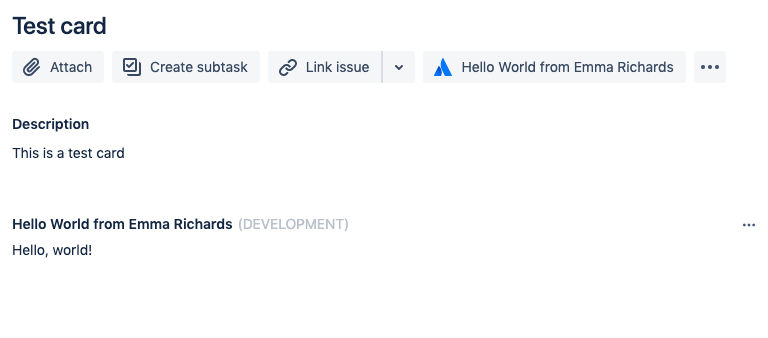
How Custom UI differs from UI Kit
The key difference is that Custom UI serves a built frontend. When you add a Custom UI module,
forge module add:
- creates a separate frontend project (a small Vite + React app) under
static/<resource-key>, for examplestatic/main-custom-ui, - installs that project's dependencies, and
- builds the frontend for you, producing a
buildfolder that your manifest points to.
Because the frontend is built, the manifest resource points to the build output
(static/main-custom-ui/build) rather than to source files directly. You only need to rebuild
after you change the frontend code (see Rebuilding after a change).
What the manifest looks like
After adding a Custom UI issue panel, the relevant parts of manifest.yml look similar to the
following:
1
2
3
4
5
6
7
8
9
10
11
12
13
14
15
16
17
18
19
20
21
22
23
24
25
26
27
28
29modules:
  jira:issuePanel:
    - key: jira-issue-panel
      resource: main-custom-ui/entry
      resolver:
        function: resolver
      viewportSize: medium
      title: Forge app for Mia
      icon: https://developer.atlassian.com/platform/forge/images/icons/issue-panel-icon.svg
  function:
    - key: my-function
      handler: index.run
    - key: resolver
      handler: jira-issue-panel.handler
resources:
  - key: main-custom-ui
    path: static/main-custom-ui/build
    entry:
      entry: jira-issue-panel.html
permissions:
  scopes:
    - read:jira-work
app:
  runtime:
    name: nodejs24.x
    memoryMB: 256
    architecture: arm64
  id: '<your app id>'
The parts that matter most for Custom UI are:
resourcepoints to the built frontend folder (static/main-custom-ui/build), unlike UI Kit, which points to source.resourcesmaps the resource key to the build output and names the HTML entry point.permissionsrequests the scopes your frontend and resolver need — here,read:jira-workso the panel can read an issue's labels.resolverlinks the module to a backend function your frontend can call.
What each file represents
forge module add creates both frontend and backend files for a Custom UI module (paths shown use default template values):
static/main-custom-ui/src/jira-issue-panel/App.jsx— your React app. This is where the UI lives; in the generated example it fetches the issue's labels and displays them.static/main-custom-ui/src/jira-issue-panel/index.jsx— the entry point that starts the React app in the browser.static/main-custom-ui/jira-issue-panel.html— the HTML page that hosts your React app. The manifest'sentrypoints to this file.static/main-custom-ui/build— the built output Forge actually serves. It's generated from thesrcfiles above and is what the manifest'sresourcepath points to.src/jira-issue-panel.js— the resolver (the backend function) that the frontend calls, for example to fetch labels from the Jira REST API.
A resolver is a small backend function that your frontend can call, for example to fetch data from Jira. Learn more in the Forge resolver documentation.
Rebuilding after a change
Because Custom UI serves a frontend that you build, changing what a module shows takes two steps: edit the code, then rebuild.
-
Edit the frontend code, for example
static/main-custom-ui/src/jira-issue-panel/App.jsx. -
Rebuild the frontend:
1 2 3 4
cd static/main-custom-ui npm run build cd ../.. -
Redeploy with
forge deploy, or start a tunnel withforge tunnelto see changes as you make them.
Related content
- Build a Jira app with the Forge module command — the step-by-step tutorial (UI Kit).
- Building Custom UI apps.
- Forge resolver.
- Browse every available module in the manifest reference.
Rate this page: