Build a Jira app with the Forge module command
The forge module command is currently in Preview. Its behavior may change, and the
command will modify files in your app (manifest.yml, source files, and package.json).
This tutorial assumes no prior Forge knowledge. By the end, you'll have a working Forge app running inside a real Jira issue, and you'll understand how it got there.
What you'll build
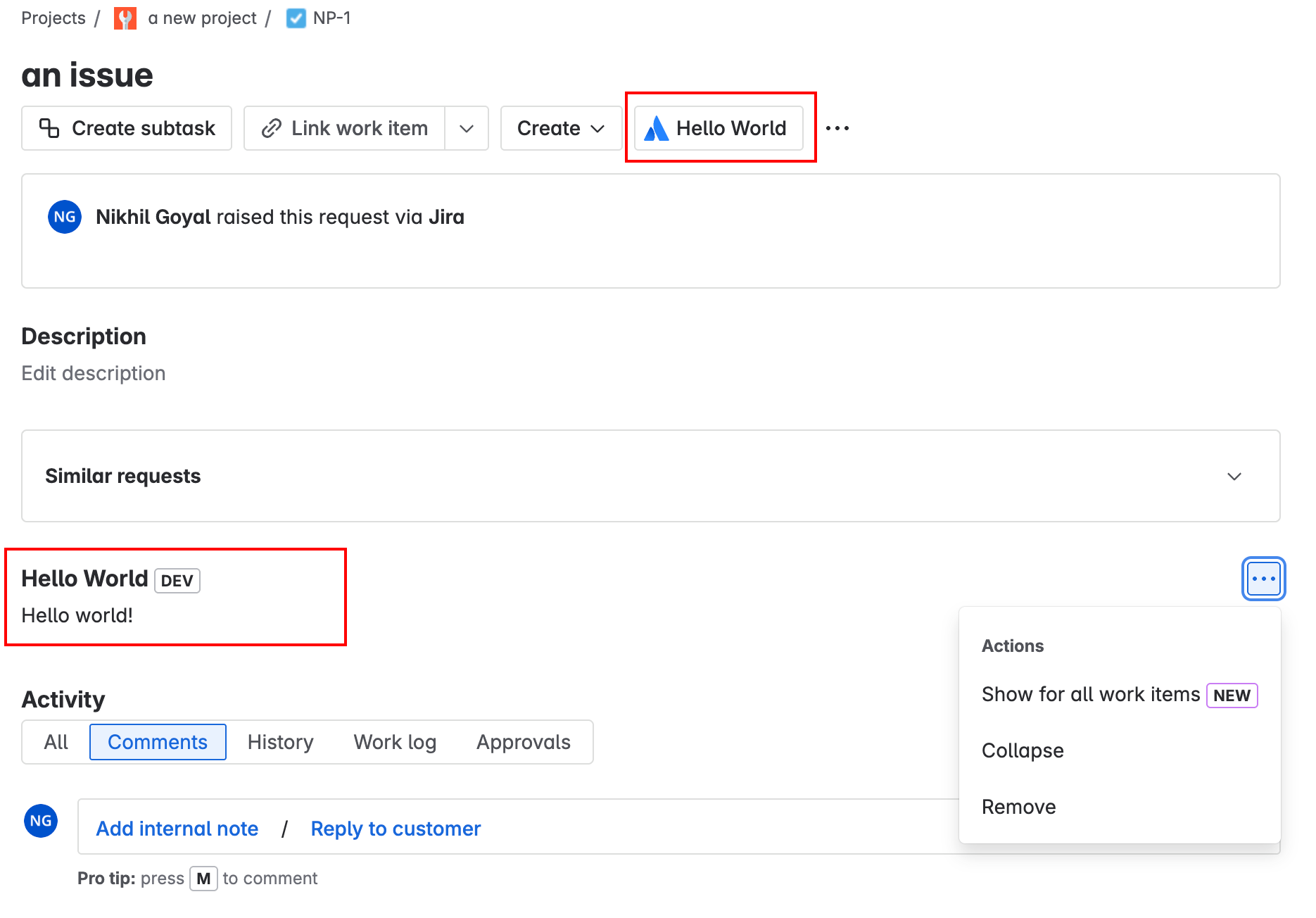
You'll create an empty Forge app and then use the new forge module command to add a
Jira issue panel to it. The finished app looks like this:
A few words before we start
- Forge app: Think of this as an empty container that Atlassian runs for you. On its own, it doesn't do anything visible yet.
- Module: A building block you snap into your app. Each module is a place your app shows
up, like a panel on a Jira issue or a page in Confluence. An app is just a collection of
modules. The module we'll add in this tutorial is called
jira:issuePanel. - Manifest: A file named
manifest.ymlthat lists what your app is made of. When you add a module, this file is updated to describe it. You normally edit this file by hand, but theforge modulecommand can write to it for you.
The older way to start an app, forge create, asks you to pick one module up front. The
forge module command flips that around: you start with an empty app and add the modules
you want, one at a time. This is the workflow you'll learn here.
Before you begin
Complete Getting started, which installs the Forge CLI and logs you in. Both are required for this tutorial. When prompted to select a template, choose the blank template.
Explore the blank app's files
You should now have a set of files. Here's what these files are:
manifest.yml: Describes your app. Right now it only contains a starter function and your app's ID. To learn more, see the Forge manifest documentation.package.json: The app's Node.js metadata. See the Node documentation for more information.src/index.js: Where your app's code lives.
If you open manifest.yml, you'll see it's nearly empty. There are no UI modules yet, so the
app has nothing to show on a Jira issue:
1
2
3
4
5
6
7
8
9
10
11modules:
  function:
    - key: my-function
      handler: index.run
app:
  runtime:
    name: nodejs24.x
    memoryMB: 256
    architecture: arm64
  id: '<your app id>'
That's the starting point. In the next steps, you'll add a module that gives the app something to display.
Step 1: See which modules are available
Before adding a module, let's look at what you can choose from. Run:
1
2forge module list
This prints the module templates you can add, grouped by Atlassian app. Each row shows a
module key (such as jira:issuePanel) and a short description of what that module does.
There are a lot of modules, so you can narrow the list with filters. To see only Jira modules, run:
1
2forge module list --product jira
A module key is the unique name of a module, written as product:moduleName. For example,
jira:issuePanel is the issue panel module for Jira. You'll use this key in the next steps.
Step 2: Inspect the issue panel module
Once you've found a module that looks interesting, you can read more about it before committing
to it using the forge module show <moduleKey> command. Run:
1
2forge module show jira:issuePanel
This shows a description of the jira:issuePanel module and links to its full reference documentation. Run this whenever you want to understand a module before adding it.
Step 3: Add the issue panel module
Now for the main event. Add a module to your app by running:
1
2forge module add
The command asks you a series of questions. First, choose what to add:
- Select a product — choose Jira.
- Select a module — choose the Issue Panel (
jira:issuePanel) module. - Select a UI framework — choose ui-kit.
Then the command asks for a few details about the module. Each question shows a default value in brackets — press Enter to accept it, or type your own value:
A UI framework is the technology you use to build what the user sees. Forge offers two:
- UI Kit: A set of ready-made components (buttons, text, and so on) that are quick to use.
- Custom UI: Lets you bring your own HTML, CSS, and JavaScript for full control.
Learn more in UI Kit.
This tutorial uses UI Kit because it's the quickest way to get started. If you'd rather use Custom UI, see How to use Custom UI with the Forge module command.
- Module key: a unique name for this module inside your app. Default:
jira-issue-panel. - Title: the heading shown at the top of the panel in Jira. Default:
Hello World!. - Icon URL: the icon shown next to the panel. Default: an Atlassian-hosted icon.
- Resource key: a name for the frontend files this module will use. Default:
main-ui-kit.
About the Title prompt. The value you type at the Title prompt is written straight into
your manifest.yml as the panel's title — that's the heading users see at the top of the
panel in Jira. Because the command sets it for you, you don't need to edit the file by hand
afterwards. To make your app easy to spot, enter something like Forge app for <your name>,
for example Forge app for Mia.
If you'd rather answer everything in one line instead of using the prompts, you can pass the choices as options (the detail prompts above still use their defaults):
1
2forge module add --product jira --module-type jira:issuePanel --ui-type ui-kit
forge module add modifies your app. It edits manifest.yml, creates new source files, and
updates package.json (it also installs the dependencies the module needs). This is expected.
Want to see exactly what the command will change before it changes anything? Add the
--dry-run option:
1
2forge module add --product jira --module-type jira:issuePanel --ui-type ui-kit --dry-run
This prints the files that would be created or edited without actually touching your app. It's a great habit when you're learning.
Step 4: See what changed
This is the part that turns the command from "magic" into something you understand. Open your
manifest.yml again. The command merged the issue panel into your existing manifest,
so it now looks similar to the following (your title will match what you typed, and your app
ID is unique to you):
1
2
3
4
5
6
7
8
9
10
11
12
13
14
15
16
17
18
19
20
21
22
23
24
25
26modules:
  jira:issuePanel:
    - key: jira-issue-panel
      resource: main-ui-kit/entry
      resolver:
        function: resolver
      render: native
      title: Forge app for Mia
      icon: https://developer.atlassian.com/platform/forge/images/icons/issue-panel-icon.svg
  function:
    - key: my-function
      handler: index.run
    - key: resolver
      handler: jira-issue-panel.handler
resources:
  - key: main-ui-kit
    path: src/frontend/main-ui-kit
    entry:
      entry: jira-issue-panel.jsx
app:
  runtime:
    name: nodejs24.x
    memoryMB: 256
    architecture: arm64
  id: '<your app id>'
Notice what the command did for you, which you'd otherwise have to write by hand:
- Added a
jira:issuePanelmodule, which tells Jira to show your app as a panel on issues. Itstitleis exactly what you typed at the Title prompt. - Added a
resolverfunction and aresourcesentry, and linked them to the module so the panel knows what to display. - Kept the original
my-functionthat came with the blank app. It's unused by this module, so you can safely remove it later if you like.
It also created the matching source files:
src/frontend/main-ui-kit/jira-issue-panel.jsx: the content shown in the panel, written with UI Kit components.src/resolvers/jira-issue-panel.js: the resolver (the backend function).src/jira-issue-panel.js: connects the resolver to the module'shandler.
A resolver is a small backend function that your frontend can call, for example to fetch data. You don't need to change it for this tutorial. Learn more in the Forge resolver documentation.
Step 5: Deploy and install your app
To use your app, it must be installed onto an Atlassian site. The
forge deploy command builds, compiles, and deploys your code; it'll also report any compilation errors.
The forge install command then installs the deployed app onto an Atlassian site with the
required API access.
You must run the forge deploy command before forge install because an installation
links your deployed app to an Atlassian site.
-
Navigate to the app's top-level directory and deploy your app by running:
1 2
forge deploy -
Install your app using one of the following commands:
To install to your latest active Forge demo development site, or provision one if needed:
1 2
forge install --demo-siteDemo sites include realistic seeded data and are active for 90 days by default.
To select an existing Atlassian site:
1 2
forge install -
If prompted, select your Atlassian context using the arrow keys and press the enter key.
-
If prompted, enter the URL for your development site. For example, example.atlassian.net. View a list of your active sites at Atlassian administration.
Once the successful installation message appears, your app is installed and ready
to use on the specified site.
You can always delete your app from the site by running the forge uninstall command.
See changes live with forge tunnel. Once your app is installed, you can run forge tunnel
instead of running forge deploy after every change. It runs your app code locally and creates a
connection between your machine and the installed app, so your changes appear in the product as you
make them. Learn more in Tunneling.
Step 6: View your app
With your app installed, it's time to see it on a Jira issue.
- Create a new Jira issue. Learn more about Jira issues.
- Open the issue. In the issue view, select the Apps button (shown as a grid icon in the top-right area of the issue) and select your app from the list. Your app should display like the example below.
While your app is deployed to either a development or staging environment, (development) or
(staging) will appear in your app title. This suffix is removed once you've
deployed your app to production.
Next steps
You started with an empty app and added a working module to it with a single command. Because modules compose, you can keep going:
- Run
forge module addagain to add another module to the same app, such as a Jira issue action. - Learn how to make API calls to Jira in the Call a Jira API tutorial.
- Change what the panel shows with the UI Kit components.
- Browse every available module in the manifest reference.
Rate this page: