Point-to-point logs export (EAP)
Point-to-point logs export is an Early Access Program (EAP) feature supported for production, staging, and development environments. To get started, follow the vendor setup steps below, then submit the EAP signup form with the required details.
Frontend logs are available as part of Forge's Early Access Program (EAP). To get started, sign up using this form.
This feature is supported for both UI Kit and Custom UI across all environments, including production. It captures console.error, uncaught exceptions, and unhandled promise rejections.
To export Forge app logs to an observability vendor, you need to set up your observability vendor account and submit the required credentials and configuration details in the EAP signup form.
The following observability vendors are supported:
Supported features
- Selective app exclusion — use your developer space ID as the primary input and provide a deny list of apps to exclude from the export.
- Environment filtering — filter export data by environment to get targeted insights.
- Per-app export URLs — each app in your developer space can have a unique export URL, giving you flexibility in how data is routed.
Datadog
-
Log in to your Datadog account.
-
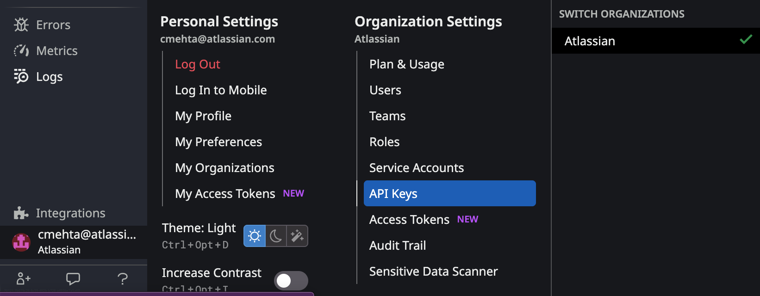
Navigate to API Keys in Organization Settings.
-
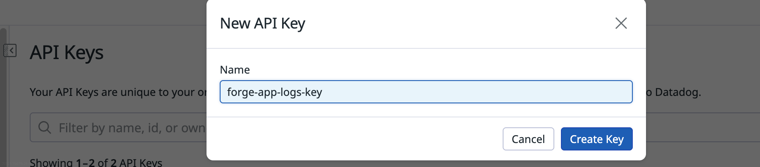
Select New Key and provide your desired name.

-
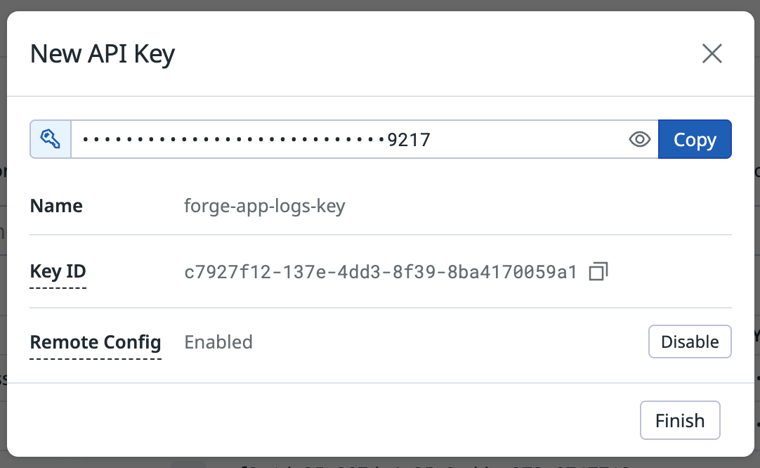
Copy the generated key.
-
Find your base URL from the browser URL bar. The final URL will have the format:
https://http-intake.logs.{base}/api/v2/logsFor example:
https://http-intake.logs.us3.datadoghq.com/api/v2/logs
-
Provide the API key and URL in the EAP signup form.
Splunk
-
Log in to your Splunk instance.
-
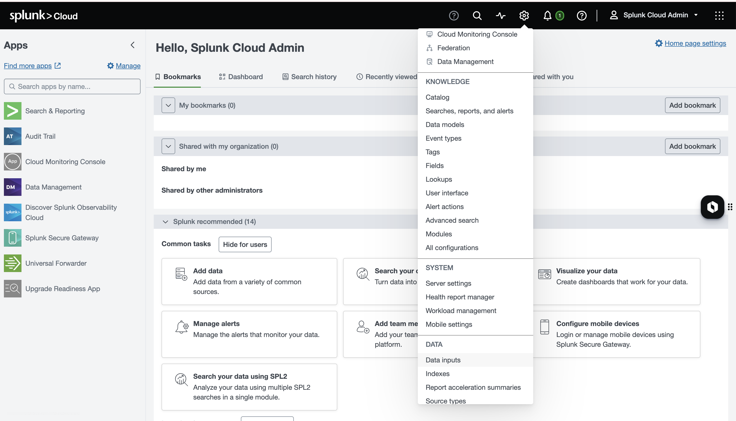
Navigate to Settings, then Data Inputs.
-
Add a new HTTP Event Collector.

-
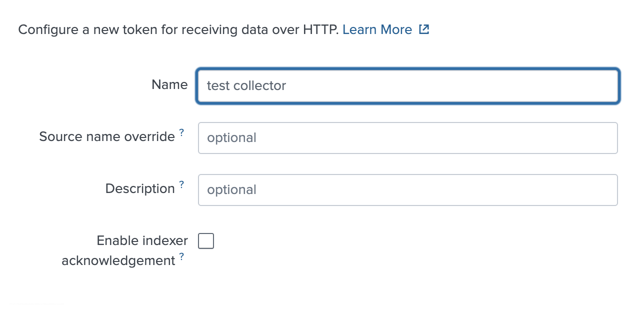
Give it an appropriate name and description. Ensure that the Enable Index Acknowledgement checkbox is unchecked.
-
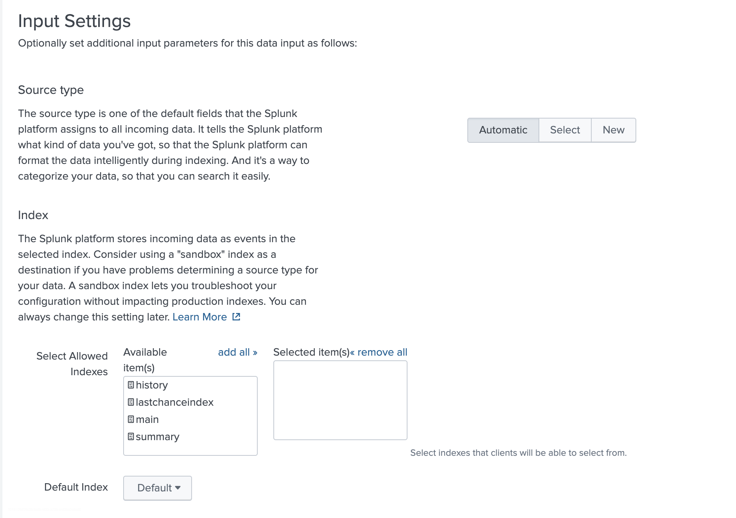
Select the desired Source Type, Allowed indices, and Default Index. Incoming logs flow to the default index.
-
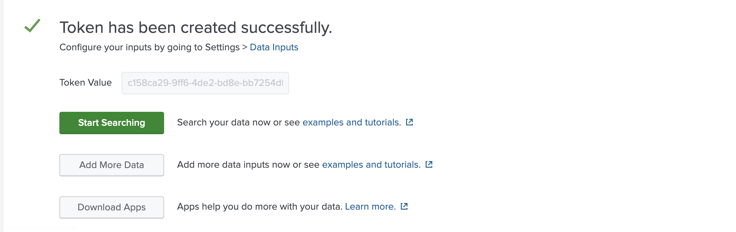
Once you review and submit, copy the Token Value — this is the API key to provide in the EAP signup form.
Sumo Logic
-
Log in to your Sumo Logic account.
-
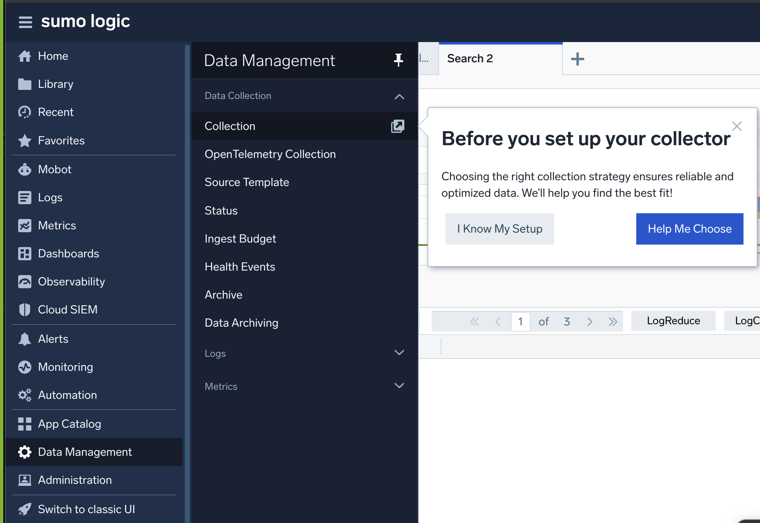
Navigate to Data Management, then Collection.

-
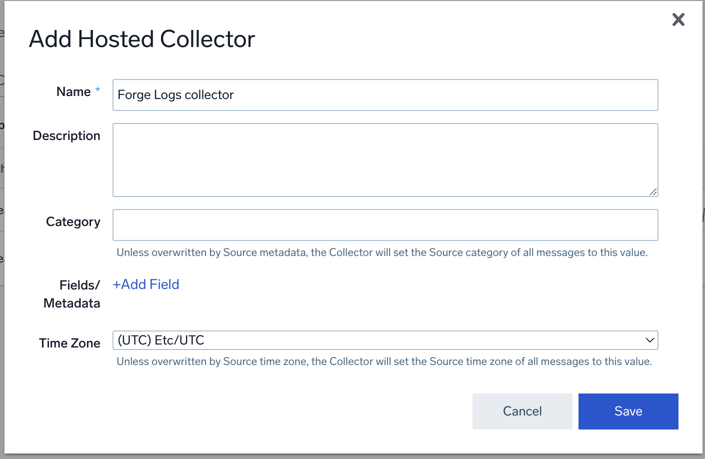
Select Add Collector and select Hosted Collector.
-
Add a name and other details, then create the collector.
-
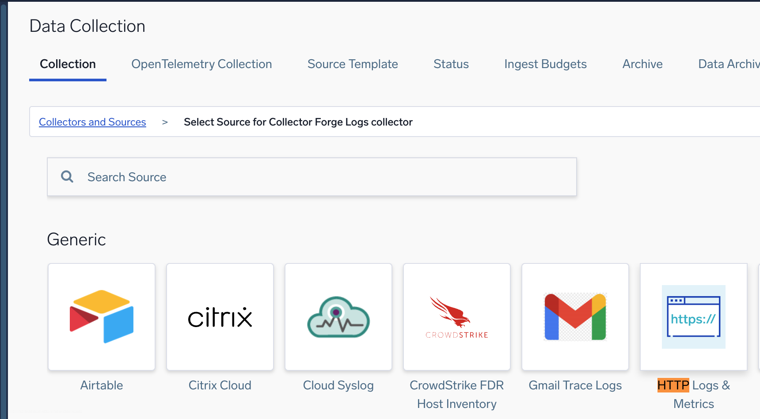
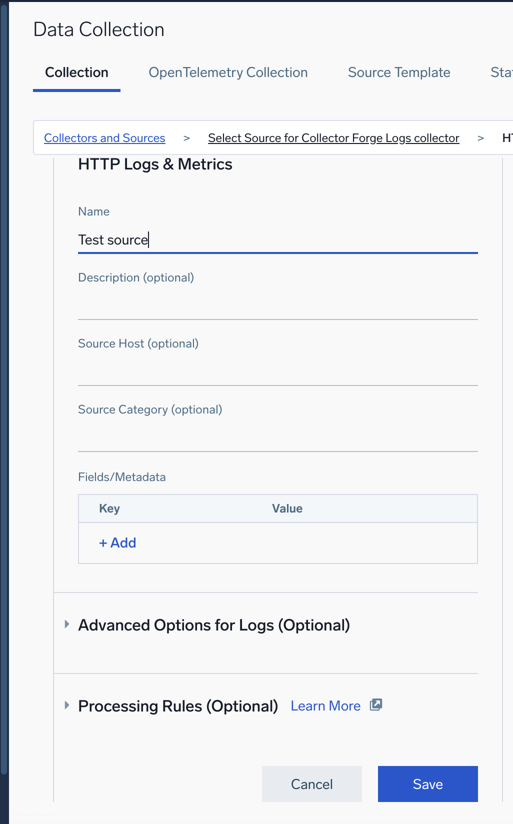
Next to the created collector, select Add Source, then HTTP Logs & Metrics. Add a name and other details, then select Save.

-
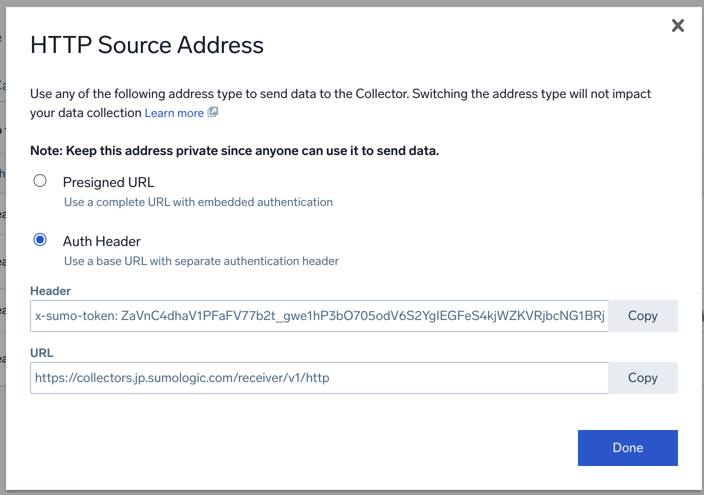
In the HTTP Source Address popup, choose Auth Header and copy the Header and URL details to provide in the EAP signup form.
CloudWatch
CloudWatch HTTP log export is only supported in US regions. For more information, see Amazon CloudWatch HTTP Log Collector.
-
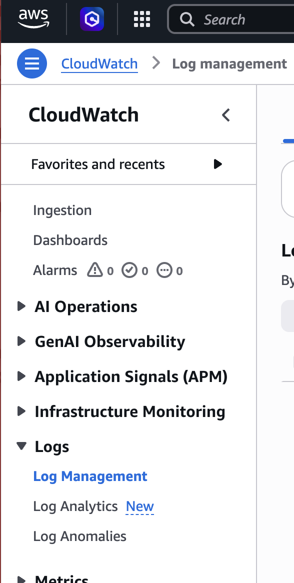
Log in to AWS and navigate to CloudWatch, then Logs, then Log Management.
-
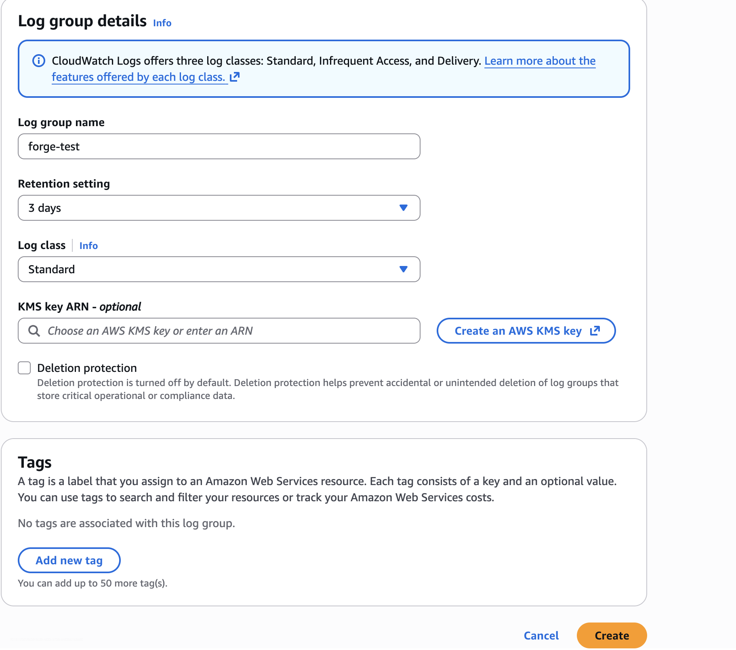
Create a log group with your desired details.
-
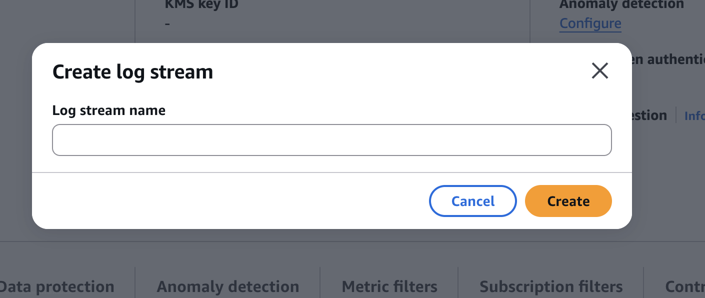
Create a log stream within the created log group.
-
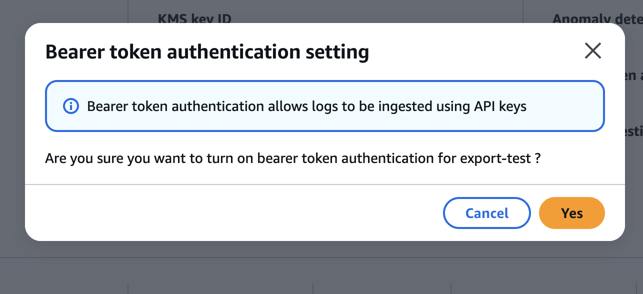
On the log group, select Actions, then Edit Bearer Token Authentication and enable authentication.
-
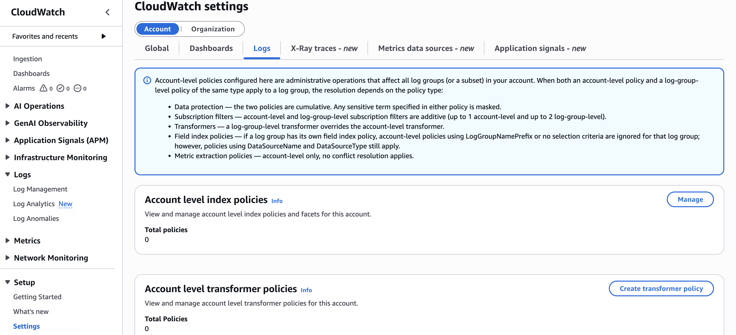
Navigate to CloudWatch, then Settings, then Logs.
-
Under the API Keys section, create a new API key with your desired details and select Generate.
-
Note your endpoint URL — the format is
https://logs.{region}.amazonaws.com/ingest/bulk. For example:https://logs.us-east-1.amazonaws.com/ingest/bulk -
Provide the API key, log group name, log stream name, and URL in the EAP signup form.
Google Cloud
-
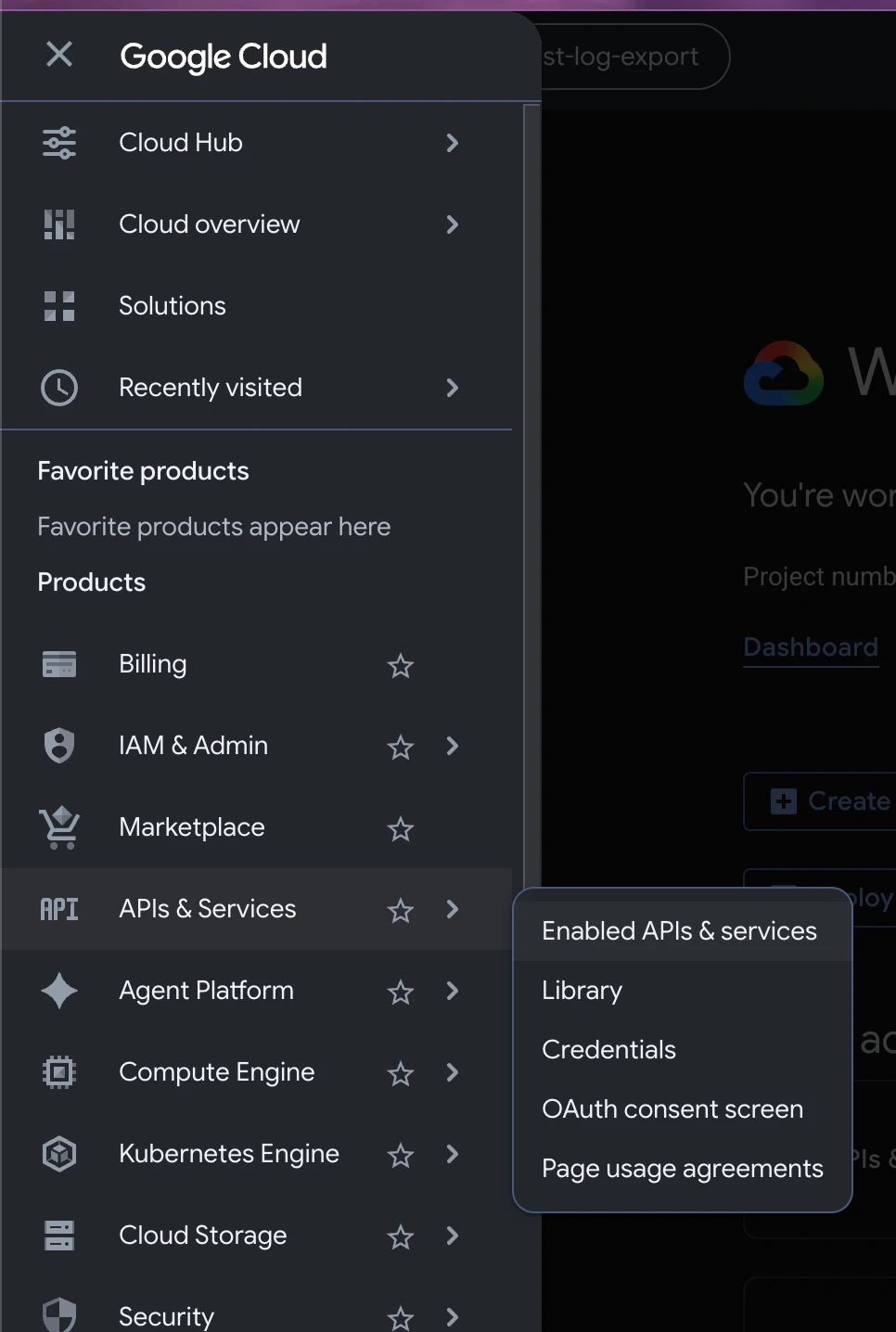
Log in to your Google Cloud account and navigate to APIs & Services in the left menu.
-
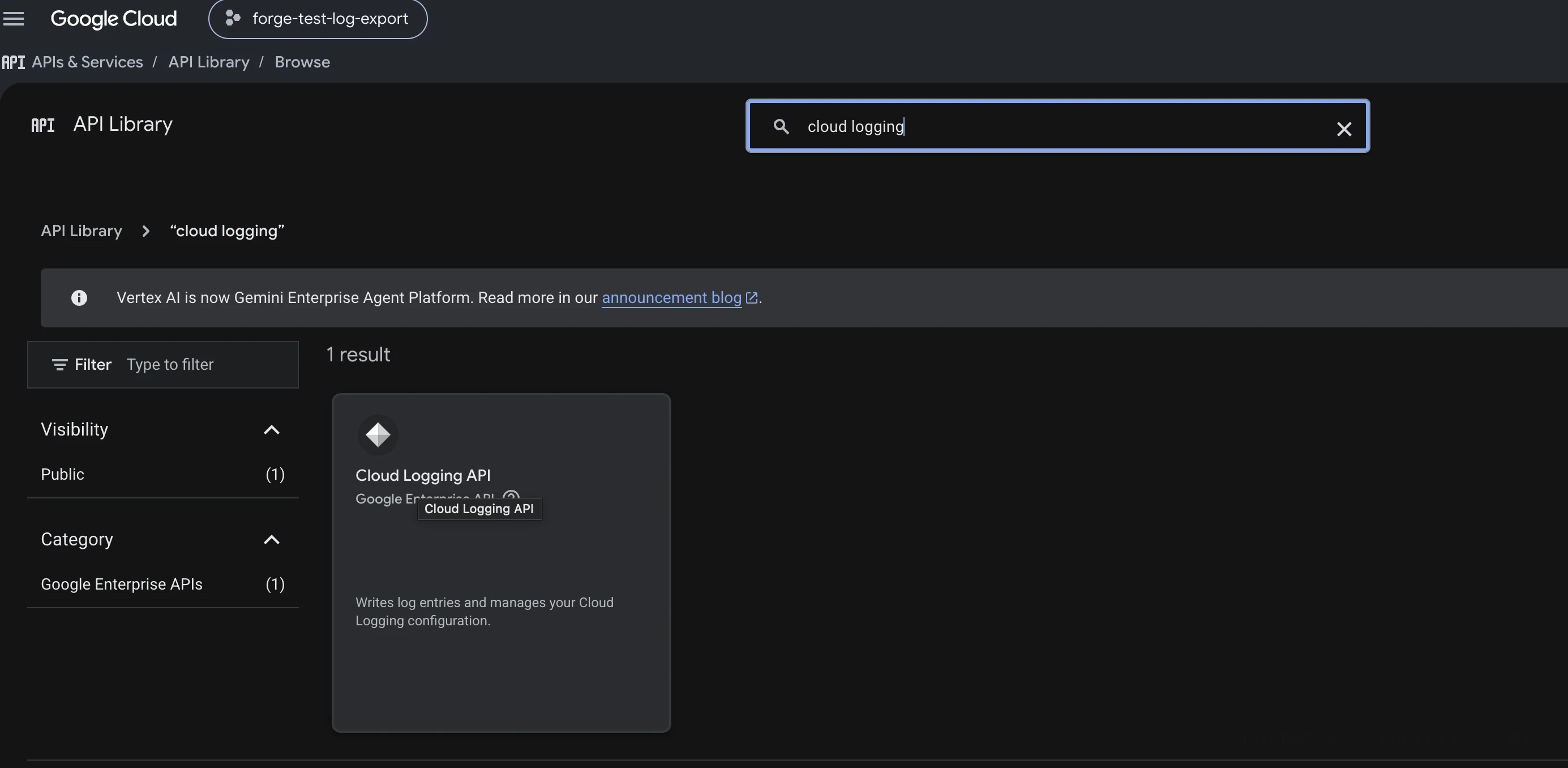
Search for Cloud Logging API and select it from the results.

-
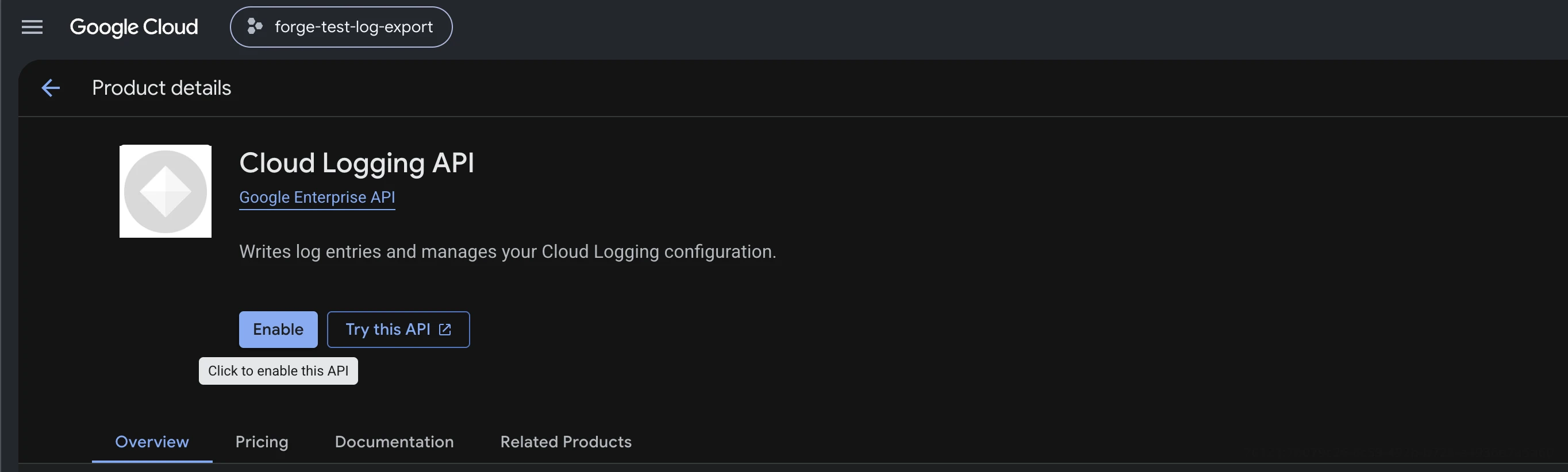
Select Enable to enable the API.
-
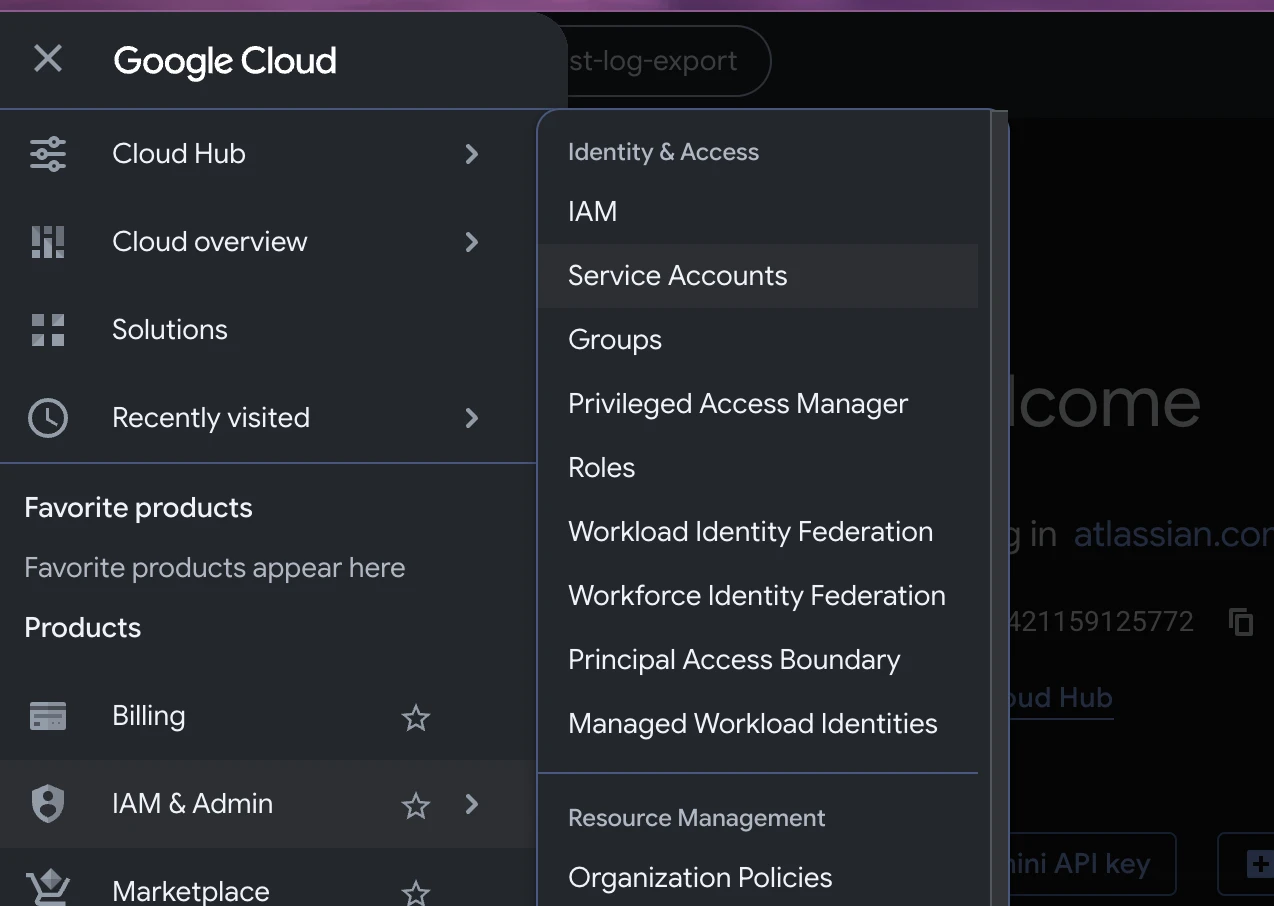
Navigate to IAM & Admin, then Service Accounts. Create a new service account with the Logs Writer role.
-
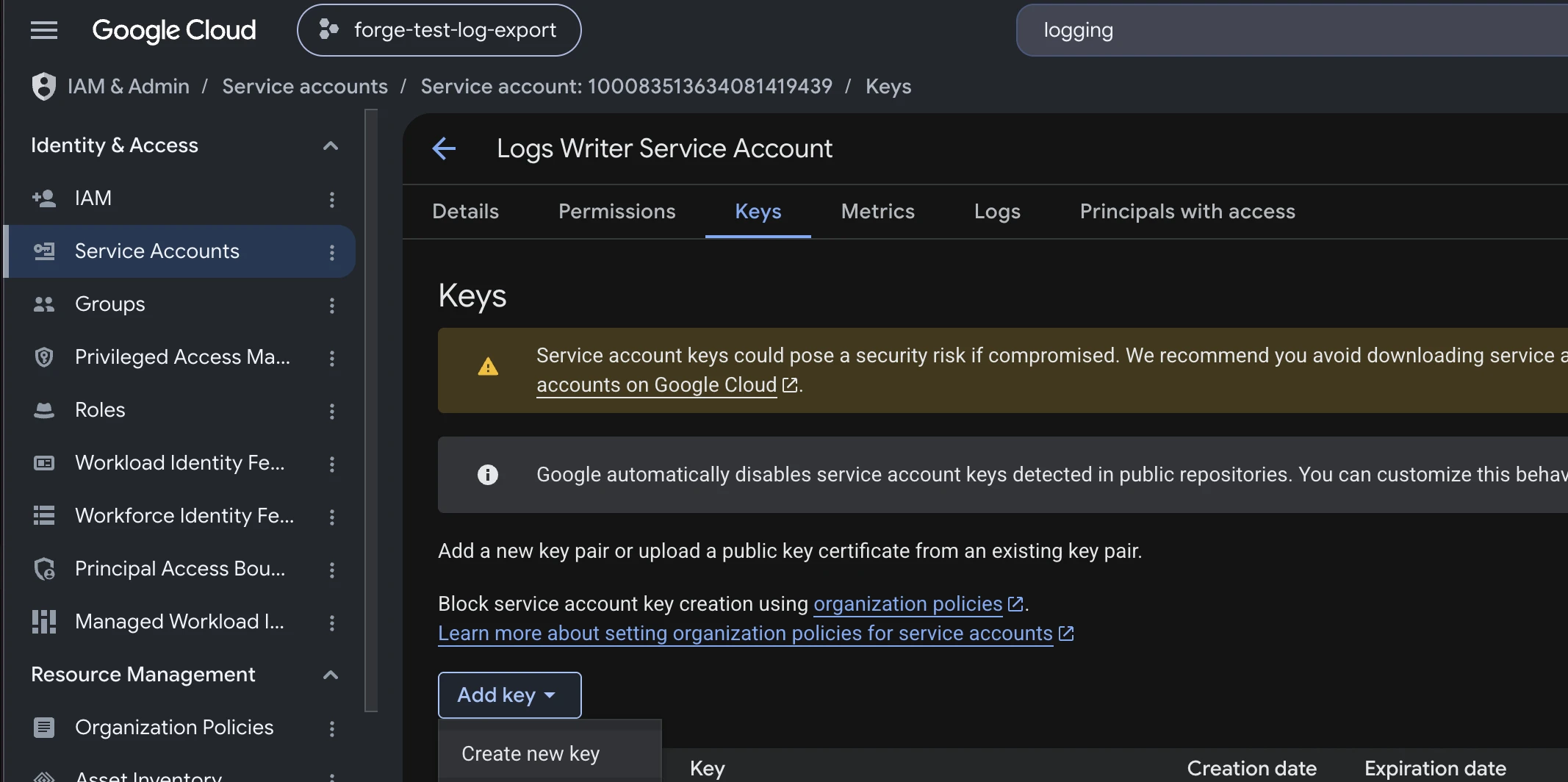
Once the service account is created, select it and navigate to the Keys tab. Select Add Key, then Create new key.
-
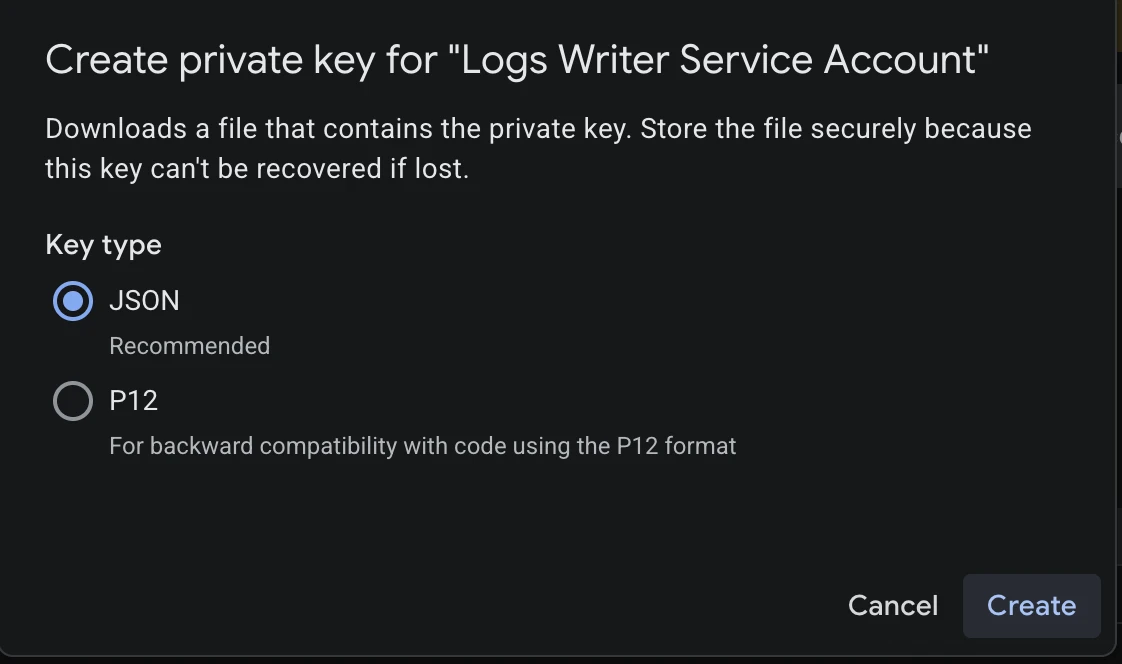
Select JSON as the key type and select Create. A JSON key file will be downloaded automatically.
-
Provide the downloaded JSON key file and your Google Cloud project ID in the EAP signup form.
Rate this page: