Overview of Developer Spaces
A Developer Space is your team’s shared space for building, managing, and billing Forge apps. It brings together your apps, team members, and billing access in one place, making it easier to collaborate, organize your portfolio, and prepare for growth.
New to Developer Spaces? This page explains Developer Spaces, why they matter, how they fit into your Forge development workflow, and how the Developer Console ties it all together.
Developer Spaces and Forge platform pricing are not currently supported for Atlassian Government Cloud or Isolated Cloud environments.
What is a Developer Space?
 A Developer Space is a container for your Forge apps, members, and access to billing. Every new Forge app must be created in a Developer Space, and existing private apps must be linked to one. Think of it as your team’s home base for app development, where you organize, collaborate, and manage all the essentials in one place.
Key benefits of using a Developer Space:
- Everything in one place: Save time and reduce confusion by managing all your apps, team members, and access to billing from a single, unified workspace.
- Seamless teamwork: Easily collaborate with your team by inviting members and assigning clear roles, so everyone knows their responsibilities and can work together efficiently.
- Simplified billing and tracking: Gain full visibility and control over app usage and costs, with all billing consolidated at the Developer Space level, making budgeting and reporting straightforward.
- Stronger security and control: Protect your work and maintain order by precisely controlling who can access, create, or manage apps, ensuring your team’s projects stay secure and organized.
Roles in Developer Spaces
Developer Spaces support several roles, independent of apps and Marketplace roles, to help you manage access and responsibilities within the space:
- Admin: Full control over the space, including managing members, apps, and settings.
- Developer: Can create and assign apps in the space, but can't access billing.
- Viewer: Can view apps and members in the space, but can't make changes.
Some billing and marketplace administration for your Developer Space is managed outside the space itself.
For more details on all roles and permissions, see Manage roles in Developer spaces.
What is the Developer Console?
The Developer Console is your central workspace for building, managing, and monitoring apps and Developer Spaces. All Developer Space actions, such as creating spaces, assigning apps, managing team members, and accessing billing, are performed here.
In the Developer Console, you can:
- View and manage all your Forge apps, Developer Spaces, and team members from a single dashboard.
- Create and assign between spaces, monitor usage, and access to manage billing.
- Add or remove members and assign roles for your Developer Spaces.
- Access logs, alerts, and usage metrics for your apps.
Every Developer Space exists within the Developer Console. You must use the console to create, manage, or assign apps to a Developer Space.
How to access the Developer Console
- Go to https://developer.atlassian.com/.
- Select your profile icon in the top-right corner.
- From the menu, select Developer Console.
Once inside, you’ll see all your apps and Developer Spaces (if you have created any), along with options to create new spaces, manage team members, and view billing and usage information.
Selecting and switching Developer Spaces
When you first open the Developer Console, no Developer Space is selected by default. You will see a list of all apps you have access to across all spaces. This gives you a complete overview of your app portfolio.
To focus on a specific Developer Space, use the space switcher at the top left of the Developer Console. This menu lists all Developer Spaces you can access. Select a space to filter the app view to only those apps assigned to that space.
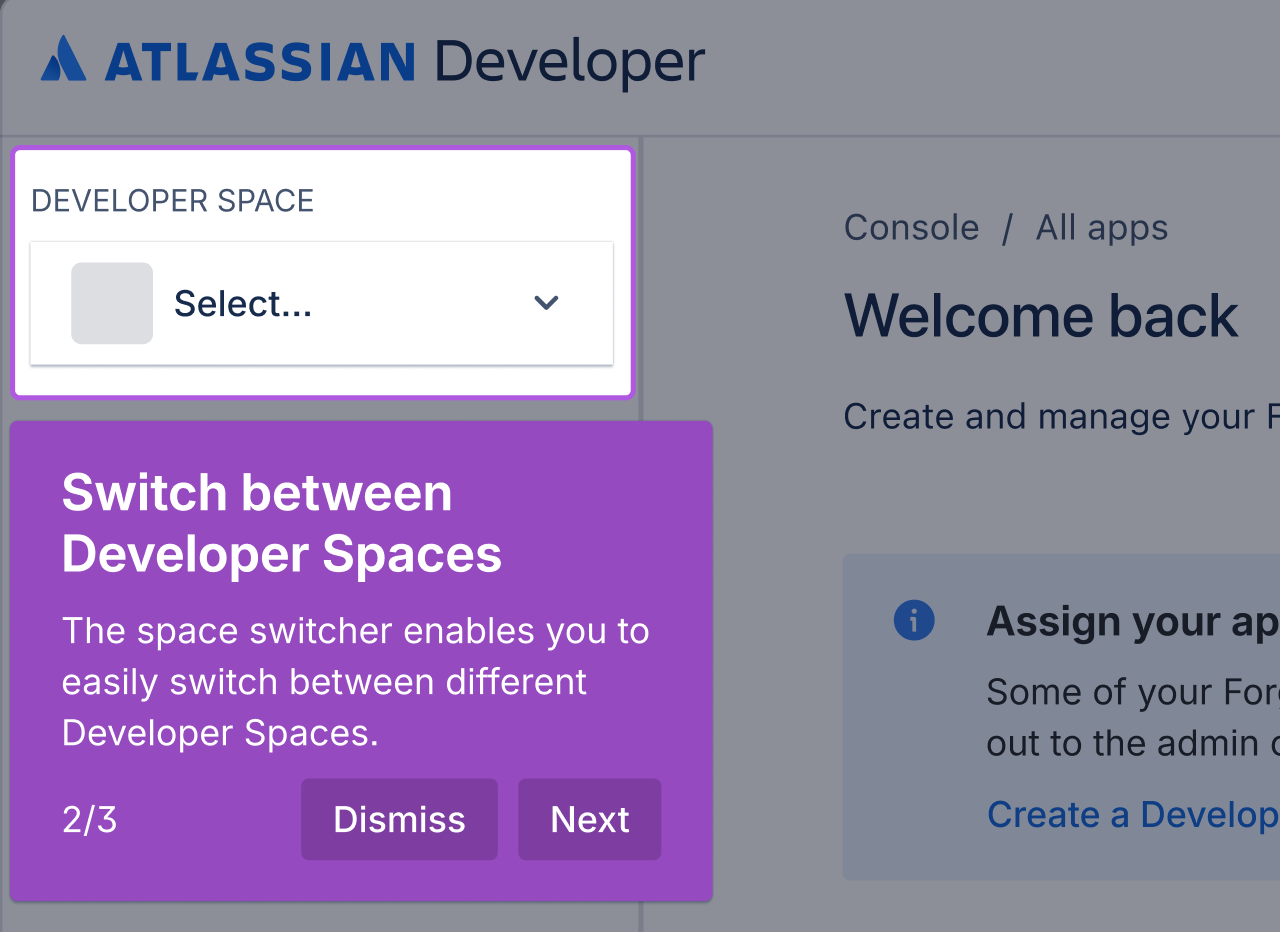
When a Developer Space is selected:
- The app list updates to show only the apps in that space.
- If you are a member of that space, you gain access to that space’s settings, team management, and billing details.
- All actions you take, such as creating apps or managing team members, will apply to the selected Developer Space.
Use the space switcher to quickly move between personal, team, or organizational Developer Spaces without leaving the Developer Console interface. This helps you stay organized and ensures you’re always working in the right context.
Next steps
Rate this page: